
The highest-impact Android security steps are the ones people skip because they sound boring. Keep the OS updated, use a password manager with unique passwords, turn on two-factor authentication using an authenticator app rather than SMS, and check what your installed apps can actually access. Android’s own on-device scanner, Google Play Protect, is already running in the background and covers most of what a third-party antivirus app would add. The rest below fills in the specifics.
1. Keep the OS and your apps updated
Security patches close specific, publicly known vulnerabilities. An unpatched phone is not vaguely less safe, it is missing a fix for a hole that is now documented and easier to exploit precisely because the patch describes what it fixes. Set both system and app updates to automatic where your data plan allows it.
2. Use a password manager, not a memorable pattern
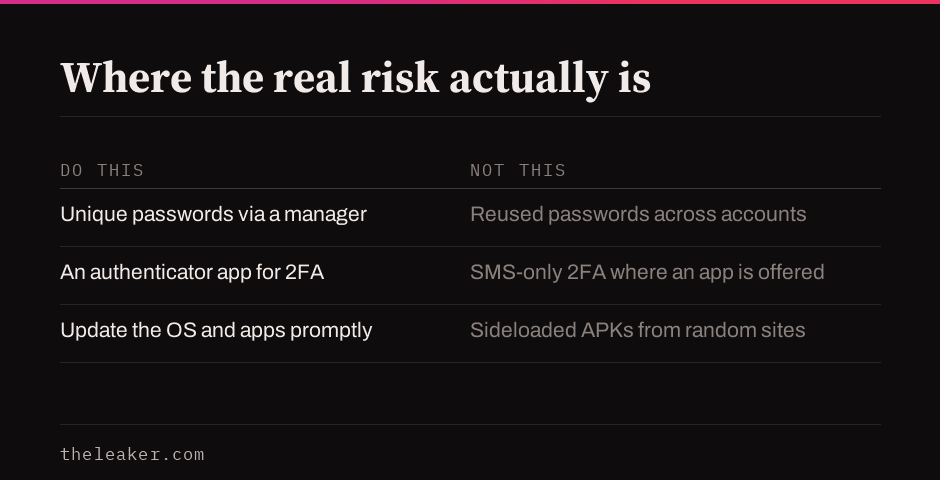
A unique, random password per account matters more than a clever, memorable one, because the real threat is a breach at one service getting reused against your accounts everywhere else. A password manager generates and stores these so you never have to remember them. Do not change a strong, unique password on a fixed schedule just for the sake of it. NIST’s current digital identity guidelines state that services “shall not require subscribers to change passwords periodically,” reserving a forced change for actual evidence of compromise, and Microsoft’s own guidance agrees, warning that rotation rules just push people toward weaker, more predictable passwords. Change a password when you have a real reason, such as a breach notice, not on a calendar.
3. Turn on two-factor authentication, and pick the stronger option
Two-factor authentication blocks most account takeovers even when a password leaks. Where you have a choice, an authenticator app is stronger than a text message code, because SMS codes can be intercepted through a SIM-swap attack, where an attacker convinces your carrier to move your number to their device. Save the backup codes each service gives you when you set this up; they are the only way back in if you lose the device running your authenticator. Where a service offers a passkey instead of a password entirely, our passkeys explainer covers how that works and why it is a step up even from a password plus 2FA.
4. Review app permissions, not just at install time
An app’s need for a permission can change as it updates, and permissions granted months ago are easy to forget. Open Settings, then Privacy, then Permission manager, and go through camera, microphone, location and contacts specifically, since these are the four permissions most likely to be requested by an app that does not actually need them for its stated purpose. Our full permissions audit guide walks through this screen by screen.
5. Let Play Protect do its job, and know what it does not cover
Every Android phone with Google Play services already runs Play Protect in the background, scanning installed apps against known malware signatures and checking new installs before they run. It substantially reduces the case for a separate antivirus app, most of which request broad permissions of their own and show ads. Play Protect does not, however, protect you from a phishing link, a scam message, or a malicious website, which is a browsing-behaviour problem no scanner fixes.
6. Secure the lock screen with more than a swipe
A PIN, password, pattern, or biometric lock is the barrier between a lost or stolen phone and everything on it. Biometrics are convenient but not infallible: treat a fingerprint or face unlock as your everyday method and keep a strong PIN as the fallback the phone actually falls back to when biometrics fail or are disabled.
7. Confirm device encryption is on
Modern Android phones are encrypted by default from the first setup, but it is worth confirming under Settings, Security, Encryption if you are on an older or budget device. Encryption is what makes the data unreadable without your PIN or password, even if someone removes the storage chip entirely.
8. Back up before you need to, not after
A backup only helps if it already existed before the phone was lost, broken, or wiped. Google’s built-in backup covers app data and settings; confirm it is actually running under Settings, Google, Backup, rather than assuming it is.
9. Treat public Wi-Fi as untrusted by default
Most everyday browsing is already protected by HTTPS even on an open network, but avoid logging into anything financially sensitive on public Wi-Fi specifically, and consider a VPN if you frequently need to.
10. Install from the Play Store, and treat sideloading as an exception
Google reviews apps before they reach the Play Store, which is not a perfect filter but is a real one. An APK downloaded from a random site has had no such review, and enabling install-from-unknown-sources to sideload one should be a deliberate, occasional choice, not a habit.

I am the chief editor of TheLeaker. I also maintain the backend stuff of the site. I’m a tech enthusiast and loves to do Python coding in my free time. I have worked at many giant publications like XDA Developers and NXTtech before starting TheLeaker.
You can get in touch with me at Garv[at]theleaker.com.