

You installed a photo editor two years ago. It asked for your contacts. You tapped Allow because the dialog was in the way. That permission is still active, and you’ve never thought about it since.
Most people’s phones are like this: a slow pile-up of yeses given to apps they barely open anymore. Android app permissions rarely get revisited once granted, but the good news is Android already tracks all of it for you, and cleaning it up takes about ten minutes.
The quick answer: Open Settings → Security & privacy → Privacy → Permission manager on a Pixel, or Settings → Security and privacy → Permission manager on Samsung. You’ll see permissions grouped by type (Camera, Microphone, Location, Contacts, Files) with a count of how many apps have each one. Work through the sensitive ones first: Location, Microphone, Camera, Files and media, and anything labelled “Nearby devices”. For each app, ask whether the feature actually needs it, and downgrade rather than delete where you can: “Allow only while using the app” and “Ask every time” are almost always enough. Then check the Privacy dashboard to see what’s been accessed in the last 24 hours, and turn on automatic permission removal for unused apps. Nothing here breaks your phone, and everything is reversible.
Here’s the full walkthrough, plus the permissions worth being genuinely suspicious about.
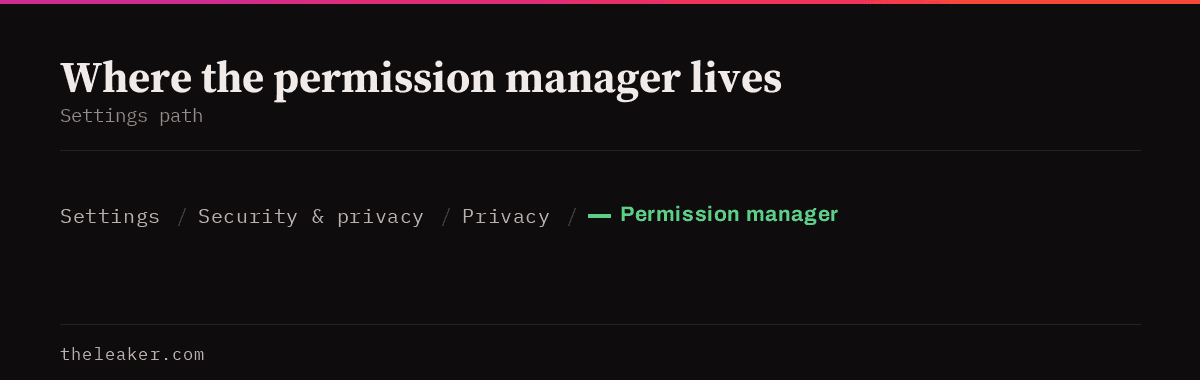
Where the permission manager lives on your phone
The menu name shifts a little by brand, but the screen is the same underneath.
Pixel: Settings → Security & privacy → Privacy → Permission manager.
Samsung (One UI): Settings → Security and privacy → Permission manager. Samsung also puts a Privacy dashboard shortcut on that same Security and privacy page.
Xiaomi (HyperOS): Settings → Privacy protection → Permission manager, with a separate “Special permissions” section that’s worth a look. Xiaomi also has its own Authorisation management area that duplicates some of this. The Android permission manager is the one that matters.
If you can’t find it, just pull down and search “permission” in the Settings search bar. Every brand surfaces it that way.
You can also come at it from the other direction. Long-press any app icon → App info → Permissions shows you everything one app holds. That’s the faster route when you’re suspicious about one specific app rather than doing a full sweep.
The four permission states, and which one to pick
Android hasn’t been a simple yes/no system for years. Depending on the permission you’ll see some mix of:
- Allow all the time. The app can use it even in the background. Location only.
- Allow only while using the app: access stops when you leave the app. This is the right default for almost everything.
- Ask every time. A one-off grant that expires when you close the app. Great for apps you use twice a year.
- Don’t allow: off.
For Location you also get a Use precise location toggle. Turn that off and the app gets an approximate area instead of your exact coordinates. Weather apps, news apps, and most shopping apps work perfectly fine on approximate. Maps and ride-hailing need precise.
The general rule: default to “while using the app”, and reserve “all the time” for the handful of apps where background access is the whole point. A fitness tracker recording a run with the screen off, or a find-my-phone tool.
The permissions to audit first
Location
The biggest one, and the one most over-granted. Open Location in the permission manager and you’ll see apps sorted into “Allowed all the time”, “Allowed only while in use”, and “Not allowed”. Anything in that first bucket needs to justify itself. A retail app, a social app, or a game with all-the-time location is collecting a movement history it doesn’t need.
Microphone and Camera
Short lists are healthy lists. If an app that has no camera feature holds camera access, revoke it. Android shows a small green dot in the top-right of the status bar whenever the mic or camera is live, if you ever see that dot when you’re not on a call or shooting, pull down the notification shade and tap it. It names the app using the sensor right then.
Files and media / Photos and videos
Newer Android versions split this into “Allow access to all files”, “Allow access to selected photos and videos”, and “Don’t allow”. Selected access is the underrated option. You pick specific photos each time and the app never sees your full gallery. Most editors, scanners, and chat apps work fine with it.
Nearby devices
This one shows up in the suggestion lists a lot because people don’t know what it is. It replaced the old workaround where apps asked for Location just to scan for Bluetooth accessories. Legitimate uses: headphone companion apps, smartwatch apps, smart home apps, file-sharing tools. If a random app has it, revoke.
The “special access” list
Below the standard permissions there’s a separate tier that grants far more power. Look under Settings → Apps → Special app access (Samsung: Settings → Apps → the three-dot menu → Special access). The ones worth checking:
- Display over other apps: lets an app draw on top of anything else on screen.
- Accessibility. The most powerful permission on Android. An accessibility service can read screen content and act on your behalf. Only genuine accessibility tools, password managers, and automation apps you deliberately set up should be in here. If you see something you don’t recognise, that’s the first thing to investigate.
- Notification access: lets an app read the contents of every notification you get.
- Usage access: lets an app see which apps you open and for how long.
- Install unknown apps: should be off for everything except, temporarily, a store you deliberately use.
These four or five are where real damage happens, and none of them appear in the standard permission manager list. Most people never open this screen.
Use the Privacy dashboard to catch the sneaky stuff
The permission manager tells you what an app can do. The Privacy dashboard tells you what it did.
Find it at Settings → Security & privacy → Privacy → Privacy dashboard (Samsung: Settings → Security and privacy → Privacy dashboard). You get a 24-hour timeline of every access to Location, Camera, and Microphone, with timestamps and app names. Tap any permission for the detailed log.
This is the tool that actually settles arguments. If you suspect an app is listening, check the mic timeline. If it hasn’t touched the microphone, it isn’t listening. If an app you never opened accessed location at 3am, now you know.
Two useful controls sit right nearby: Camera access and Microphone access master switches, which kill those sensors system-wide for all apps at once. Handy in a meeting, though you’ll want to remember you turned them off before your next video call.
Turn on automatic cleanup so this stays fixed
Android can revoke permissions from apps you’ve stopped using. It’s on by default for newly installed apps, but older ones on your phone may have it switched off.
Go to App info for an app → scroll down → toggle Pause app activity if unused (older versions call it “Remove permissions if app isn’t used”). When an app sits unopened for a few months, Android strips its permissions, stops its notifications, and clears temporary files. Open the app again and it just re-asks.
Samsung has an extra layer here too. Settings → Security and privacy → More privacy settings includes controls for Samsung’s own data collection: Customisation Service and diagnostic data. Worth a pass while you’re in there.
What to do when an app breaks after you revoke something
It happens. You turn off a permission, a feature stops working, and the app either shows an error or silently does nothing.
Don’t guess. Go back into that app’s Permissions screen: Android splits it into “Allowed” and “Not allowed” so you can see at a glance what you changed. Grant back the one the broken feature needs, at the lowest level that works. Try “Ask every time” before “Allow”.
Apps that refuse to launch at all without a permission that has nothing to do with their core function are a red flag on their own. A flashlight app that won’t open without contacts access has told you what its business model is.
One more thing worth doing while you’re in Settings: a permissions audit pairs well with a general tune-up. Some of the hidden Android settings that speed up your phone live one menu over from this stuff, and background-running apps are usually the same apps hoarding permissions.
A ten-minute routine you can repeat
- Open the Privacy dashboard. Look at the last 24 hours for anything surprising.
- Open Permission manager. Work down Location, Camera, Microphone, Nearby devices, Files and media, Contacts, Call logs, SMS.
- In each, move anything from “all the time” to “while using” unless there’s a clear reason.
- Check Special app access: especially Accessibility and Notification access.
- Uninstall anything you haven’t opened in six months. Fastest permission fix there is.
Do it twice a year. After the first pass it takes five minutes.
Frequently asked questions
Why are some app permissions greyed out?
Usually because the app is a system or carrier app that Android won’t let you fully strip, or because a device admin profile (a work profile, or a parental control setup) is enforcing it. It can also happen when an accessibility service is active: Android blocks permission changes while certain overlays are on screen, so close any app drawing over the display and try again. On a work phone, the IT policy wins and you can’t override it locally.
Does revoking permissions stop apps from tracking me?
Partly. It stops them reading the sensors and data you cut off, which is real. It doesn’t stop them logging what you do inside the app, or reading your advertising ID. Turn that off separately at Settings → Security & privacy → Privacy → Ads → Delete advertising ID. That’s the single highest-value privacy toggle on Android and it takes five seconds.
What does “Nearby devices” permission actually do?
It lets an app find, connect to, and figure out the relative position of Bluetooth and Wi-Fi devices around you without needing full Location access. Before it existed, a headphone app had to ask for Location just to pair. So it’s usually a privacy improvement, but only apps with a real accessory or sharing feature should hold it.
Do permissions come back after a system update?
No. Permission grants survive updates. What can change is the shape of the permission itself: Android occasionally splits one permission into several, and when that happens the system maps your old choice onto the new options as conservatively as it can. It’s still worth a quick pass through the permission manager after a major version upgrade, especially for Files and media and Notifications, which have both been reworked in recent releases.

A tech Journalist and Photographer, Dhawal Sharma is a technology enthusiast who loves to research the latest innovations and technology. He has contributed to the Honor Community for a very long period and has crucial expertise in writing tech news and reviewing smartphones and laptops. Analyzing and bringing the facts about any piece of tech is what he loves the most. He is a great product photographer and is the Gizmopedia of TheLeaker. Find him on Facebook and Instagram, and you can also email him at [email protected].