

You know the drill. It’s the 24th of the month, you get the “you’ve used 90% of your data” text, and suddenly you’re rationing Google Maps like it’s wartime. Then the cycle resets and you do it all over again.
Here’s the thing: most phones ship with settings that quietly burn through data in the background, and most people never touch them. You don’t need to use your phone less to reduce mobile data usage on Android. You just need to stop it being wasteful.
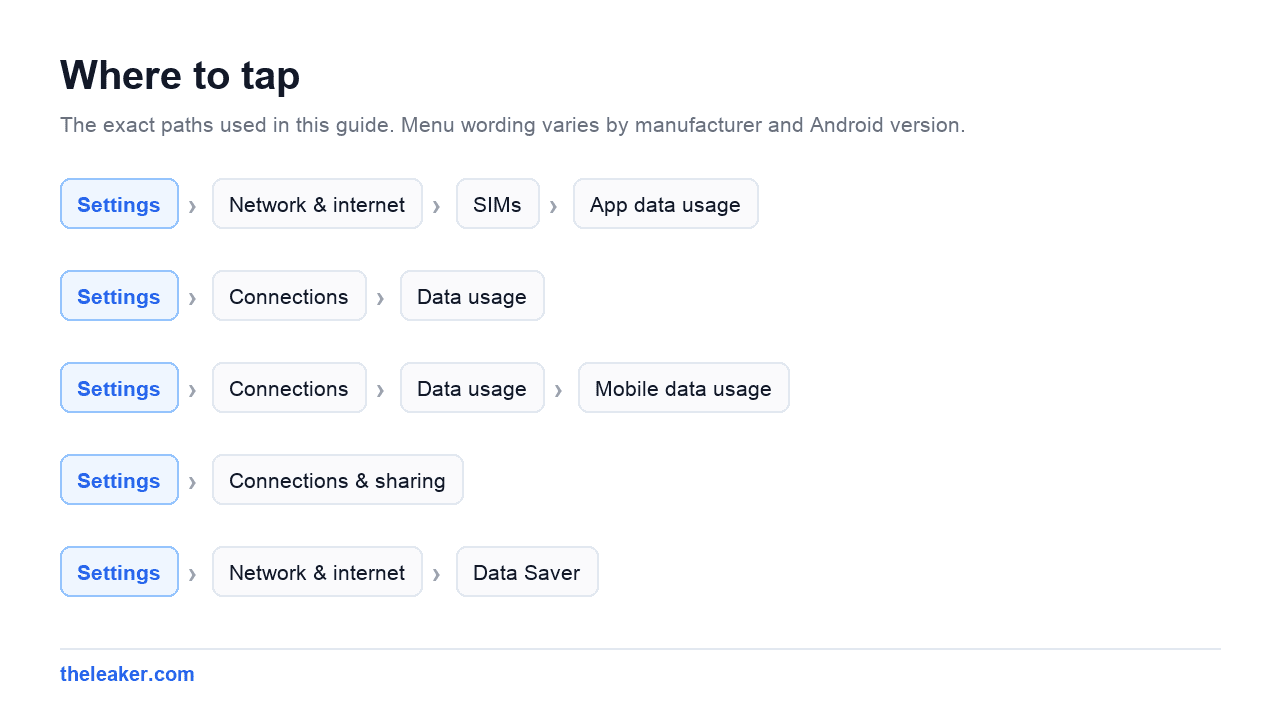
The quick answer: Start by finding out what’s actually eating your data: go to Settings > Network & internet > SIMs > App data usage (or Settings > Connections > Data usage on Samsung) and sort by the current billing cycle. The usual suspects are video apps streaming at full resolution, social apps autoplaying video, photo backup running over mobile data, and app updates downloading off Wi-Fi. Turn on Android’s built-in Data Saver, which blocks background data for most apps at once, then fix the big offenders individually: force Google Photos backup to Wi-Fi only, set YouTube and streaming apps to a lower mobile quality, disable autoplay in Instagram, Facebook, and X, and make the Play Store update apps over Wi-Fi only. Set a data limit and warning so you get told at 75%, not 95%. Ten minutes of setup usually cuts mobile data use by half.
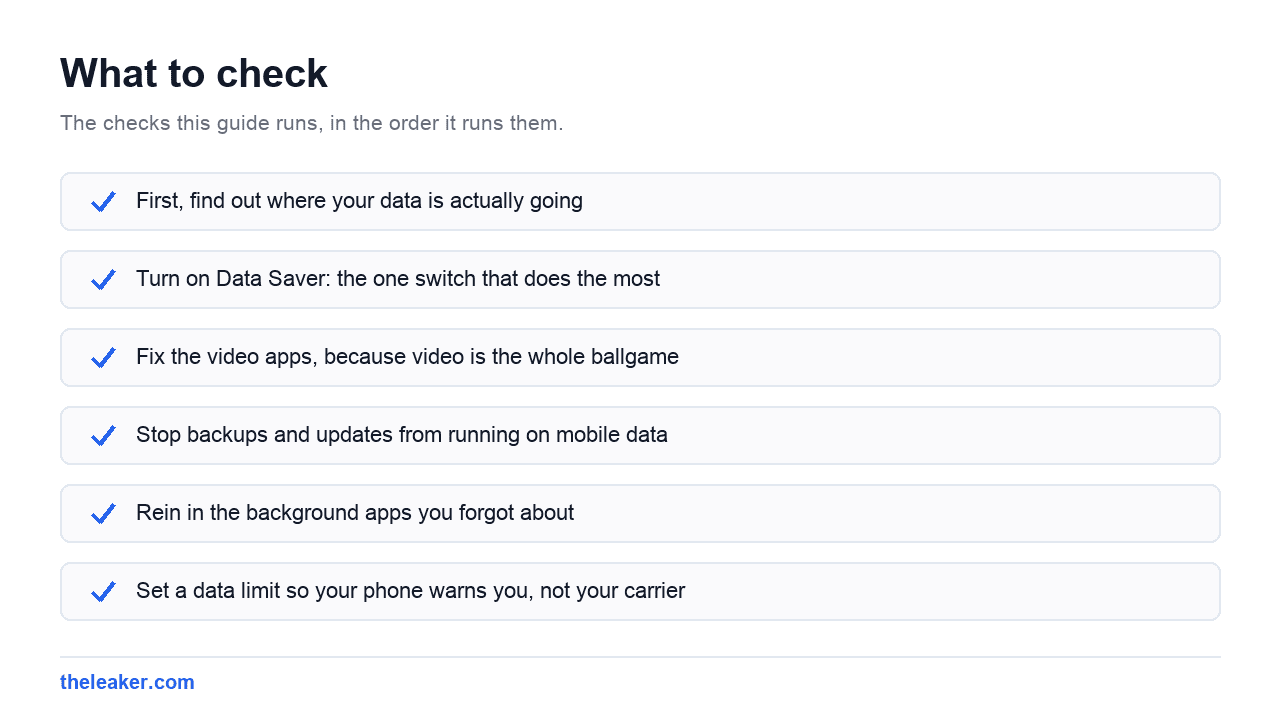
First, find out where your data is actually going
Don’t guess. Android keeps a per-app tally, and it’s the single most useful screen for this entire problem.
On stock Android (Pixel, Motorola, and similar), go to Settings > Network & internet > SIMs, tap your SIM, then App data usage. On Samsung it’s Settings > Connections > Data usage > Mobile data usage. On Xiaomi phones, look under Settings > Connections & sharing or use the Security app’s data tracker.
Make sure the date range matches your billing cycle. You can set the cycle start day so the graph resets when your plan does. Now look at the top five apps. In almost every case, the list is dominated by one or two of these:
- YouTube, Netflix, or another video app: video is the heaviest thing your phone does, full stop
- Instagram, TikTok, Facebook, or X: social feeds are video apps in disguise now
- Google Photos, if backup is allowed on mobile data, one weekend of photos can eat gigabytes
- Google Play Store: app updates are big, and some phones allow them over mobile data by default
- Spotify or another music app: streaming at high quality without downloads
Each app in this list also shows a split between foreground and background use. Foreground is data used while you were actively in the app. Background is the app helping itself while your phone sat in your pocket. Background use on an app you rarely open is the easiest win there is.
Turn on Data Saver: the one switch that does the most
Android has had a system-wide Data Saver mode for years, and it’s genuinely effective. When it’s on, apps in the background can’t use mobile data at all, and apps in the foreground are told to use less: many apps respond by loading lower-resolution images and pausing prefetching.
You’ll find it at Settings > Network & internet > Data Saver on stock Android, or Settings > Connections > Data usage > Data saver on Samsung. Flip it on.
The catch: with background data blocked, some apps won’t fetch new messages until you open them. That’s fine for most apps and terrible for the two or three you rely on. So use the exception list: Unrestricted data, and add only your essentials: WhatsApp, your email app, maybe your bank. Everything else can wait until you open it or hit Wi-Fi.
If you only do one thing from this article, do this. It’s the closest Android gets to a “stop wasting my data” button.
Fix the video apps, because video is the whole ballgame
A rough sense of scale helps here. Music streaming uses maybe 50-150 MB an hour. Social feeds, a few hundred MB an hour if you’re scrolling video. Streaming HD video can burn through 1-3 GB an hour. Nothing else on your phone comes close.
So go into each video app and set a mobile data cap:
- YouTube: tap your profile picture > Settings > Data saving, and turn on Data Saving mode, or set video quality on mobile networks to Data saver. YouTube defaults to whatever resolution your connection can handle, which on 5G means it will happily stream at a quality your phone screen can barely show off.
- Netflix: Profile > App Settings > Cellular Data Usage > set it to Save Data instead of Automatic. Better yet, download shows on Wi-Fi before a trip.
- Instagram: Settings > Media quality (the location shifts between versions: search “data” in Instagram’s settings) and turn on the option to use less mobile data. This reins in video preloading, which Instagram does aggressively.
- TikTok: Profile > menu > Settings and privacy > Data Saver. TikTok preloads the next videos in your feed constantly. This setting is the difference between “watched 20 minutes” and “downloaded 40 minutes.”
- Spotify: Settings > Audio Quality, set cellular streaming to a lower tier, and download your regular playlists over Wi-Fi so your commute costs zero data.
Autoplay deserves its own mention. Facebook, X, and LinkedIn all autoplay video in the feed by default, meaning you pay for video you never chose to watch. Each has a setting to autoplay on Wi-Fi only or never: search “autoplay” in the app’s settings and turn it off for mobile data.
Stop backups and updates from running on mobile data
These two are the silent killers, because they don’t happen while you’re watching.
Google Photos: open the app, tap your profile picture > Photos settings > Backup > Mobile data usage, and make sure backup over mobile data is off. If you took a hundred photos and a few videos at a birthday party, that’s easily a gigabyte or two waiting to upload, and if this setting allows mobile data, it won’t wait for Wi-Fi.
Play Store: tap your profile picture > Settings > Network preferences > Auto-update apps > Over Wi-Fi only. Also set App download preference to Over Wi-Fi only, or at least Ask me every time. A single big game update can be several gigabytes.
System updates generally wait for Wi-Fi on their own, but cloud sync services like OneDrive, Dropbox, and WhatsApp’s backup all have their own Wi-Fi-only toggles worth checking. WhatsApp in particular: Settings > Storage and data > Media auto-download, and set photos, videos, and documents to Wi-Fi only. If you’re in a lot of active group chats, this one setting can matter more than everything else combined.
Rein in the background apps you forgot about
Data Saver blocks background data broadly, but you can also target individual apps, which is useful if you don’t want Data Saver on all the time.
Long-press any app icon, tap App info, then Mobile data & Wi-Fi (Samsung: Mobile data). You’ll see two useful switches: Background data, which stops the app from using mobile data when you’re not in it, and Unrestricted data usage, which exempts it from Data Saver.
Good candidates for cutting background data: shopping apps, games, news apps, airline apps you use twice a year, and anything you installed for one specific task months ago. These apps refresh feeds, sync content, and fetch ads in the background: all things you can live without until you actually open them. If your phone feels sluggish too, a lot of these same background offenders show up in our guide to hidden Android settings that speed up your phone: background restrictions help on both fronts.
While you’re at it, check for apps you can simply uninstall. An app that isn’t there uses no data at all, and it’s remarkable how often the background-data leaderboard is topped by something you forgot you had.
Set a data limit so your phone warns you, not your carrier
Android can track your usage against your actual plan and cut you off before overage charges kick in. Go to Settings > Network & internet > SIMs > Data warning & limit (Samsung: Settings > Connections > Data usage > Billing cycle and data warning).
Set three things: the billing cycle start date so the counter matches your plan, a data warning at around 75% of your allowance, and a data limit slightly under your real cap. When you hit the limit, Android turns mobile data off entirely until you re-enable it. It’s blunt, but it turns a surprise charge into a conscious choice.
One note: your phone’s counter and your carrier’s counter never match exactly. The carrier’s number is the one you’re billed on, so set your limit with a little buffer, if your plan is 5 GB, limit at 4.5.
A few habits that cost nothing
- Download before you leave. Maps areas, playlists, podcasts, and shows all download over Wi-Fi in minutes and make your commute free.
- Use Wi-Fi you trust when it’s there. Home, work, and other networks you already know: every gigabyte on Wi-Fi is a gigabyte off your plan.
- Watch the hotspot. Sharing your connection with a laptop is the fastest way to torch a data plan, because laptops assume they’re on unlimited home broadband and start downloading updates. If you tether often, that deserves its own setup.
- Check your browser. Chrome’s data-friendly behavior varies by version, but keeping tabs synced and preloading pages costs data. In Chrome, Settings > Preload pages: set it to standard or off.
Frequently asked questions
Does Data Saver make my phone slower?
Not meaningfully. Foreground apps still work normally. They’re just asked to be less wasteful, so images may load at slightly lower resolution. The main side effect is delayed notifications from apps you haven’t exempted, which is why the unrestricted-data exception list exists.
Why does my data disappear even when I’m not using my phone?
Background activity: photo backups, app refreshes, email sync, ad fetching, and preloading. Check the per-app breakdown and look at the background portion specifically. Data Saver or per-app background data restrictions fix this directly.
Is 5G using more of my data than 4G did?
The network itself doesn’t bill differently. A megabyte is a megabyte. But 5G’s speed changes app behavior: streaming apps detect the fast connection and serve higher-quality video, so you consume more per minute. Capping in-app quality on mobile networks neutralizes this.
How much data does normal use actually need?
With the settings above, light use (messaging, email, maps, some browsing) fits comfortably in 2-3 GB a month. Add social media scrolling and you’re at 5-8 GB. Regular video streaming on mobile data is what pushes people past 15 GB, which is why the video-app settings are where the real savings live.

Hello, folks, my name is Akshay, and from the beginning, I like to play with the latest phones, gaming consoles, PCs, Laptops’s and whatnot. When I get spare time, I like to do Photography, and you will always find me playing with Photoshop, Lightroom, Premiere Pro, etc. In Love with Gadgets, my gear Motorola Moto G5 Plus. You can contact him on akshaydua[@]theleaker.com.