
The accessibility menu is the least-visited screen in Android settings and easily the most useful. Some of the best features Google ships are parked in there: real-time captions, a hardware-grade magnifier, a screen dimmer that goes darker than the brightness slider allows. None of it is reserved for anyone.
The quick answer: Open Settings → Accessibility and try five things. Extra dim takes the screen below its normal minimum, which is the fix for reading in bed. Magnification zooms into any part of any app, including ones that block pinch-to-zoom. Live Caption captions any audio playing on your phone, on device, with no internet needed: perfect for videos you can’t turn the sound up for. Colour correction and greyscale change how the screen reads at night. One-handed mode pulls the top of the screen down within thumb reach. Assign your favourite to the volume-key shortcut so it’s always two seconds away, and leave the rest off.
Extra dim: the setting that fixes reading in bed
Turn your brightness all the way down in a dark room and the screen is still too bright. That’s a hardware floor, not a preference. The panel won’t go lower.
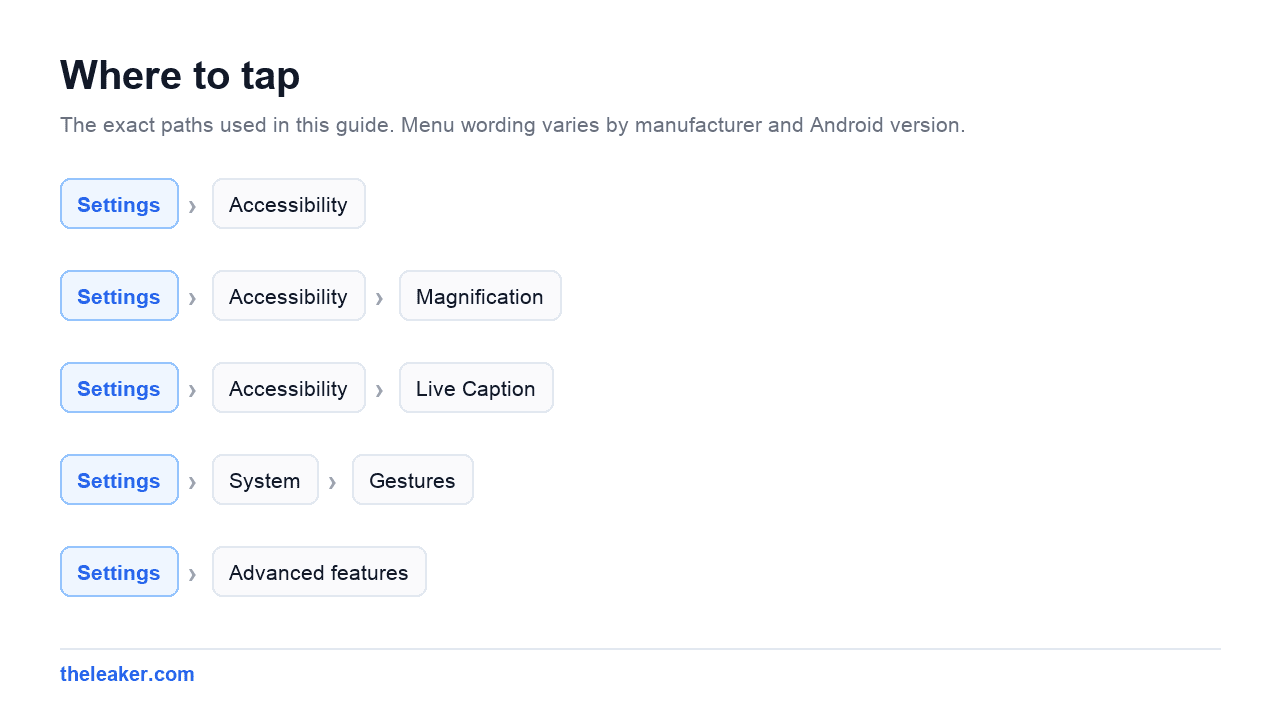
Extra dim applies a software layer on top, taking the display considerably darker than the slider alone allows. Find it under Settings → Accessibility → Extra dim. There’s an intensity slider and, usefully, an option to keep it on after the device restarts.
Add it as a Quick Settings tile so it’s one swipe away, or assign it to the accessibility shortcut. Pair it with the night-time colour shift and greyscale and you have a genuinely comfortable late-night reading setup that doesn’t leave you blinking at the ceiling afterwards.
Samsung has its own equivalent: look for the extra dimming option in the display or accessibility menus, sometimes labelled around “extra dimness”. Xiaomi ships something similar. The name varies; the effect doesn’t.
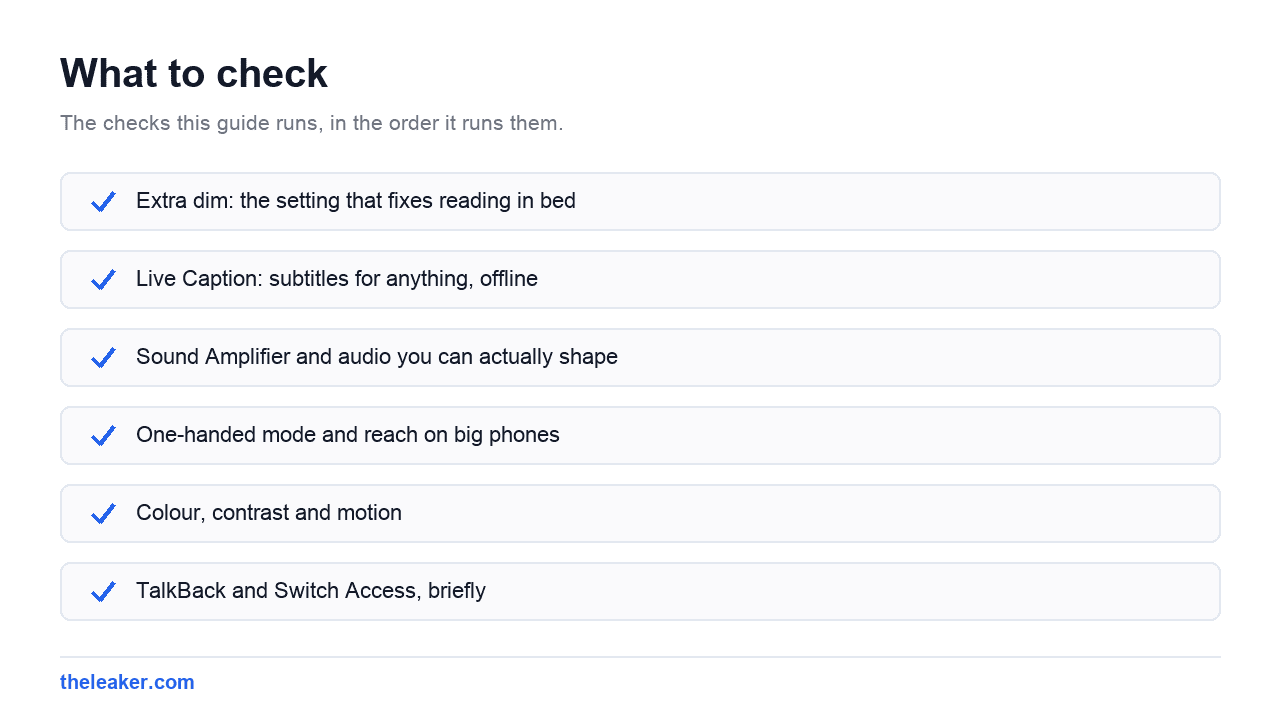
Magnification is better than pinch-to-zoom, and works everywhere
Magnification lets you zoom into any part of the screen in any app: including apps that don’t support pinch-to-zoom at all. Menus, buttons, badly rendered PDFs, the tiny print in a photo of a document, a map legend, a serial number on a product page.
Set it up under Settings → Accessibility → Magnification. You choose how it’s triggered. A shortcut button that floats on screen, a three-second hold on both volume keys, or a triple tap of the screen. Then pick between full-screen magnification and a moveable window, which behaves like a magnifying glass you drag around.
The window mode is the one people underuse. It keeps the rest of the screen at normal size while you inspect one detail, which is far more practical than zooming the whole interface and losing your place.
One caveat: triple-tap-to-zoom conflicts with apps that use triple taps for something else, and it adds a slight delay to double taps everywhere. If typing feels laggy after you enable it, that’s why: switch to the shortcut button or the volume keys instead.
Live Caption: subtitles for anything, offline
Live Caption generates captions for any audio playing on your phone. Videos, podcasts, voice notes, a clip someone sent you, audio in an app that never bothered with subtitles. It runs on the device, so it works with no connection and the audio doesn’t leave the phone.
The obvious use case is hearing loss. The everyday use case is a train carriage, a waiting room, a meeting, a sleeping baby in the next room, or a video where the audio is muffled and you want to know what was said.
Turn it on at Settings → Accessibility → Live Caption. Once enabled, a caption button appears in the volume panel: press a volume key and you’ll see it. Tap to toggle captions on for whatever’s currently playing.
Availability depends on language, device and Android version, and it leans on the Android System Intelligence component, so it’s not on every phone. Some Pixel builds add live translation of captions. Accuracy on clear speech is good; on heavy accents, overlapping speakers or music it degrades, as you’d expect from any on-device model.
Its sibling, Live Transcribe, does the same for the world around you using the microphone rather than the phone’s audio output. It’s a separate app and it’s the one you want for a conversation in a noisy room.
Sound Amplifier and audio you can actually shape
Sound Amplifier uses wired or Bluetooth headphones to boost and filter the sound reaching you: either from the phone’s microphone (amplifying the room) or from media playing on the device. You can raise quiet sounds, cut background noise, and adjust the balance between left and right.
It’s designed for mild hearing difficulty, and it’s excellent for that. It’s also genuinely useful in a lecture hall, a noisy café where you’re trying to follow one person, or a video with dialogue mixed far too low against the music.
While you’re in the audio section of Accessibility, two more toggles are worth knowing. Mono audio combines both stereo channels into one. The fix for using a single earbud and missing half the podcast. Audio balance shifts the left-right mix, which helps if one earbud is quieter or one ear is.
One-handed mode and reach on big phones
Phones got tall and thumbs didn’t. One-handed mode shrinks or slides the display down so the top of the screen comes within reach.
On stock Android it’s under Settings → System → Gestures → One-handed mode, and you choose between pulling the screen down to reach notifications or shrinking the whole interface. On Samsung it’s in Settings → Advanced features, triggered by a swipe down at the centre of the bottom edge or a double tap of the home button, depending on your navigation setting. Xiaomi, OnePlus, Motorola and others all ship a version.
The swipe-down trigger is the better one. A gesture at the bottom edge is exactly where your thumb already is, and it never gets in the way of anything else.
Colour, contrast and motion
A cluster of display settings live in Accessibility rather than Display, and they’re worth a look even if your vision is fine.
Colour correction adjusts the display for different types of colour blindness: deuteranomaly, protanomaly, tritanomaly. On many builds it also includes a greyscale option, which is the single most effective anti-doomscroll setting on the phone. Assign greyscale to a shortcut and you can drain the colour out of your feeds on demand.
Colour inversion flips light and dark. It’s crude next to a proper dark theme, but it’s the only way to darken apps that stubbornly refuse to offer one.
Remove animations cuts transition effects. It’s there for motion sensitivity, and it also makes an older phone feel faster because you’re no longer watching a third of a second of animation before every screen appears. If a snappier phone is what you’re after, that setting plus the ones in our hidden Android settings guide will do more than any cleaner app.
High contrast text and bold text sharpen readability without blowing up every layout the way a large font scale does.
TalkBack and Switch Access, briefly
These two are proper assistive technologies rather than conveniences, and they’re worth understanding even if you never rely on them.
TalkBack is Android’s screen reader. It speaks what’s on screen and changes how touch works: a single tap selects and announces an item, a double tap activates it, and swipes move between elements. That gesture change is what catches people out when they enable it by accident. The way out is to hold both volume keys for three seconds, or to tap-tap-double-tap through to the setting.
Worth trying deliberately for ten minutes if you build apps or websites. Nothing teaches you what an unlabelled button costs someone quite like navigating your own interface without looking.
Switch Access lets the phone be controlled by one or two external switches (buttons, a keyboard key, sometimes a head movement) instead of the touchscreen. The system scans through on-screen items and the switch selects. It’s the feature that makes Android usable for people with significant motor impairments, and it’s remarkably well built.
Select to Speak sits between the two: tap the shortcut, then tap any text and the phone reads it aloud. Good for long articles when your eyes are tired, and for proofreading, where hearing a sentence catches errors reading it doesn’t.
The Accessibility Menu, and the shortcut that ties it together
The Accessibility Menu puts a large on-screen panel with power, volume, screenshot, brightness, lock and recent apps controls behind a single button. It’s built for people who can’t press physical buttons, and it’s the immediate workaround when a power or volume key physically fails on an out-of-warranty phone.
Whatever you end up using, put it behind a shortcut. Most accessibility features offer three trigger options: a floating button, a three-second hold of both volume keys, or a swipe gesture. The volume-key hold generally holds one feature at a time, so assign it to the one you’ll want at odd moments, magnification and Extra dim are the usual winners, and give anything else a Quick Settings tile.
Then leave the rest switched off. Enabling ten accessibility services at once produces conflicting gestures and a phone that feels broken. Pick two or three, live with them for a week, and add more only when you actually miss something.
Do accessibility features slow the phone down or drain the battery?
Most are negligible. Extra dim and colour correction are near-free. Live Caption and Sound Amplifier run models continuously while active, so they use more power: turn them off when you’re done. Removing animations, ironically, tends to make the phone feel faster rather than slower.
I turned on TalkBack by accident and can’t use my phone. Help.
Press and hold both volume keys for about three seconds. That toggles it off on most phones. If that doesn’t work, remember TalkBack’s rules: single tap to select, double tap to activate. Use that to navigate to Settings, then Accessibility, then TalkBack, and switch it off.
Why is Live Caption missing on my phone?
It depends on the device, the Android version, the language you’re using and the presence of Android System Intelligence. It’s most reliable on Pixel and widely available elsewhere, but not universal, and it supports a limited set of languages. If it’s absent from Accessibility settings, your device or language isn’t supported.
Do these settings transfer when I get a new phone?
Some do, some don’t: accessibility settings are among the least reliable things to carry over, especially between different manufacturers. Note down the handful you rely on before you migrate. Our guide to transferring everything to a new Android phone covers what genuinely moves across.
Give the menu ten minutes. Turn on Extra dim tonight and set magnification to the volume-key shortcut, and you’ll be using both by the end of the week without thinking about it.

I am the chief editor of TheLeaker. I also maintain the backend stuff of the site. I’m a tech enthusiast and loves to do Python coding in my free time. I have worked at many giant publications like XDA Developers and NXTtech before starting TheLeaker.
You can get in touch with me at Garv[at]theleaker.com.