
ADB has a reputation for being a developer tool. It isn’t, really. It’s the closest thing Android has to a proper control panel, and about a dozen of its commands are useful to anyone who’s ever been annoyed by a preinstalled app they couldn’t remove.
No root required for any of this. No unlocked bootloader. Just a cable, a free download from Google, and about fifteen minutes.
The quick answer: ADB, Android Debug Bridge, is a command-line tool that lets a computer talk to your phone. Download platform-tools from Google’s official developer site, enable Developer Options on your phone by tapping the build number seven times, turn on USB debugging, plug in, accept the authorisation prompt, and run adb devices to confirm the connection. From there the genuinely useful commands are: adb shell pm uninstall -k --user 0 <package> to remove bloatware for your user without root, cmd package install-existing <package> to undo that, adb shell screenrecord and adb exec-out screencap for capture, and adb logcat for diagnosing a misbehaving app. The one rule that matters: never remove a package you can’t identify.
What ADB actually is
ADB is a client-server tool that comes as part of Android’s platform-tools package. Your computer runs the client, your phone runs a daemon, and the two talk over USB or Wi-Fi. Once connected, you can push and pull files, install and remove apps, read system logs, run shell commands on the device, and control a fair amount of system behaviour that no settings screen exposes.
It’s an official Google tool, not a hack. Nothing here voids a warranty, trips a security flag, or modifies your bootloader.
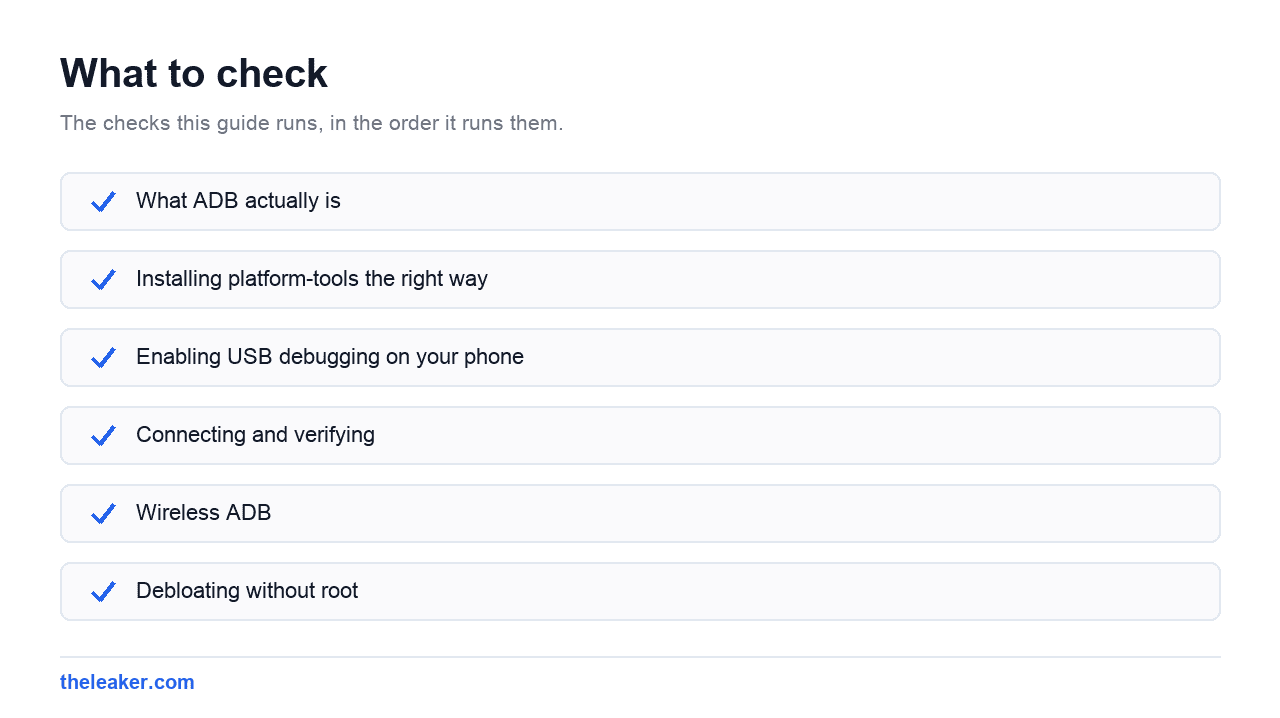
Installing platform-tools the right way
Get it from Google. Search for “SDK Platform-Tools” on the official Android developer site and download the package for your operating system. Do not download ADB from a random blog, a driver bundle site, or a “one-click ADB installer”. Those are a classic malware vector, and the official download is a plain zip file that takes ten seconds.
Extract it somewhere sensible. On Windows, something like C:platform-tools. On macOS or Linux, anywhere in your home folder works.
You can either open a terminal inside that folder every time, or add the folder to your system PATH so adb works from anywhere. On macOS, Homebrew users can install the package directly and skip the PATH step entirely.
Windows users may also need the OEM USB driver for their phone’s manufacturer. If your device shows up as “unauthorized” or doesn’t appear at all, that’s usually the cause.
Enabling USB debugging on your phone
Menu wording varies by brand, but the sequence is consistent:
- Open Settings and find About phone. On some skins it’s nested under a “System” or “My device” section.
- Find the Build number entry and tap it seven times. You’ll be asked for your PIN, then told you’re now a developer.
- Go back and open Developer options. It usually appears under System, or sometimes under Additional settings.
- Turn on USB debugging.
On some Xiaomi and OPPO-family devices there’s an extra hoop. You may need to sign in to a manufacturer account or enable an additional toggle before USB debugging becomes available. That’s normal for those brands.
Turn USB debugging back off when you’re done. An always-on debugging port on a phone you carry around is an unnecessary risk, and public charging ports are exactly where that matters.
Connecting and verifying
Plug the phone in with a data-capable cable: plenty of cheap cables are charge-only and will silently fail here. Then open a terminal in your platform-tools folder and run:
adb devices
The first time, your phone will show an “Allow USB debugging?” prompt with your computer’s RSA key fingerprint. Accept it. Tick “always allow from this computer” only on machines you own.
A correct result looks like a serial number followed by device. If you see unauthorized, you haven’t accepted the prompt. If you see nothing at all, it’s a cable, driver, or USB-mode problem: try switching the phone’s USB mode from charging to file transfer.
Two more you’ll use constantly:
adb kill-serverthenadb start-server: fixes most weird connection statesadb reboot: reboots the phone;adb reboot recoveryandadb reboot bootloadergo to those modes
Wireless ADB
Modern Android supports wireless debugging natively, which is far more convenient once you’ve done it once. In Developer options, open Wireless debugging, then choose Pair device with pairing code. Your phone shows an IP address, a port, and a six-digit code.
On your computer:
adb pair 192.168.1.50:41234
Enter the pairing code when prompted. Then connect using the main IP and port shown on the wireless debugging screen: note that the pairing port and the connection port are different numbers, which trips up almost everyone the first time:
adb connect 192.168.1.50:5555
Run adb devices again to confirm. Both machines need to be on the same network. Disconnect with adb disconnect.
Debloating without root
This is the reason most people find ADB, and it works genuinely well.
You can’t truly delete a system app without root. What you can do is remove it for your user profile, which uninstalls it as far as your phone is concerned. It disappears from the app drawer, stops running, stops updating, and stops taking up its update storage. The base APK stays in the read-only system partition, which is what makes this safe and reversible.
First, find the package name. To list everything:
adb shell pm list packages
That’s a wall of text. Filter it:
adb shell pm list packages | grep facebook
On Windows use findstr instead of grep. You can also list only third-party packages with adb shell pm list packages -3, or only system ones with -s.
Then remove it:
adb shell pm uninstall -k --user 0 com.example.package
Breaking that down: --user 0 targets your primary user profile. -k keeps the app’s data and cache, which is what makes restoring it painless. A successful command prints Success.
To undo it, run:
adb shell cmd package install-existing com.example.package
That reinstates the app from the system partition. And if you make a mess you can’t fix, a factory reset restores everything: nothing you’ve done here is permanent at the partition level.
What you must not remove
This is the part people skip and then post about. Removing the wrong package can break your camera, your dialer, your notifications, your fingerprint sensor, or in bad cases leave the phone in a boot loop.
Never remove anything you can’t positively identify. If you have to guess what a package does, leave it.
Broad categories to stay away from:
- Anything starting with
com.android.. These are core Android framework and system components - Anything with
systemui,settings,telephony,telecom,phone,dialer,ims,carrier,provider,keyguard, orlauncherin the name com.google.android.gmsandcom.android.vending: Google Play Services and the Play Store, on which a huge amount of app functionality depends- Manufacturer packages related to camera, biometrics, updates, or the input method you’re actually using
- Anything with “overlay”, “config”, “shell”, “server” or “service” in the name unless you’ve specifically researched it
Safe candidates are generally obvious consumer apps: preinstalled social media, preinstalled games, duplicate browsers you don’t use, third-party shopping apps, and manufacturer apps you’ve clearly identified as optional extras.
Work one package at a time. Uninstall, use the phone for a few minutes, then do the next. If something breaks you’ll know exactly what caused it. Doing twenty at once and then discovering your camera is dead is a bad afternoon.
Worth knowing: you don’t always need ADB for this. A lot of preinstalled apps can simply be disabled in Settings, which achieves most of the same result. Our guide to hidden Android settings that speed up your phone covers the no-computer version.
Shell basics
Running adb shell on its own drops you into an interactive shell on the phone. It’s a fairly standard Unix-ish environment: ls, cd, cat, df all work. Type exit to leave.
Useful one-liners you can run without entering the shell:
adb shell dumpsys battery: detailed battery state including health and temperatureadb shell wm sizeandadb shell wm density: report screen resolution and DPIadb shell settings get global <setting>: read a system setting valueadb shell input text "hello": type text into the focused field, handy for long passwordsadb shell input keyevent 26: simulate the power button
Be careful with settings put commands you found on a forum without understanding them. Reading values is harmless. Writing them is not always.
Screenshots and screen recording
Your phone can do both natively, but ADB versions are useful for clean captures without a shutter animation, and for recordings longer or higher quality than the built-in recorder allows.
Screenshot straight to your computer:
adb exec-out screencap -p > screen.png
Screen recording:
adb shell screenrecord /sdcard/demo.mp4
Press Ctrl+C to stop. There’s a built-in time limit of a few minutes per recording. Then pull the file across:
adb pull /sdcard/demo.mp4
Note that screenrecord does not capture audio. Useful flags include --size 1280x720 to reduce resolution and --bit-rate 4000000 to control quality and file size.
The two file transfer commands are worth memorising on their own:
adb push localfile.txt /sdcard/: computer to phoneadb pull /sdcard/file.txt: phone to computer
Logcat, for when an app misbehaves
adb logcat streams the system log. Raw, it’s an unreadable firehose. Filtered, it’s the fastest way to find out why an app keeps crashing.
adb logcat -c: clear the buffer first so you only see what happens nextadb logcat *:E: errors onlyadb logcat > log.txt: dump to a file you can searchadb logcat --pid=$(adb shell pidof com.example.app): only that app’s output
The usual workflow: clear the log, reproduce the crash, stop the capture, then search the output for the app’s package name or the word “Exception”. Even if you can’t fix it yourself, this is exactly what a developer will ask for in a bug report.
adb backup, and why it’s less useful than it looks
adb backup exists, and on paper it makes a full local backup of your apps and data:
adb backup -apk -all -f backup.ab
In practice, treat it as unreliable. It’s been deprecated for years, most apps now opt out of it via their manifest, and the resulting archive frequently skips exactly the data you cared about. It’s also slow and produces a file only ADB can restore, with adb restore backup.ab.
Use it as a last-resort extra copy, never as your primary backup. Google’s own cloud backup, plus per-app export where the app offers it, is far more dependable. If you’re moving to a new device, our guide on transferring everything to a new Android phone covers what actually works.
Sideloading an official OTA update
Occasionally a manufacturer publishes a full OTA package and you want it before the staged rollout reaches you. This uses ADB sideload, and it only works with the official signed package for your exact model. The device verifies the signature and rejects anything else.
Download the OTA zip from the manufacturer’s own support site. Then:
- Reboot into recovery:
adb reboot recovery - In recovery, select Apply update from ADB. On stock recovery you may need to hold power and press volume up to reveal the menu.
- Run
adb sideload update.zipon your computer. - Wait for it to finish, then reboot.
Charge the phone above 50% first and don’t unplug mid-flash. Only ever use packages from the manufacturer’s official channel. A full OTA from anywhere else is not something to gamble a working phone on.
Frequently asked questions
Is using ADB safe for my phone?
Yes, when you stick to the commands here. ADB is an official Google tool and nothing described in this article modifies your bootloader, voids a warranty, or trips a security flag. The risk isn’t ADB itself. It’s running commands you don’t understand, particularly removing system packages you can’t identify. Turn USB debugging off when you’re finished, and only authorise computers you own.
Does ADB debloating come back after an update?
Often, yes. Because the base APK stays on the system partition, a major OS update can reinstate apps you removed for your user. Some updates leave your changes alone, others restore everything. It’s worth keeping a text file of the package names you removed so you can rerun the commands in a couple of minutes after a big update.
What’s the difference between disabling an app and uninstalling with ADB?
Disabling through Settings stops an app running and hides it, but it stays installed and can still occupy update storage. The ADB pm uninstall --user 0 approach removes it from your user profile entirely, so it’s gone from the app list and no longer receives updates. Disabling is easier and reversible from Settings; the ADB method is more thorough and reversible with one command.
Can I use ADB without a computer?
Not really, and that’s fine. Wireless debugging still needs a machine running the ADB client. It just removes the cable. Some on-device approaches exist, but they’re fiddly, version-dependent, and not worth the trouble when a laptop and a fifteen-minute setup does the job properly.

A tech Journalist and Photographer, Dhawal Sharma is a technology enthusiast who loves to research the latest innovations and technology. He has contributed to the Honor Community for a very long period and has crucial expertise in writing tech news and reviewing smartphones and laptops. Analyzing and bringing the facts about any piece of tech is what he loves the most. He is a great product photographer and is the Gizmopedia of TheLeaker. Find him on Facebook and Instagram, and you can also email him at [email protected].