
Most “must-have Android apps” lists are padded. Thirty entries, half of them things you already have, a few that don’t exist anymore, and no explanation of why any of them earned a spot on your home screen.
This is the shorter version. Every app here does a job your phone does badly or doesn’t do at all, and every one has been around long enough that it isn’t going to vanish next quarter.
The quick answer: The genuinely essential set is small. For files and storage, get a proper file manager and a real cloud backup rather than a cleaner app. For security, use a password manager and an authenticator app. Those two do more for you than any antivirus. For productivity, a capable note app you’ll actually open and a task list you trust. For media, VLC covers every video format your phone chokes on, and a decent podcast or reader app if that’s your habit. For utilities, a scanner, a QR reader you already have built in, and a keyboard you like. Skip cleaners, RAM boosters, battery savers, standalone antivirus, and flashlight apps entirely. They range from useless to actively harmful. Roughly ten apps is the real list.
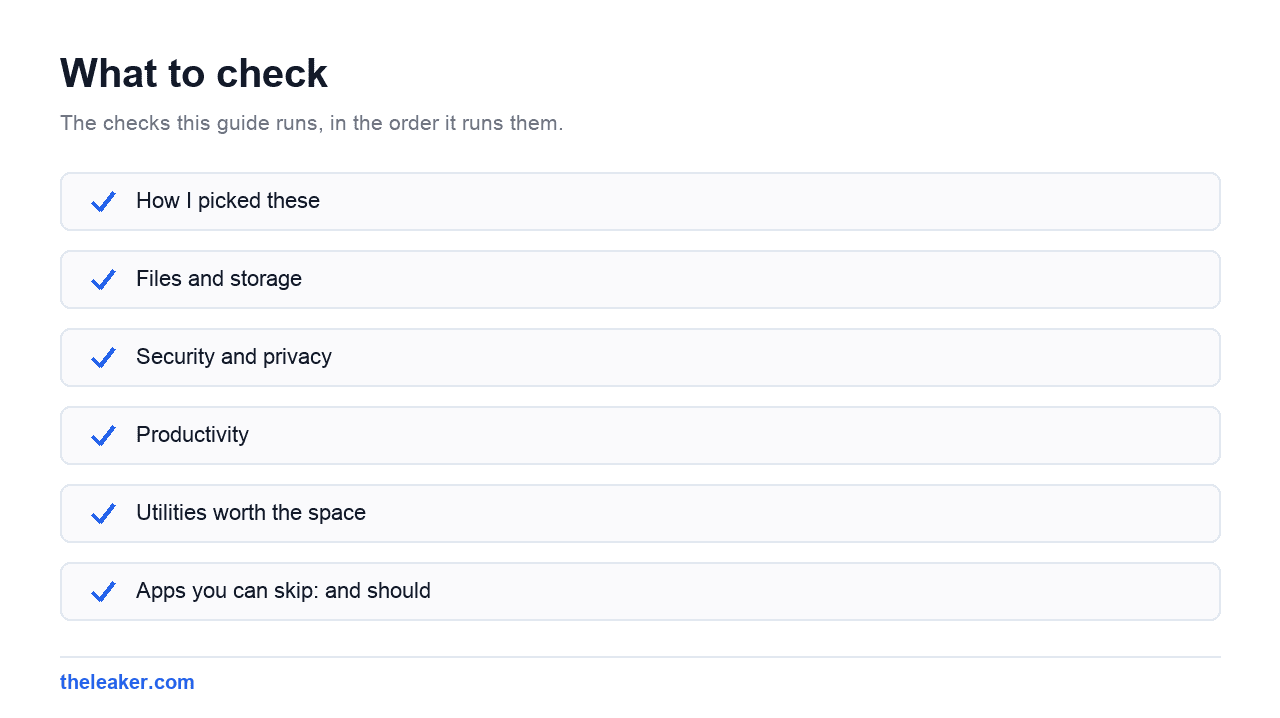
How I picked these
Three rules. The app has to solve a problem the stock Android experience genuinely leaves open. It has to be well-established and actively maintained, because an abandoned app with system permissions is a liability. And it has to justify the permissions it asks for.
That last rule eliminates a startling proportion of what’s popular on the Play Store. Availability and exact feature sets vary by region and by Android version, so check before you commit to anything paid.
Files and storage
A real file manager
Most Android phones ship with a file manager, and on Samsung and Xiaomi devices the built-in one is decent. On phones where it isn’t, Google’s Files app is the safe default. It’s free, it’s clean, and its storage-cleanup suggestions are conservative rather than the panic-inducing “your phone is 94% full!” nonsense that third-party cleaners run on.
If you move files around seriously (extracting archives, browsing network shares, managing an SD card) a fuller file manager is worth it. Look for one that’s been maintained for years and doesn’t bury you in ads. This is a category where the free ad-supported options are noticeably worse than paying a few dollars once.
Cloud backup you actually configured
Google Photos and Google Drive are already on your phone. The problem is that most people never check whether backup is actually running, then lose everything when a phone dies. Open it today and confirm.
If you want a second copy somewhere that isn’t Google, Syncthing is the strongest option for people comfortable with a bit of setup. It syncs folders directly between your devices with no cloud middleman and no subscription. It’s open source, mature, and genuinely excellent. It is not beginner-friendly.
Before you buy more cloud storage, it’s worth reclaiming what you’ve already got. Our guide on how to free up storage on Android without deleting anything usually recovers several gigabytes without a single app install.
Security and privacy
A password manager
This is the single highest-value app on the list and the one most people still don’t use. Bitwarden is the standout: open source, generous free tier, well-audited, works everywhere. 1Password is the polished paid alternative if you’d rather pay for a smoother experience.
Android’s autofill framework means a password manager integrates properly with apps and browsers, so using one is barely slower than reusing the same password everywhere. And reusing passwords is how ordinary people get compromised: not through exotic malware, through a leaked database somewhere you forgot you had an account.
An authenticator app
Two-factor codes belong in a dedicated app, not in SMS. Aegis Authenticator is the enthusiast pick: open source, encrypted local vault, and you can export your own backup, which matters enormously the day you lose your phone. Google Authenticator and Microsoft Authenticator are both fine and both now support cloud sync, which removes the classic disaster of losing every code with your device.
Whichever you pick, save the backup codes each service gives you somewhere separate. People skip this step and then get locked out of their own accounts permanently.
A browser with real content blocking
Firefox for Android supports extensions, which means you can run a proper content blocker on mobile. That single change makes the mobile web dramatically better and cuts data usage noticeably. Brave bundles blocking by default if you’d rather not configure anything.
You don’t need to replace Chrome entirely. Keeping a second browser for heavy reading is a reasonable setup.
Productivity
Notes you’ll actually open
The best note app is the one that opens fast and syncs reliably. Google Keep is underrated for exactly this: instant, searchable, syncs everywhere, has widgets. It’s not powerful, and that’s fine for most people.
If you write more seriously, Obsidian stores everything as plain Markdown files you own, which means your notes survive the app. Notion is the option if you want databases and structure, though it’s noticeably heavier on mobile.
Pick one. Having notes in three places is worse than having them in a mediocre one.
A task list
Todoist is the reliable default: fast entry, natural-language due dates, works on everything. Google Tasks is free, built into the Google ecosystem, and enough for a lot of people. TickTick sits between them and bundles a calendar view and habit tracking.
Same rule as notes: one app, used consistently, beats a better app you abandoned.
A launcher, if the stock one annoys you
This isn’t essential, but it’s the highest-impact change available to anyone unhappy with their phone’s home screen. Nova Launcher has been the standard recommendation for over a decade and remains extremely configurable. Niagara Launcher takes the opposite approach. A minimal, list-based, one-handed home screen that a lot of people find calmer than a grid of icons.
Media
VLC
If your phone refuses to play a video file, VLC will play it. It handles essentially every format and codec, it’s free, it’s open source, it has no ads, and it’s been maintained for many years. There is no reason not to have it installed.
A podcast app, if you listen
Pocket Casts and AntennaPod are both excellent, and AntennaPod is free and open source with no account required. Both handle sync, playback speed, and queue management far better than the general-purpose music apps do.
Something for reading
If you save articles to read later, Pocket-style read-later apps and RSS readers like Feedly genuinely change how you use your phone in idle moments. Not essential. Worth trying once.
Utilities worth the space
A document scanner. Google Drive has one built in, and on many phones the camera app can do it too. If you scan often, a dedicated app with better edge detection and multi-page PDF export earns its place. Check whether your phone already does this before installing anything.
A keyboard you like. Gboard is genuinely good and already installed on most phones. SwiftKey is the main alternative worth trying. Keyboards see everything you type, so this is a category where you should stick to apps from companies with something to lose.
KDE Connect if you use a computer. It links your phone and desktop for clipboard sharing, file transfer, notification mirroring and using your phone as a remote. Open source, works across platforms, and quietly one of the most useful things you can install.
A weather app that isn’t creepy. Many free weather apps make their money selling location data. Pick one with a clear business model. A paid app, or one from a company whose revenue obviously comes from elsewhere.
Apps you can skip: and should
This section will annoy people, and it’s the most useful part of the article.
Cleaner and RAM booster apps
Delete them. Android manages its own memory, and free RAM is wasted RAM. The operating system deliberately keeps apps cached so they reopen instantly. A “booster” that force-closes them makes your phone slower, not faster, because everything has to cold-start again. It also burns battery doing it.
The cache-clearing these apps do is available in Android’s own storage settings, for free, without a background service watching your phone. The junk-file scanning is theatre. Many of these apps are ad-delivery vehicles wearing a utility costume, and several popular ones have been caught with genuinely bad behaviour over the years.
Battery saver apps
Same logic. Android’s built-in battery optimisation is more effective than any third-party app, because the OS has privileges no app does. A battery saver app is itself a background process consuming battery to tell you about battery.
If your battery life is bad, the causes are almost always a specific misbehaving app, a weak signal forcing the radio to work harder, or an aging cell. Check the battery usage screen in Settings and act on what it tells you.
Standalone antivirus
Google Play Protect scans apps on-device and is enabled by default. For anyone installing apps from the Play Store and not sideloading random files, a third-party antivirus adds close to nothing while demanding enormous permissions and, in the free tiers, showing you ads and constant upsell prompts.
Real Android security is boring: install from official sources, keep the system updated, use a password manager, enable two-factor authentication, and read permission prompts. None of that requires an antivirus subscription.
Flashlight apps and other permission traps
Your phone has a flashlight toggle in quick settings. A flashlight app that wants your contacts, location and call log is not a flashlight app. It’s a data collection business. The same applies to free QR scanners (Android’s camera reads QR codes natively), free “wallpaper” apps stuffed with ads, and any single-function utility asking for permissions unrelated to its function.
The general test: if the permissions don’t obviously map to what the app does, don’t install it. If you’re already carrying a pile of these, going through your app permissions is one of the higher-value hours you can spend on your phone.
VPNs marketed on fear
A VPN is a legitimate tool with real uses: untrusted public Wi-Fi, hiding traffic from your ISP, accessing your home network. It is not a general security product, and the free ones are funded by selling the thing you installed them to protect. If you want a VPN, pay for a reputable one and understand what it does and doesn’t hide.
The actual short list
If you install nothing else: a password manager, an authenticator app, VLC, a note app, and Google Files. That’s five apps, it takes ten minutes, and it covers more real ground than a thirty-app list.
Everything after that depends on what you actually do with your phone. Add apps because you hit a problem, not because a list told you to.
Frequently asked questions
What are the most useful Android apps for daily use?
A password manager and an authenticator app do the most for you day to day, even though neither feels exciting. After that: a note app you open reflexively, VLC for any video that won’t play, and a file manager for moving things around. Most people’s daily-use set is already installed. The win comes from configuring backup and autofill properly, not from adding more apps.
Do I need an antivirus app on Android?
For almost everyone, no. Google Play Protect scans installed apps automatically and is on by default. Third-party antivirus apps demand broad permissions, run constantly, and mostly duplicate protections you already have. Sticking to official app sources, keeping your phone updated, and using two-factor authentication protects you far more effectively than any scanner.
Are phone cleaner apps safe to use?
They’re mostly pointless and some are genuinely bad. Android manages memory itself, and forcibly closing cached apps makes your phone slower and drains more battery. The cache clearing they offer is built into Android’s storage settings for free. Many cleaner apps exist primarily to serve ads and collect data, so the safest move is to uninstall them and use the system tools instead.
How many apps should I actually have installed?
There’s no magic number, but the useful question is different: how many apps are running in the background with permissions you’d be uncomfortable explaining? Go through Settings and review app permissions and background activity every few months. Uninstall anything you haven’t opened in six months. That single habit does more for storage, battery and privacy than any optimisation app claims to.

Yash Jain writes about Android and Apple for The Leaker, focusing on how to guides, download resources, and top and best roundups. His articles walk readers through setup steps and app choices, compare options across categories, and follow news updates across both mobile platforms as they develop.