
The short answer: System Data is the gray segment in the storage chart at the top of your iPhone’s storage screen, and it has no clear button. iOS manages it for you, so no setting and no app empties it on command. What you can actually do is free storage elsewhere and sometimes nudge System Data down, and the levers amount to clearing Safari’s cache, deleting and reinstalling a cache-heavy app, restarting the phone, and, as a real last resort, backing up then erasing and restoring. None of these guarantees a smaller number. The one tip to ignore is “Offload App,” because offloading keeps an app’s documents and data, so it can’t shed the cache that feeds System Data. To find it, open Settings > General > iPhone Storage and look at the gray segment in the chart at the top.
So before you go hunting for a switch that doesn’t exist, it helps to know what that gray band actually holds and why it swells. In my view chasing the System Data number is the wrong instinct most of the time. I’d only touch it when the phone is genuinely full, and even then I’d clear Safari and one bloated app long before considering anything drastic.
What System Data actually is
System Data is the catch-all category iOS used to label “Other.” It’s everything that doesn’t fit the tidy buckets above it: Photos, Apps, Media, Mail, Messages. Inside it sit system caches, logs and other resources iOS keeps for its own use. Apple’s iPhone storage support page describes this space as system files plus caches that iOS removes on its own when you start running low, and it does not publish an itemized breakdown of everything the category holds.
That last part is the key to the whole thing. The band grows and shrinks on its own as iOS writes and clears these files, expanding when the phone is busy and shrinking again when the system decides it needs the room. A System Data figure of a few gigabytes is normal on a phone in daily use. Seeing it move around from one day to the next is the feature working as intended.
How big is too big?
There’s no official number to panic at, and that Apple support page doesn’t publish one. So treat this as a rule of thumb rather than a spec. On a phone with plenty of free space, ignore System Data entirely whatever it reads. It only becomes your problem when two things are true at once: the gray band is large in absolute terms (many gigabytes, well beyond a couple), and you’re actually out of storage and can’t install an update or shoot a video.
- Fine: a few gigabytes, or any size at all when you still have free space to spare. Do nothing.
- Act: System Data is clearly the largest slice of your used storage and the phone is full. Now the levers below are worth trying, in order.
If your storage is full but System Data is modest, you’re looking at the wrong band. The space is almost certainly in Photos or a media app, and that’s a different job.
The four things that sometimes shrink it
These run cheapest and safest first, down to the one that wipes your phone. Each one frees storage and can reduce System Data, but none is a guaranteed clear, so try them in order and stop the moment you have the room you needed.
1. Clear the Safari cache
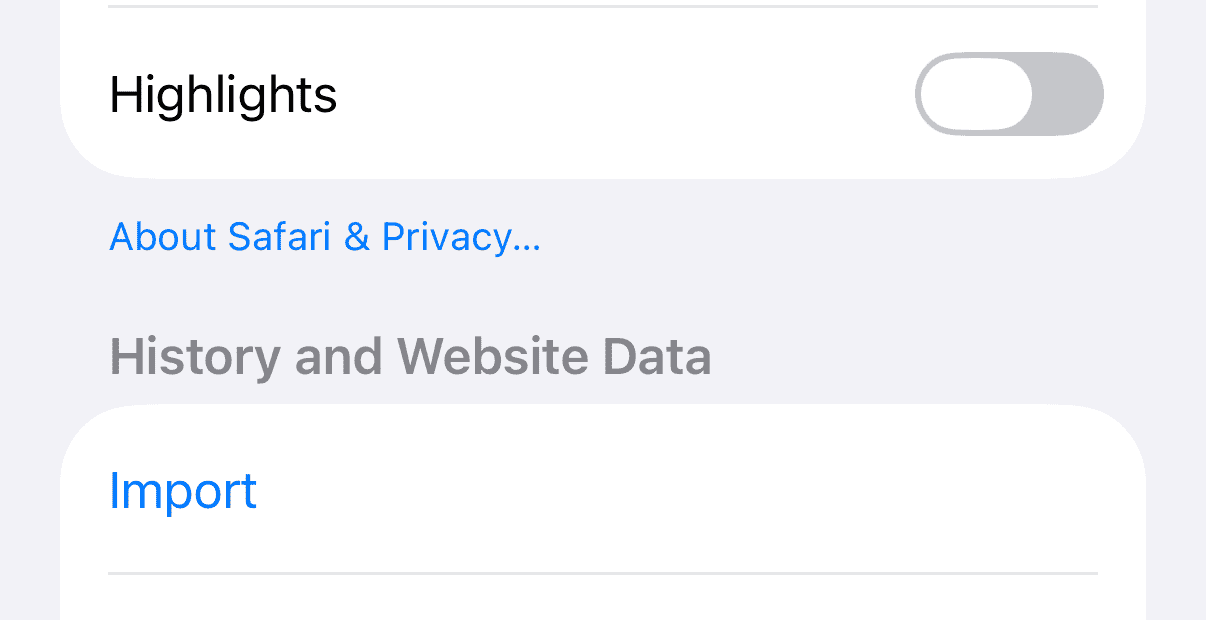
Clearing Safari removes the pages, images and cookies it has stored on your phone, which frees overall storage. It may or may not move the System Data figure specifically, but it is one of the few caches you can empty by hand. On current iOS the setting moved under Settings > Apps > Safari > Clear History and Website Data. The cost is real, so weigh it. You’ll be signed out of most sites and the first visit to each will be slower while the cache rebuilds. Apple documents the path on its Safari cache support page, and if you want the storage back without losing history there’s a Website Data option under Advanced. We walk through both routes, and the wider question of app caches, in our guide to clearing cache on iPhone.
2. Delete and reinstall a cache-heavy app
A streaming, social or photo app can quietly cache several gigabytes. Deleting the app removes the app and all its data, and reinstalling gives you a clean copy, which cuts that app’s total storage use. It may or may not change the System Data figure, but it reliably frees space. Find the offender first in iPhone Storage, where apps are listed biggest first and split into the app itself versus its Documents & Data. One caution before you tap delete: it also removes downloads and anything not synced to your account, so make sure you’re logged in first.
3. Restart the phone
A restart clears some transient files and can free a little space as a side effect. I treat any drop as a bonus, though, because that support page doesn’t list restarting as a reliable way to shrink System Data. It costs you thirty seconds, so it’s a fair thing to try, but don’t expect it to move a stubborn 15 GB band on its own.
4. Back up, erase, restore (last resort)
The only way to force a full cache rebuild is to back the phone up, erase it, and restore. This can hand back space because caches, logs and indexes get rebuilt from scratch, though your apps will gradually regenerate their own caches again over the days that follow. Budget an hour or more, a computer or enough iCloud space for the backup, and the patience to sign back into everything. This is a serious step for a full phone with no other option, not a routine cleanup.
Why “Offload App” won’t free the space
This is the tip you’ll see repeated everywhere, and it’s aimed at the wrong target. In iPhone Storage each app offers Offload App and Delete App. Offload removes the app’s program files but keeps its documents and data on purpose, so the cache you were trying to shed survives untouched. Offloading is useful for reclaiming the space an app’s binary takes while keeping your logins and downloads. It is not a cache tool, and reaching for it here is why people offload an app, watch nothing change, and assume their phone is broken.
What clearing System Data won’t fix
System Data cleanup is a narrow tool. It won’t help if:
- your storage is really full of photos and videos, which live in their own band, well outside System Data. That’s the more common culprit, and our guide to freeing up space in Google Photos is where I’d start.
- an app keeps crashing. A reinstall can fix a corrupt-cache crash, but if it doesn’t, the cause is elsewhere.
- you expect it to last. It won’t.
Frequently asked questions
Is it bad to have a large System Data?
No. Not on its own. It can spike temporarily during a big download or while an iOS update stages its files, then settle again afterward. A large System Data band only matters when it coincides with an actually full phone. If you have free space, the size of the gray bar is not a problem to solve.
Why does my System Data keep changing size?
Because iOS is constantly writing and purging caches as you use the phone. It tends to look largest right after you’ve streamed video, downloaded a batch of podcasts or updated several apps, and it drifts back down as the system reclaims what it no longer needs. A moving number is normal behavior.
Does a factory reset permanently reduce System Data?
Only if you set the phone up as new. Restoring from an iCloud or computer backup brings your apps back, and they regenerate their own caches over the days that follow, so the figure tends to climb again. A clean setup with no backup resets it fully, but you lose your apps’ arrangement and any local data that wasn’t synced, which is rarely a fair trade for a smaller bar.
Will updating iOS reduce System Data?
Not reliably, and it often does the opposite at first. An update downloads and unpacks installer files that temporarily inflate System Data before the phone clears them out. If it looks bloated the day you update, give it a little time before you read anything into the number, because the phone clears those staging files once the update settles.
Updated 24 August 2026. Menu paths reflect current iOS, where Safari and Messages settings sit under Settings > Apps. If a future release moves them again, the setting names stay the same even when the route to them changes.

A tech Journalist and Photographer, Dhawal Sharma is a technology enthusiast who loves to research the latest innovations and technology. He has contributed to the Honor Community for a very long period and has crucial expertise in writing tech news and reviewing smartphones and laptops. Analyzing and bringing the facts about any piece of tech is what he loves the most. He is a great product photographer and is the Gizmopedia of TheLeaker. Find him on Facebook and Instagram, and you can also email him at [email protected].