
The short answer: the only cache with a real “clear” button is Safari’s. Open Settings > Apps > Safari > Clear History and Website Data, then tap to confirm. Individual apps almost never give you a cache button, and the “Offload App” option people recommend for this does not clear an app’s cache, because it keeps the app’s documents and data. To shed a specific app’s cache you delete it and reinstall it. Everything marketed as an “iPhone cache cleaner” hits the same wall you do: iOS keeps every app in its own sandbox, so no third-party app can reach inside another app’s private cache. At best one clears Safari data or files you’ve specifically granted it, which is a paywall around the free steps above.
So if you came here to free up space, know first what you’re actually able to clear. iOS keeps most caches under its own control and empties them on its own when storage runs low, which is why there’s no master “clear cache” switch and why the App Store is full of apps promising one. I’ve watched people burn an afternoon on this, and almost all of it is spent clearing things that were never taking up space.
Clear the Safari cache (the one cache you fully control)
Safari is the exception, and on current iOS its setting moved. It now lives under Settings > Apps > Safari, not under General:
- Settings > Apps > Safari.
- Tap Clear History and Website Data.
- Confirm. If you have multiple profiles, choose which one, or all.
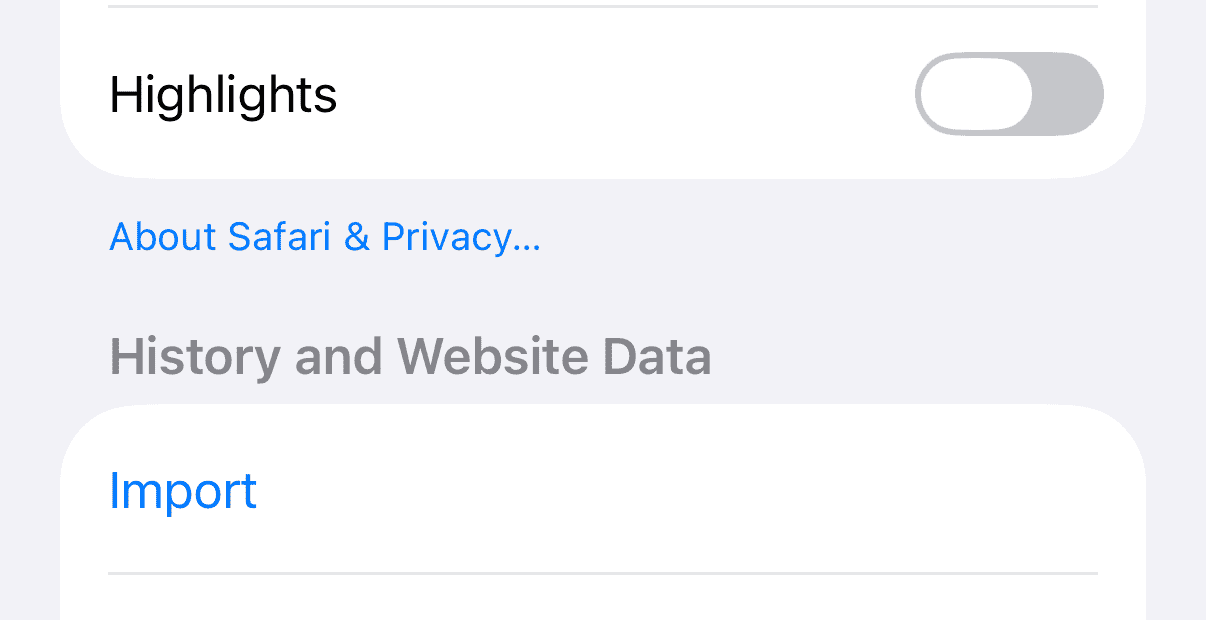
This works because it wipes the locally stored copies of pages, images and cookies Safari saved to load sites faster. The cost is real, so weigh it, because you get signed out of most websites and lose their saved preferences, and the next visit to each site is slower while the cache rebuilds. If you only want to drop the cache without losing your history, use Settings > Apps > Safari > Advanced > Website Data > Remove All Website Data instead. Apple documents both paths on its Safari cache support page.
When does clearing Safari actually help? If Website Data for a single site is showing hundreds of megabytes, or Safari has started misbehaving on one site (a login loop, a checkout that won’t load), clearing is the right move. If Website Data totals a few megabytes, you’re clearing for no measurable space and just signing yourself out of everything. Check the number before you tap.
Clearing an individual app’s cache
Here’s the part every “one tap to clear all cache” headline skips. iOS gives you no system-wide way to clear an app’s cache, and most apps give you none either. A handful build their own control in (open the app, look under its own settings for “Clear cache” or “Offline storage”), and those are worth using. For everything else, there’s just one system-level route that works, and one widely recommended option that doesn’t.
Delete and reinstall (this clears the cache)
Deleting an app removes the app and its data, including whatever cache it built up. Reinstalling gives you a clean copy. This is the reliable way to shed a bloated cache from a streaming, social or photo-heavy app that has quietly grown to several gigabytes.
Find the offenders first in Settings > General > iPhone Storage, which lists every app by size, biggest first, and splits each into the app itself versus its “Documents & Data”. An app whose Documents & Data dwarfs the app is your candidate. One caution before you tap delete, because it removes downloads and any content that isn’t backed up to your account, so make sure you’re logged into the service first.
Offload does NOT clear the cache
This is the single most repeated bad tip about iPhone caches, so let me be exact about it. In iPhone Storage you’ll see Offload App and Delete App. Offload removes the app’s program files but keeps its documents and data, which is the whole point of it, so it is not a reliable way to clear an app’s cache. Apple’s storage documentation describes the split plainly, and you can read it on the iPhone storage page. Offloading is genuinely useful for reclaiming the space an app’s binary takes while keeping your logins and downloads. It’s just not a cache tool, and treating it as one is why people offload an app, see nothing change, and assume their phone is broken.
“System Data” and the caches you can’t touch
Open Settings > General > iPhone Storage and you’ll see a gray System Data bar that can balloon to several gigabytes. Apple’s iPhone storage page describes this space as system files plus caches that iOS removes on its own when the phone runs low on storage. There is no button for it. Apple’s own position is that iOS manages this space itself and clears redownloadable and temporary items automatically when the phone runs short. You can nudge it down (clear Safari, delete a cache-heavy app, restart the phone), but you can’t clear it directly, and it will grow back. If System Data specifically is what’s eating your storage, that’s a different problem with its own fixes, and it’s worth reading up on before you panic-restore your phone.
What doesn’t work (and what to stop doing)
- Third-party “cache cleaner” apps. They can’t reach inside other apps’ sandboxes any more than you can, so they can’t touch another app’s private cache at all. What they can clear is Safari data or files you specifically grant them, both of which you can do yourself for free. I’d skip them entirely.
- Offloading to clear cache. Covered above. It keeps your data on purpose.
- Restarting as a cache fix. A restart clears some transient memory and occasionally frees a little space, but it isn’t a documented, reliable way to shrink cache, so I treat any drop as a bonus rather than the plan.
What clearing your cache will not fix
Clearing cache is a small, specific tool. It won’t help if:
- your storage is full of photos and videos, which are not cache. That’s a different job, and our guide to freeing space in Google Photos is where I’d start.
- a single app keeps crashing for reasons other than corrupt data. Clearing may help a corrupt-cache crash, but if a reinstall doesn’t fix it, the cause is elsewhere.
- your battery drains fast or the phone runs hot. Cache size has nothing to do with either.
Frequently asked questions
Does clearing cache delete my photos or files?
No. Clearing Safari data removes browsing history, cookies and cached web pages only. Deleting an app removes that app’s downloads and unsynced content, so photos in Photos and files in iCloud Drive are untouched, but a game’s local save that isn’t backed up would go. Check that a service is signed in and syncing before you delete its app.
Why is there no single “clear all cache” button on iPhone?
By design. iOS sandboxes every app and manages cache centrally, freeing redownloadable and temporary files when space is low, so Apple never built a user-facing master switch. That gap is exactly the space every “cleaner” app on the store is trying to sell you into.
How much space will clearing cache actually free?
It depends entirely on what’s cached. If a streaming or social app shows several gigabytes of Documents & Data, a delete-and-reinstall can hand back most of that. If your caches are small, you’ll free almost nothing, so check sizes in iPhone Storage first rather than clearing blind.
Is it bad to clear cache often?
Clearing Safari’s cache often is harmless but usually pointless. Cache exists to make things faster, so clearing it repeatedly just makes sites reload from scratch and signs you out again each time. Deleting and reinstalling an app is a different matter, because it wipes that app’s local data too, so save it for an app that is clearly bloated or misbehaving rather than doing it on a schedule.
The bottom line
Safari has a real clear button and worth using when a site misbehaves or its data is large. Every other cache on your iPhone is either managed by iOS or clearable only by deleting and reinstalling that app, and “Offload App” is not the shortcut it’s sold as. Before you clear anything, open iPhone Storage, read the numbers, and clear the one thing that’s actually large.
Updated 24 August 2026. Paths reflect current iOS, where Safari’s settings sit under Settings > Apps. If a future iOS moves them again, the setting names stay the same even when the route changes.

I am the chief editor of TheLeaker. I also maintain the backend stuff of the site. I’m a tech enthusiast and loves to do Python coding in my free time. I have worked at many giant publications like XDA Developers and NXTtech before starting TheLeaker.
You can get in touch with me at Garv[at]theleaker.com.