

Your phone can read a menu you can’t, understand a sign you’re standing in front of, and hold a two-way conversation with someone who shares no language with you. Most people know translation apps exist. Far fewer know how to translate with their phone camera reliably, especially when the signal drops.
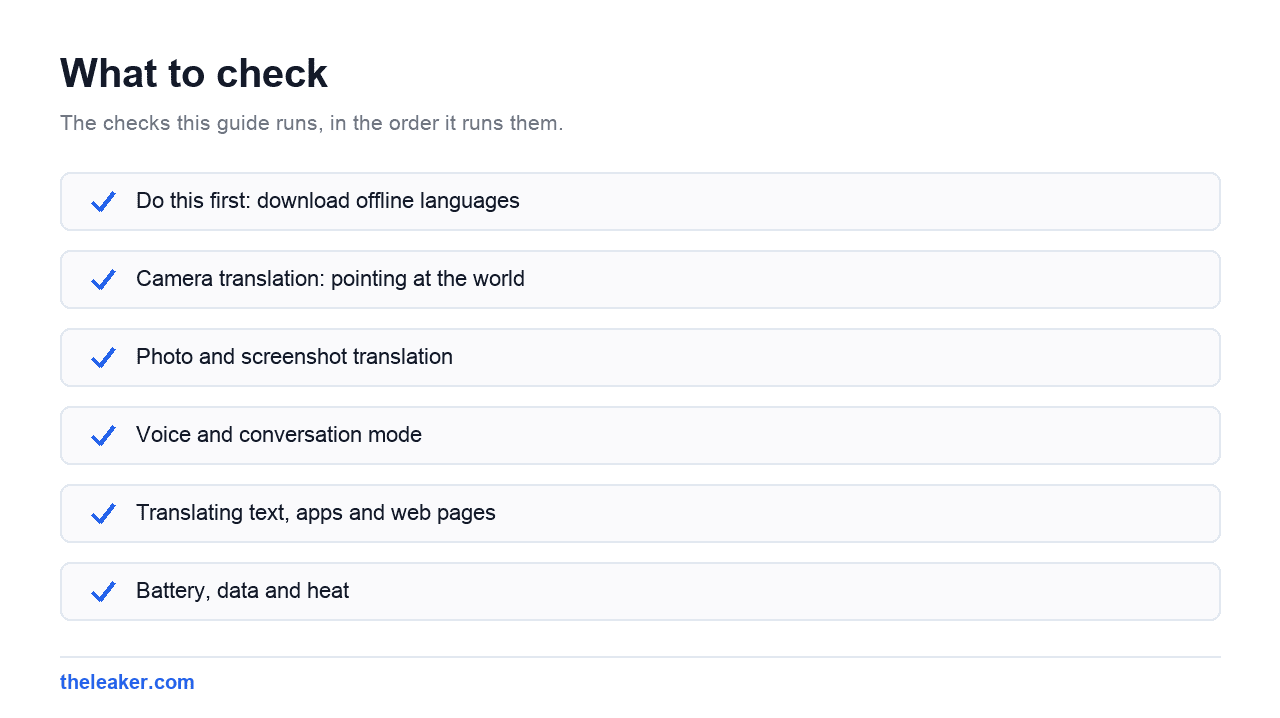
The quick answer: Your phone handles translation four ways, and each suits a different situation. Camera translation points your lens at printed text (menus, signs, labels) and overlays the translation live. Photo translation works on an image you’ve already taken or a screenshot, and it’s more accurate than live camera mode because it isn’t fighting a shaking hand. Voice and conversation mode handles spoken back-and-forth, transcribing and speaking each side. Text translation is the classic type-and-read box, and it’s still the most accurate of the four. The critical prep step: download offline language packs before you travel. Without them, every one of these features stops working the moment you lose signal, which is exactly when you need them most.
Here’s how to set each one up, plus what they get wrong.
Do this first: download offline languages
This is the step that separates people who find translation genuinely useful from people who find it frustrating.
Translation apps default to processing in the cloud. Better results, but it means no signal equals no translation. And the moments you most need to read a sign (a foreign airport, an underground station, a rural road, a country where your roaming didn’t activate) are exactly the moments you have no data.
Open your translation app, find the languages section, and look for a download icon next to each language. Download the language of wherever you’re going, plus your own. Each pack is usually somewhere in the tens of megabytes, so grab them on Wi-Fi.
Do this a day before you travel, not at the airport. And confirm it worked by turning on airplane mode and testing a translation. If it returns a result offline, you’re set.
Offline packs are noticeably less accurate than online translation: expect clunkier phrasing and more literal results. But clunky and available beats perfect and unreachable.
Camera translation: pointing at the world
The headline feature. Open the translation app, tap the camera icon, set your two languages, and point the lens at printed text. The translation appears overlaid roughly where the original text was, in real time.
Most translation apps offer a few camera modes:
- Instant / live overlay: translates continuously as you move the camera. Great for scanning a menu quickly. Text can flicker and rewrite itself as the camera moves.
- Scan / capture. You take a still shot, the app processes it, and you tap to see translated sections. Much more stable and accurate than live mode.
- Import: pick an existing photo or screenshot from your gallery.
If live mode is giving you nonsense, switch to capture mode. Nine times out of ten that fixes it. The live overlay is fighting motion blur, autofocus hunting and changing light; a still image gives the recognition engine something clean to work with.
Getting better camera results
Camera translation lives or dies on how well the phone reads the original text. Some things that help a lot:
- Hold steady and let it focus. Blurry text is the number one cause of garbled output. Brace your elbow against something.
- Get more light. Dim restaurants are the hardest case. Turn on the flash if you can do it without annoying anyone.
- Fill the frame with less text. Aim at one dish, one paragraph, one sign: not a whole page. Fewer words means better recognition of each.
- Shoot straight on. Steep angles distort letters and confuse the reader.
- Avoid decorative fonts. Handwriting, script lettering and stylised logos are where these tools fail hardest. Printed body text is where they shine.
Where camera translation falls apart
Be realistic about the limits, because they matter when the stakes are high.
Handwriting is largely a lost cause. Dense text at small sizes gets mangled. Text on curved surfaces (bottles, cans, packaging) often reads wrong. And any text that mixes languages tends to confuse the detector.
Most importantly: don’t trust camera translation for anything consequential. Allergen information, medication instructions, dosage, legal notices, contract terms. The translation is often approximately right, and approximately right is dangerous in exactly those categories. For allergies specifically, carry a written card in the local language prepared in advance. That’s not paranoia. It’s what experienced travellers with allergies actually do.
Photo and screenshot translation
Underrated, and often the better tool.
Instead of hovering the camera, take a photo. Then open it in your translation app’s image import, or use your phone’s built-in visual search feature (long-press or a dedicated button in the gallery on many devices) to select and translate text directly from the image.
Two big advantages. First, accuracy. A still image processed at full resolution beats a shaky live feed every time. Second, you can select the translated text and copy it, which live overlay usually won’t let you do.
Screenshots work identically. If a website, app or message is in a language you don’t read, screenshot it and translate the image. Handy when the content is inside an app that has no translate option of its own.
Voice and conversation mode
For talking to actual people, this is the mode that matters.
Open your translation app and look for the microphone or conversation option. Set both languages. Then either tap a mic button before each person speaks, or use the automatic mode where the app detects which language it’s hearing and translates accordingly.
Conversation mode typically shows both sides of the exchange on screen as text and reads the translation aloud. Many apps also offer a split-screen or two-sided view so you can put the phone flat on a table between you and the other person, each reading your own side.
Making conversations actually work
The tool is only half of it. Technique matters:
- Short sentences. One idea per sentence. Long, clause-heavy sentences fall apart in translation.
- Speak normally, not loudly. Shouting distorts the audio and makes recognition worse.
- Cut idioms and slang. “Can you give me a hand” becomes something confusing. “Can you help me” doesn’t.
- Show your screen. If the audio isn’t landing, hand the phone over so they can read the text.
- Confirm the important parts. Repeat back numbers, times and addresses. This is where errors do damage.
- Move somewhere quieter. Background noise ruins speech recognition faster than anything else.
Transcribe mode for one-way listening
Some translation apps offer a continuous transcription mode. The phone listens to ongoing speech and produces a rolling translation. It’s built for lectures, tours, announcements and presentations rather than back-and-forth conversation. It usually requires an internet connection, and it lags a few seconds behind the speaker, but for following a guided tour in a language you don’t speak, it’s remarkable.
Translating text, apps and web pages
Typed translation is still the most accurate mode, because there’s no recognition step to go wrong. Type or paste, get a result. Use this whenever precision matters more than convenience.
A few other places translation shows up on Android:
Web pages. Most mobile browsers offer to translate a foreign-language page automatically, or via a translate option in the browser menu. This translates the whole page in place and is far more comfortable than copying sections.
Copied text. Some phones and translation apps can offer a translate action whenever you copy foreign-language text. A floating bubble or a suggestion in the paste menu. Worth enabling if your setup has it.
Text selection. Highlight text in most apps and the selection popup often includes a translate option alongside copy and share.
Keyboards. Several keyboards can translate what you type as you type it, so you can reply in a language you don’t speak without switching apps.
Battery, data and heat
Camera translation is one of the most demanding things you can ask a phone to do. It runs the camera, the screen at full brightness and continuous image processing all at once. Expect fast battery drain and a warm phone: especially outdoors in the sun, which is where you’ll usually be using it.
Three practical habits: carry a power bank on travel days, use capture mode rather than leaving live mode running, and close the app when you’re not actively pointing it at something. If your phone gets uncomfortably hot and starts dimming or slowing, that’s thermal throttling. Our guide on why phones overheat and how to cool them down explains what’s happening and what actually helps.
On data: offline packs mean zero data use, at the cost of accuracy. Online translation uses very little data for text and voice, but camera translation can add up if you leave it running. If you’re on a limited roaming plan, offline is the safer default.
Frequently asked questions
Can I translate with my camera without an internet connection?
Yes, if you’ve downloaded the offline language pack for that language in advance. Camera translation works offline for downloaded languages, though results are less polished than online. If you haven’t downloaded the pack, camera mode won’t work without a connection, which is why downloading before you travel matters so much.
Why is my camera translation showing gibberish?
Almost always a text recognition problem, not a translation one. The usual culprits are motion blur, poor lighting, a steep angle, decorative or handwritten fonts, or too much text in frame at once. Switch from live mode to capture mode, get closer, add light, and aim at a smaller section of text.
Can I have a real conversation with someone using translation?
Yes, for practical exchanges: directions, ordering, shopping, checking in. It’s slower than normal conversation and stumbles on slang, humour and long sentences. Keep sentences short and literal, put the phone where both of you can see the screen, and repeat back anything numerical.
How accurate is phone translation really?
Good enough to get the gist, not good enough to rely on for anything critical. Typed text between widely-spoken languages is the most accurate. Camera and voice add recognition errors on top of translation errors. For medical, legal, allergy or contract situations, use a human translator or prepare written phrases in advance.
Related: How to Use Google Lens for Things You Didn't Know It Could Do

A tech Journalist and Photographer, Dhawal Sharma is a technology enthusiast who loves to research the latest innovations and technology. He has contributed to the Honor Community for a very long period and has crucial expertise in writing tech news and reviewing smartphones and laptops. Analyzing and bringing the facts about any piece of tech is what he loves the most. He is a great product photographer and is the Gizmopedia of TheLeaker. Find him on Facebook and Instagram, and you can also email him at [email protected].