
The Play Store opens, sits there for a moment, and then throws “Error retrieving information from server. [RH-01]”. Nothing loads, search does nothing, and the error comes straight back every time you retry.
The quick answer: RH-01 is a Play Store communication error. Your phone reached Google’s servers but could not complete the exchange, so the store has no data to show. It is almost never a server outage and almost always something local: corrupted Play Store cache, a stale Google account token, an incorrect device clock, or a DNS or VPN issue getting in the way. The fix that works most often is clearing the Play Store cache and data, then restarting. If that fails, check that date and time are set to automatic, because a wrong clock breaks the certificate checks the Play Store depends on and produces this error every time.
Fix it in order
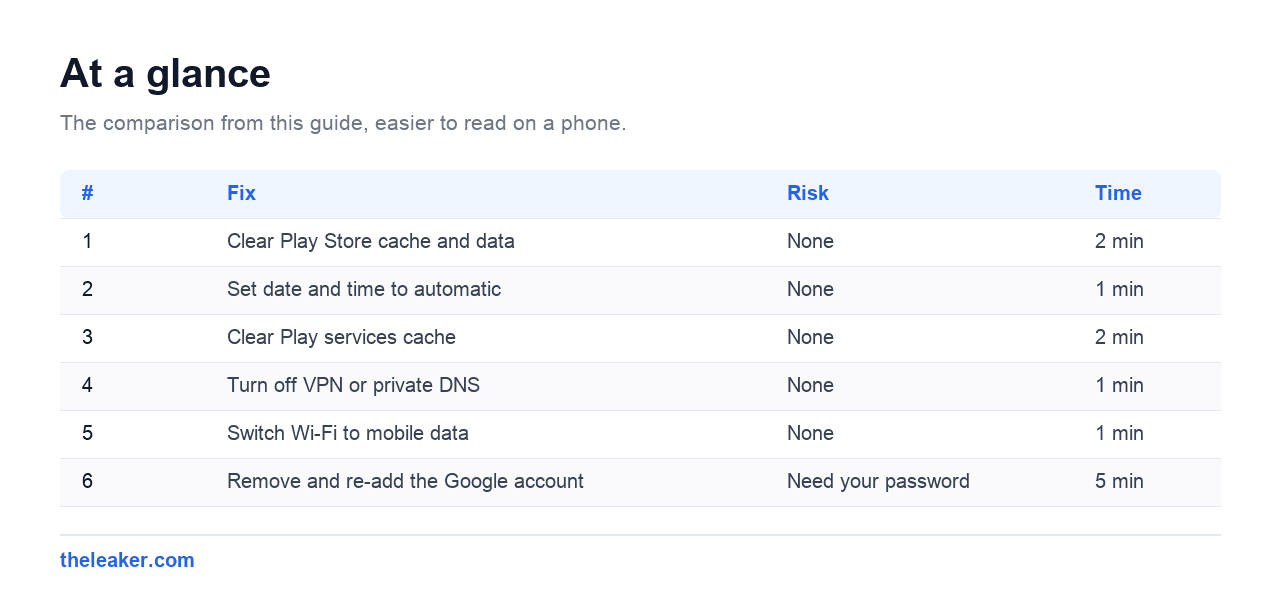
| # | Fix | Risk | Time |
|---|---|---|---|
| 1 | Clear Play Store cache and data | None | 2 min |
| 2 | Set date and time to automatic | None | 1 min |
| 3 | Clear Play services cache | None | 2 min |
| 4 | Turn off VPN or private DNS | None | 1 min |
| 5 | Switch Wi-Fi to mobile data | None | 1 min |
| 6 | Remove and re-add the Google account | Need your password | 5 min |
| 7 | Uninstall Play Store updates | Reverts to factory version | 3 min |
1. Clear Play Store cache and data
- Settings, then Apps, then Google Play Store.
- Tap Storage, then Clear cache.
- Then tap Clear storage or Clear data.
- Restart the phone and open the Play Store again.
Clearing Play Store data does not remove any installed apps and does not sign you out of your Google account on the device. It resets the store’s local state, which is where the corruption behind RH-01 usually sits. This alone resolves the majority of cases.
2. Check date and time
Settings, then System, then Date and time, and turn on Set time automatically and Set time zone automatically.
This looks unrelated and is one of the most reliable causes. The Play Store validates security certificates, and certificates are only valid inside a date range. If the clock is wrong, particularly the year, every check fails and the connection cannot complete. Phones that have been switched off for a long time, or that had the time set by hand, land here regularly.
3. Clear Play services cache
Same route, but choose Google Play services. You will need to tap the three dot menu and choose Show system apps to see it.
Use Clear cache here, not Clear storage. Clearing Play services storage is more disruptive and is not needed for this error.
4. VPN, private DNS and ad blockers
This is the cause most guides miss, and it is increasingly common.
The Play Store is strict about how it reaches Google’s servers. A VPN, a private DNS provider, or a network-level ad blocker can interfere enough to break the exchange while leaving normal browsing working perfectly. That combination, where everything else works but the Play Store does not, is a strong hint.
- Disconnect any VPN and try again.
- Settings, then Network and internet, then Private DNS, and set it to Off or Automatic.
- If you run a Pi-hole or similar on your home network, test on mobile data instead.
5. Switch network
Turn Wi-Fi off and use mobile data, or the reverse. This separates a network-level problem from a device-level one in about ten seconds, and it is worth doing early because it tells you where to look next.
6. Remove and re-add your Google account
Settings, then Accounts, select the Google account, then Remove account. Restart, then add it back.
A stale authentication token produces exactly this error, and removing the account is the only way to force a fresh one. Make sure you know the password and can pass two factor authentication first.
7. Uninstall Play Store updates
In the Google Play Store app entry, tap the three dot menu and choose Uninstall updates. This reverts to the version the phone shipped with, which helps when a recent Play Store update is the cause. Android will update it again automatically within a day or so.

Related Play Store errors
Several errors come from the same place and respond to the same first three steps.
| Error | Usually means |
|---|---|
| RH-01 | Server communication failed, local cache or token |
| RPC:S-5:AEC-0 | Account or sync problem, same fixes |
| DF-DFERH-01 | Server retrieval failed, close relative of RH-01 |
| Error 495 | Download failed, cache and account related |
| Error 963 | Install failed, often an SD card or storage issue |
If you are hitting several of these in sequence, treat it as one underlying problem rather than several. Clearing Play Store data, fixing the clock, and re-adding the account covers nearly all of them.
When it is genuinely Google’s end
Rare, but it happens. The signs are that it started suddenly with no change on your side, other devices on the same network hit it too, and clearing cache changes nothing.
In that case there is nothing to fix locally. Wait a few hours and try again.
Frequently asked questions
Will clearing Play Store data delete my apps?
No. Installed apps, their data, and your purchase history are all untouched. It clears the store’s own local cache and settings only.
Why does it keep coming back?
A recurring RH-01 usually means the underlying cause was not addressed. The two that cause repeats are an incorrect device clock and a VPN or private DNS still in place.
I get RH-01 only on Wi-Fi.
That points at the network rather than the phone. Check for a private DNS setting, a router-level ad blocker, or restrictive DNS on that network.
Do I need a factory reset?
Almost never. Work through the steps above first. Removing and re-adding the Google account achieves nearly everything a reset would for this error, without wiping the phone.
Changelog
- 1 August 2026: Page created.

I am the chief editor of TheLeaker. I also maintain the backend stuff of the site. I’m a tech enthusiast and loves to do Python coding in my free time. I have worked at many giant publications like XDA Developers and NXTtech before starting TheLeaker.
You can get in touch with me at Garv[at]theleaker.com.