
Take the console out of the dock, unplug the AC adapter at both ends for 30 seconds, then hold POWER for 20 seconds and release. The 20 second hold in the middle of that is what Nintendo calls a forced shutdown. Plug the adapter straight into a wall outlet, then into the console, and press POWER once. If the screen stays black, everything after this depends on one thing: whether a small battery icon appears in the top-left corner.
This is for the first-generation family, meaning Switch, Switch Lite and Switch OLED. If you have a Switch 2, stop here and use its own procedure, because the adapter is a different model (MOD. NGN-01) and it asks for at least 30 minutes of charging where the page below gives a range.
Your Switch has no power light, so darkness tells you nothing
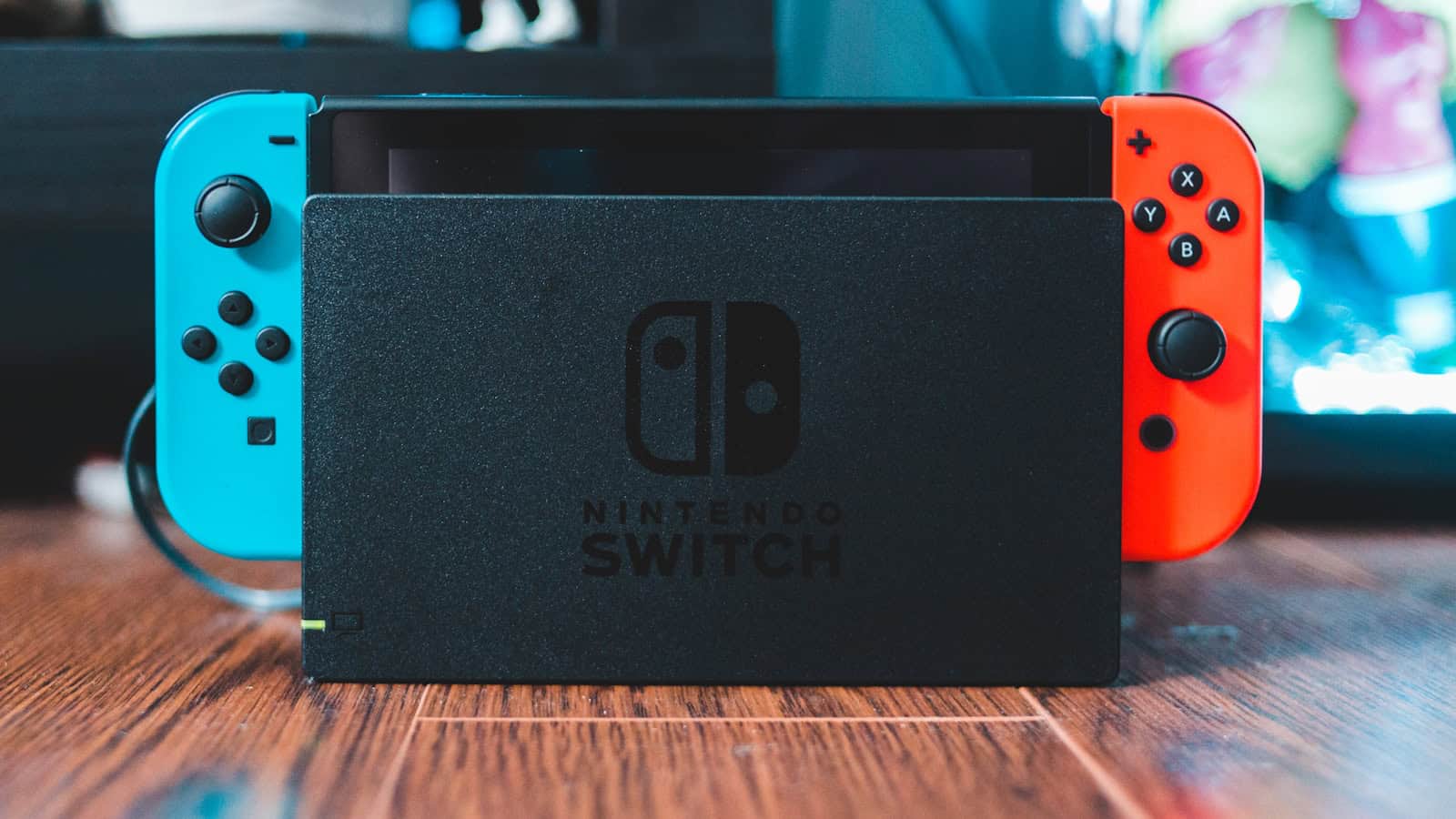
Nintendo states it directly: “Nintendo Switch systems do not have a power light.” There is no LED reporting whether the console is receiving power, charging, or completely dead. All three look identical.
That inverts the habit people bring from other hardware. A PlayStation has an indicator with a published meaning for each state it can show, so there is usually something to read before you touch anything. A Switch shows nothing in any state, so the first useful signal has to be dragged out of it. That is why owners conclude the thing is dead when it is often just too flat to bring the screen up yet.
Nintendo’s sequence, in their order
Five steps, and the order is theirs.
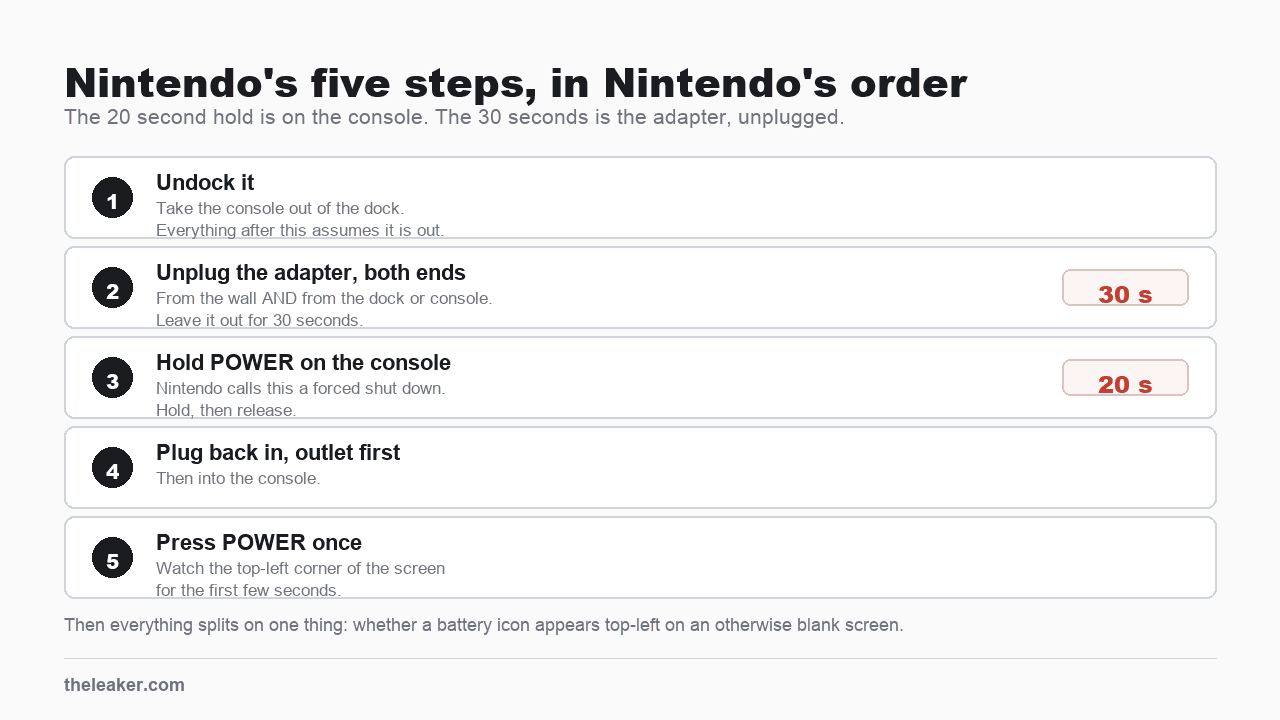
- Take the console out of the dock. Everything below assumes it is out.
- Unplug the AC adapter from both the wall and the dock or console, and leave it unplugged for 30 seconds “to reset the AC adapter”.
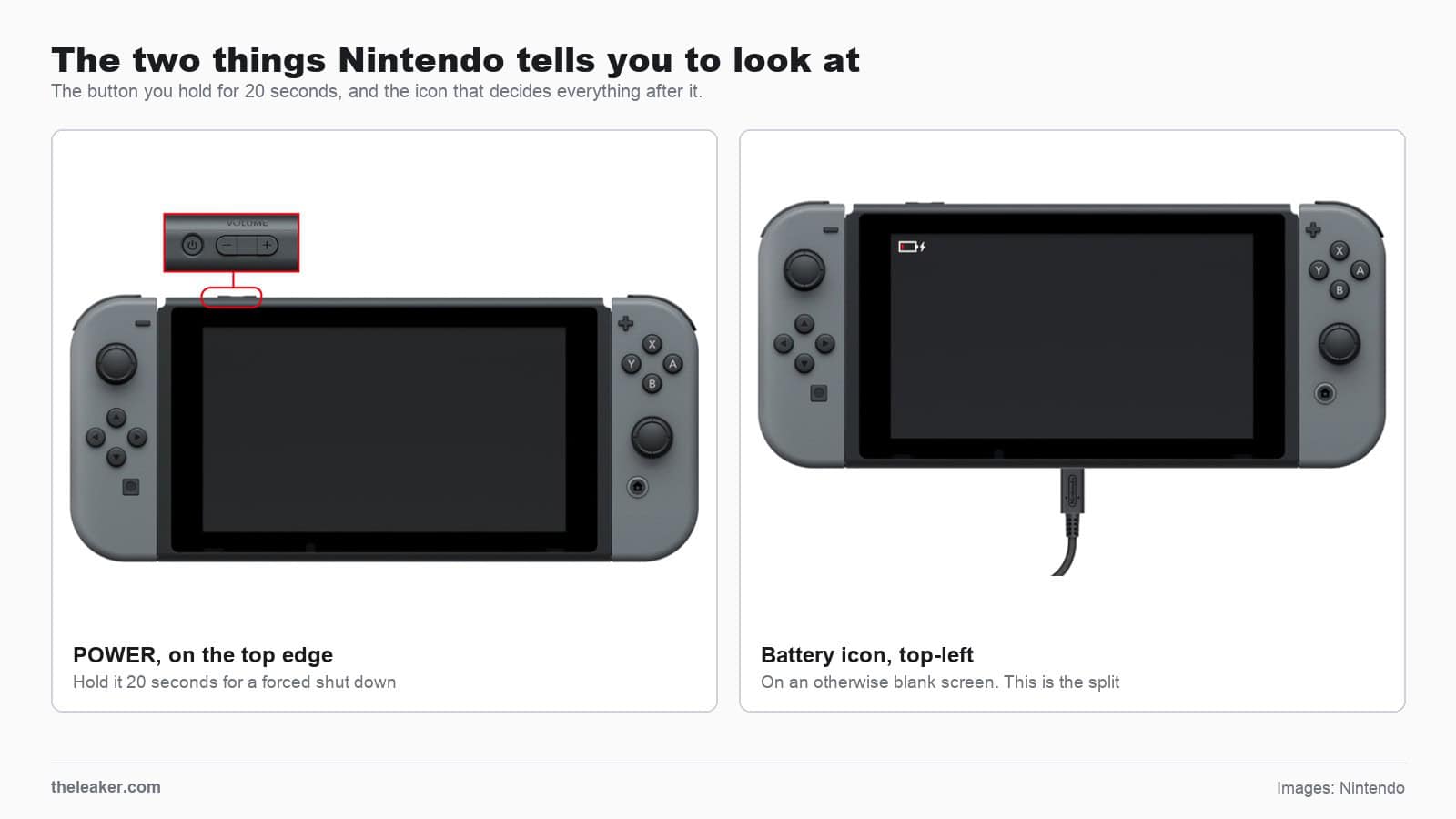
- Hold POWER on the console for 20 seconds.
- Release. The support page describes this as performing “a forced shut down on the console”.
- Plug the adapter back into the outlet, then into the console, and press POWER once.
That page calls step two a reset of the adapter and stops there, giving no mechanism, so follow it as an instruction rather than a mechanism. The 20 second hold is a separate action on the console itself.
After that, one check decides everything
Press POWER and watch the top-left corner for the first few seconds. All remaining troubleshooting splits on whether a battery charge indicator appears there on an otherwise blank screen.
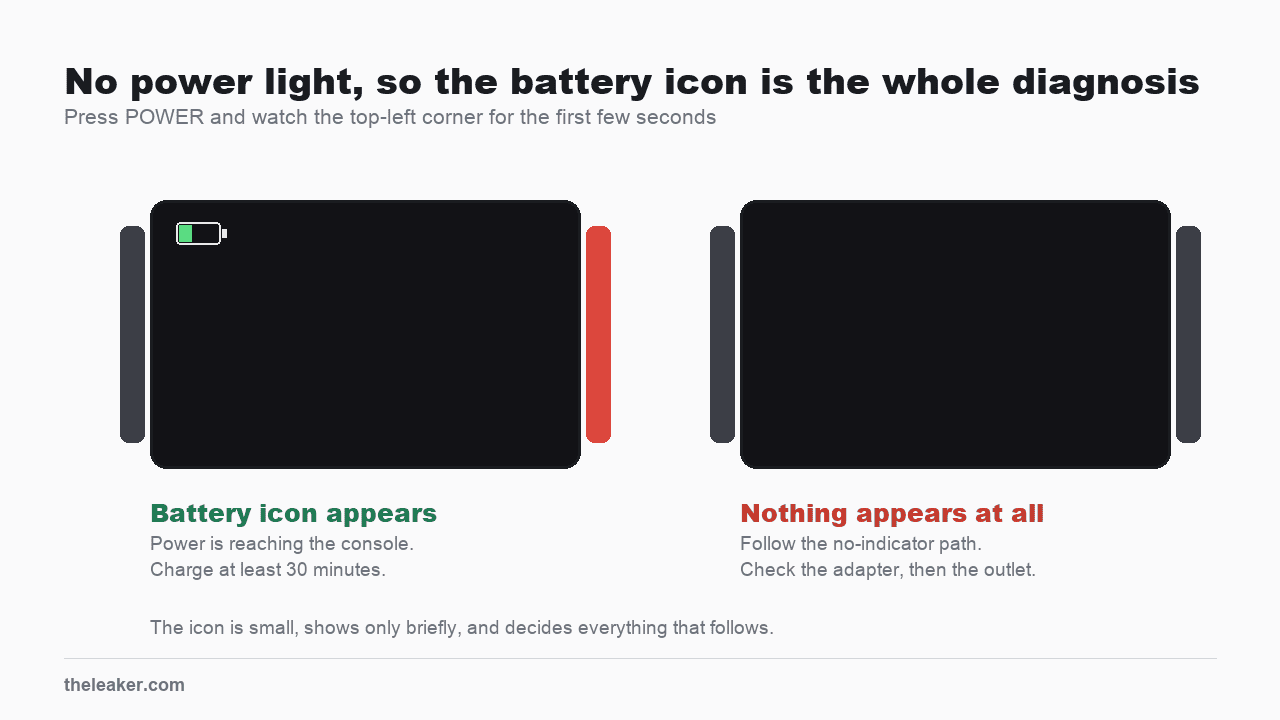
| What you see | What Nintendo says to do |
|---|---|
| A battery icon appears top-left, screen otherwise black | Charge it for at least 15 to 30 minutes, then press POWER again |
| Nothing appears at all | Test the adapter on a different Nintendo USB-C device, as below |
The icon means power is reaching the console. The instruction is then to “charge the console for at least 15 to 30 minutes with an undamaged Nintendo Switch AC adapter”, and it is worth taking literally instead of pressing POWER every couple of minutes.
If it still will not start after that, the same page keeps going. Check the adapter cable along its length for fraying, splits, kinks or loose connectors, then confirm the console is on the latest system version once it does boot. Only after those does it route to service, and it asks you to send the AC adapter along with the console.
Check the charger is the real one
An unofficial adapter is a common cause that has nothing to do with the console, and the check takes seconds. Look at the bottom of the AC adapter where the cord attaches and confirm it reads MOD. HAC-002.
Their wording on the alternative is careful. Unlicensed products “do not undergo Nintendo’s testing and evaluation process and may have compatibility problems”. They recommend a licensed adapter “for best performance results”.
Borrow an official one before buying anything.
What does not work
- Charging it in the dock while diagnosing. The sequence starts by removing it. My reason for keeping it out is that the dock adds two more connectors to a fault you have not located yet.
- A short press of POWER. The reset needs the full 20 seconds.
- Laptop or car USB ports. They will not deliver what the console needs, and a Switch that is deeply flat may show nothing at all from one.
- Waiting five minutes and giving up. The instruction is 15 to 30.
What this will not fix
- Liquid damage.
- A swollen battery, visible as the screen or back panel lifting away from the frame. Stop charging it and get it looked at.
- A bent or loose USB-C port, where the cable wobbles or needs holding at an angle.
- A console that died during a system update. The no-power page does not cover it, and its only mention of updates is a reminder to keep the console current. There is a published route for it though: Maintenance Mode, which exists for a console that cannot update normally. With the console fully off, hold both volume buttons and press POWER, then choose Update System. It covers Switch, Lite and OLED, and it is worth trying before a repair request.
If none of it works
Start with the socket, because a dead one will fail every test below and look exactly like a dead adapter. Plug a lamp or a phone charger in and confirm it works.
Then comes the test that actually separates a dead adapter from a dead console. The published branch is to unplug the adapter from the console and plug it into another Nintendo device that charges over USB-C, naming a Pro Controller, a Joy-Con Charging Stand or the dock. If that device charges, the adapter is fine and the console is the problem.
Pick your test device carefully, because two of the three give you almost nothing to look at. The dock is the one Nintendo comments on, noting you “may see the power light turn on for a moment when first plugging it in”. A Pro Controller shows a charging light. The Joy-Con Charging Stand shows its charge state only on a console screen, which is the thing you do not have, so it is the worst of the three to test with. If the adapter does not charge that other device, do not book a repair yet. The published branch carries on: confirm the adapter is genuinely the right model, look it over for damage, inspect the USB-C connector on the bottom of the console, and try a different adapter if you can borrow one. Service comes after all four, and the console is only the suspect once the adapter has been cleared.
A Switch that still shows no charging indicator after that, with a full forced shutdown behind it, has a hardware fault. My own guess would be the charging port or the battery, though nothing on the support page names a component, and both are inside the case either way.
Check warranty status before paying anyone. Nintendo runs its own repair service, which takes an online service request. No price list is published for these repairs, so ask what the assessment will cost before you send anything. The same fault costs very differently in and out of cover, and a third-party shop quoting up front is not necessarily cheaper once cover is taken into account.
FAQ
How long should I leave it charging?
Nintendo’s figure is at least 15 to 30 minutes before trying POWER again.
Does the dock charge it if the console is dead?
It normally does, but Nintendo’s troubleshooting deliberately removes the dock, so charge straight from the adapter into the console while you are diagnosing.
My Switch Lite will not sit in the dock.
It is not meant to. The Lite has no video output and is not compatible with the dock, so charge it directly from the adapter.
Is this the same as an Xbox that will not turn on?
No. An Xbox Series X resets its internal power supply with a 10 second unplug at the console, where the 30 seconds here is aimed at the AC adapter. See Xbox Series X won’t turn on.
Is this the same as a PS5 that will not turn on?
No, and the difference is the indicator. A PS5 has a power light with a published meaning for every state, so the symptom itself narrows the fault. A Switch has none, which is why the battery-icon check does that work instead. See PS5 won’t turn on.
Sources
- Nintendo Support, Nintendo Switch System Has No Power, a Blank Screen, or Won’t Wake Up From Sleep Mode, for the five-step sequence, the MOD. HAC-002 adapter number, the charging-indicator split, the licensed-adapter wording and the no-power-light statement. Read August 9, 2026.

I am the chief editor of TheLeaker. I also maintain the backend stuff of the site. I’m a tech enthusiast and loves to do Python coding in my free time. I have worked at many giant publications like XDA Developers and NXTtech before starting TheLeaker.
You can get in touch with me at Garv[at]theleaker.com.