

Hotel Wi-Fi that wants your room number and firstborn. A train with “free Wi-Fi” that loads one page every four minutes. A power cut that takes the router down mid-meeting. Sooner or later, everyone needs their phone to become the internet connection, and it’s one of the most underrated features your phone has.
Setting up a mobile hotspot takes about thirty seconds. Setting it up well, so it’s secure, doesn’t cook your phone, and doesn’t vaporize your data plan: takes a few minutes more. Here’s the whole picture.
The quick answer: On most Android phones, go to Settings > Network & internet > Hotspot & tethering > Wi-Fi hotspot (Samsung: Settings > Connections > Mobile Hotspot and Tethering). Before turning it on, change the network name, set a strong password, and pick WPA3 security if your devices support it: never run it open. Then connect your laptop or tablet like any Wi-Fi network, or just tap the hotspot tile in Quick Settings whenever you need it. Three things to know: laptops treat any Wi-Fi as unlimited home broadband, so pause cloud backups and OS updates before you connect or they’ll eat gigabytes; hotspotting works the phone’s modem and Wi-Fi radio hard, so expect heat and battery drain: plug the phone in for long sessions; and if speeds are bad, try the 5 GHz band and put the phone near a window. USB tethering is a solid plan B: faster, more stable, and it charges the phone while you work.
Setting it up properly the first time
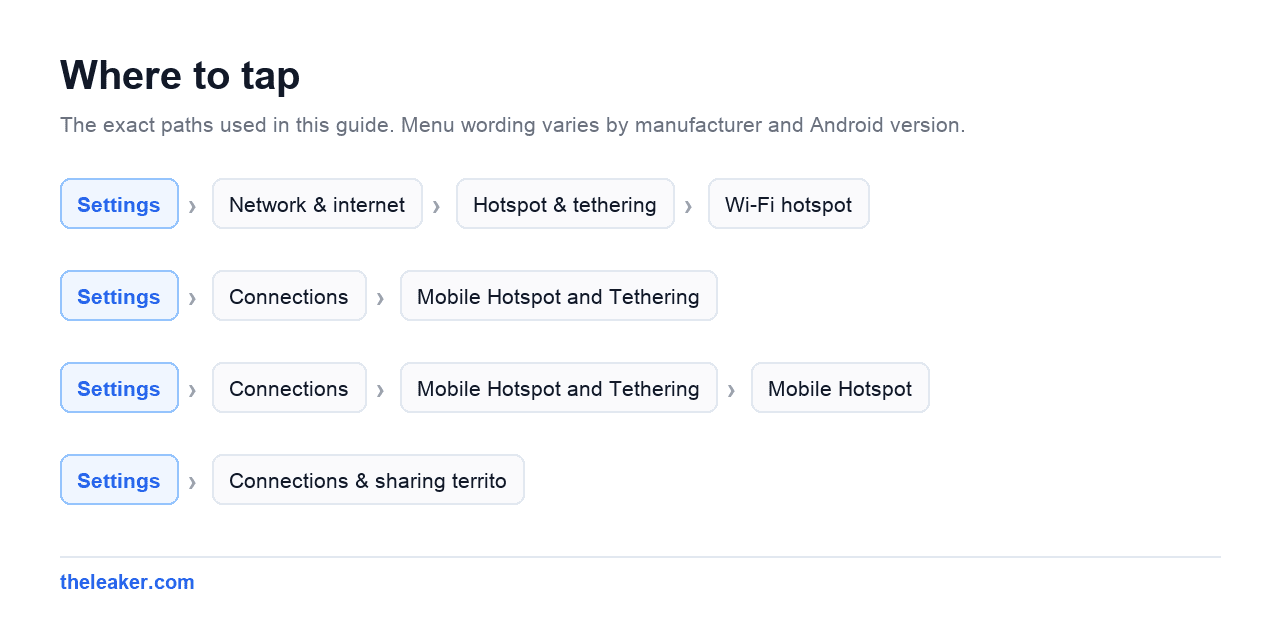
Find the hotspot settings: Settings > Network & internet > Hotspot & tethering > Wi-Fi hotspot on Pixels and most stock-ish Android phones, Settings > Connections > Mobile Hotspot and Tethering > Mobile Hotspot on Samsung, and Settings > Connections & sharing territory on Xiaomi and friends. If in doubt, search “hotspot” in the Settings search bar.
Before flipping the main switch, tap into the configuration and set three things:
- Network name (SSID). The default is usually your phone model, which broadcasts exactly what device you’re carrying. Change it to something generic. Skip the “FBI Surveillance Van” joke. A boring name draws less attention than a funny one.
- Password. Make it long and make it something you can read out loud to a colleague without spelling it four times. A few random words beats “j7#kQ!2z” for both security and sanity.
- Security type. Choose WPA3-Personal if it’s offered and your connecting devices are reasonably modern; the compatibility mode (WPA2/WPA3) is the safe pick if an older laptop refuses to join. Never, ever choose Open. An open hotspot means strangers can ride your data plan and see your traffic’s metadata.
Once configured, you rarely need to visit this screen again. The Hotspot tile in Quick Settings (swipe down, edit tiles if it’s not there) turns it on and off in one tap. On Samsung and Pixel phones, other devices signed into your Google or Samsung account can often connect without typing the password at all: Instant Hotspot on Pixel lets your own tablet or Chromebook join automatically when it sees your phone nearby.
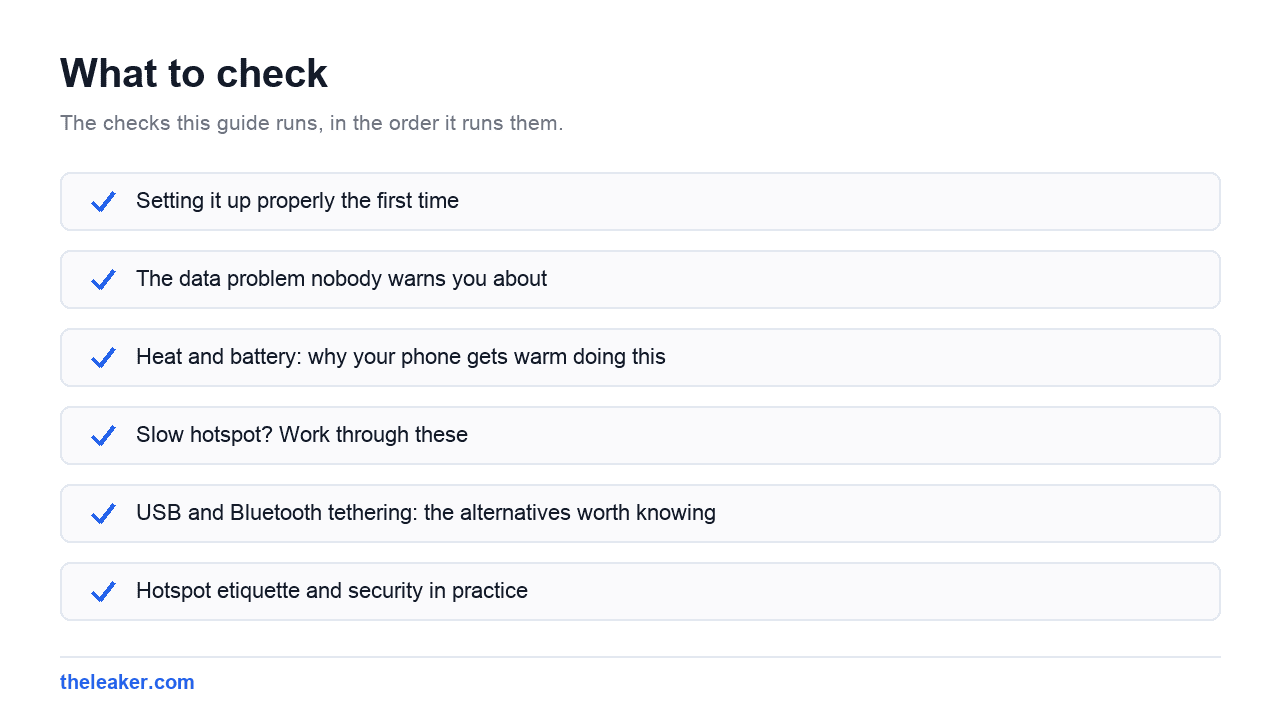
The data problem nobody warns you about
Here’s the thing that catches almost everyone: your laptop doesn’t know it’s on a phone. To Windows or macOS, your hotspot is just another Wi-Fi network, and both operating systems assume Wi-Fi means unlimited broadband. The moment your laptop connects, it may start downloading OS updates, syncing OneDrive or iCloud, backing up photos, and updating apps: silently, in the background, at hundreds of megabytes a pop.
Defend yourself on both ends:
- On Windows: after connecting, go to Settings > Network & internet, click the hotspot network, and turn on Metered connection. Windows then defers most updates and heavy sync.
- On macOS: recent versions detect hotspots as “low data mode” networks reasonably well, but check that iCloud photo sync and software updates aren’t running if your plan is tight.
- On the phone: most Android skins let you set a one-time data limit for the hotspot session: Samsung’s hotspot settings and stock Android’s hotspot screen both offer this on many versions. Set it and the hotspot shuts off at the cap instead of sailing past it.
Also close the obvious bandwidth hogs before you connect: streaming tabs, game launchers like Steam (notorious for auto-downloading updates), and cloud backup clients. A hotspot session for “answering emails” costs a few dozen megabytes. The same session with Steam awake can cost ten gigabytes.
Heat and battery: why your phone gets warm doing this
A hotspot session runs the cellular modem at full duty while simultaneously broadcasting Wi-Fi: two radios working hard at once. That’s why an hour of tethering can drain 15-25% of your battery and leave the phone noticeably warm. It’s normal, but it’s worth managing:
- Plug the phone in for sessions longer than half an hour. Charging plus hotspotting generates even more heat, though, so use a normal-speed charger if the phone is getting hot, and keep it out of direct sun.
- Don’t leave it on a car dashboard or under a pillow. Trapped heat is the enemy. If your phone regularly runs hot while tethering, our guide to real fixes for an overheating phone covers what helps and what’s snake oil.
- Turn on the auto-off setting. Most Android versions have “Turn off hotspot automatically” when no devices are connected: leave it enabled so a forgotten hotspot doesn’t drain the battery all afternoon.
Slow hotspot? Work through these
Hotspot speed is capped by two things: your phone’s cellular signal and the Wi-Fi link between phone and laptop. Fix them in that order.
Cellular side: the hotspot can only share what the phone receives. Check the phone’s own speed first with a speed test. Move it near a window, higher up, away from thick walls. In a building’s interior, even one meter of repositioning can double throughput. A phone showing one bar of signal will make a miserable hotspot no matter what else you do.
Wi-Fi side: in the hotspot settings, look for the AP band option. 5 GHz is much faster and less congested than 2.4 GHz, at the cost of shorter range: perfect when the laptop is on the same desk. If an older device can’t see the 5 GHz hotspot, switch back to 2.4 GHz or the compatibility option. Keep the phone within a few meters of the connected devices; a hotspot is not a whole-house router.
Still bad? Toggle airplane mode on and off to force the phone onto a fresh cell connection, and check whether your carrier plan throttles hotspot traffic: many “unlimited” plans include only a fixed allowance of full-speed hotspot data, after which tethered traffic crawls while the phone itself stays fast. That mismatch (phone fast, laptop slow) is the classic sign of a plan-level hotspot cap, not a technical problem.
USB and Bluetooth tethering: the alternatives worth knowing
USB tethering is the underrated option. Connect the phone to a laptop with a cable, then enable USB tethering in the same Hotspot & tethering menu (the option only lights up while a device is connected). Benefits: the connection is more stable than Wi-Fi, often faster, invisible to anyone nearby, and the laptop charges the phone the whole time, which solves the battery problem outright. If you tether at a desk regularly, USB should be your default.
Bluetooth tethering is the opposite trade: much slower than Wi-Fi, but sips battery. It’s fine for a tablet that only needs email and messages, and mostly a relic otherwise.
Ethernet tethering even exists on recent Android versions with a USB-to-Ethernet adapter, which is niche but a lifesaver for smart TVs or desktops with no Wi-Fi.
Hotspot etiquette and security in practice
A few things people learn the hard way:
- Sharing with others? Use the QR code. Modern Android generates a connection QR right on the hotspot screen. The other person scans it with their camera and joins without you reading a password aloud in a café.
- Kick devices you don’t recognize. The hotspot screen lists connected devices. If the count is higher than expected, change the password; everyone gets disconnected and only people with the new password return.
- Turn it off when you’re done. Beyond battery, every hour broadcasting is an hour someone could be probing it. The auto-off setting covers you when you forget.
- Know your plan. Tethering is included in most modern plans but capped on many; a quick look at your carrier app tells you your full-speed hotspot allowance before a trip, not during it.
Frequently asked questions
Does using a hotspot use more data than using the phone directly?
The hotspot itself adds nothing, but the devices you connect behave differently. A laptop loads full desktop sites, syncs cloud folders, and downloads OS updates, so the same hour of “browsing” costs several times more through a laptop than on the phone. Mark the connection as metered on the laptop and pause big sync jobs.
Why does my hotspot keep turning off by itself?
Usually the auto-off feature: the hotspot shuts down after a few minutes with no devices connected, and some phones also stop it under battery saver or extreme heat. If it drops while devices are actively connected, check for aggressive battery optimization on the phone and try switching the AP band, and on Samsung check the timeout setting inside Mobile Hotspot’s advanced options.
How many devices can connect at once?
Most modern phones support around 10 connected devices. In practice, performance degrades before you hit the limit: every device shares one cellular connection, so two laptops streaming video will crawl regardless of the theoretical maximum. For a group, it’s the total demand that matters, not the device count.
Is it safe to do banking over my own hotspot?
Yes: safer than public Wi-Fi, in fact. Your hotspot is an encrypted network you control, carrying traffic over the same cellular connection your phone’s banking app already uses. The security requirements are simply a strong password and WPA2/WPA3 encryption, both of which you set up in the first section.

Yash Jain writes about Android and Apple for The Leaker, focusing on how to guides, download resources, and top and best roundups. His articles walk readers through setup steps and app choices, compare options across categories, and follow news updates across both mobile platforms as they develop.