
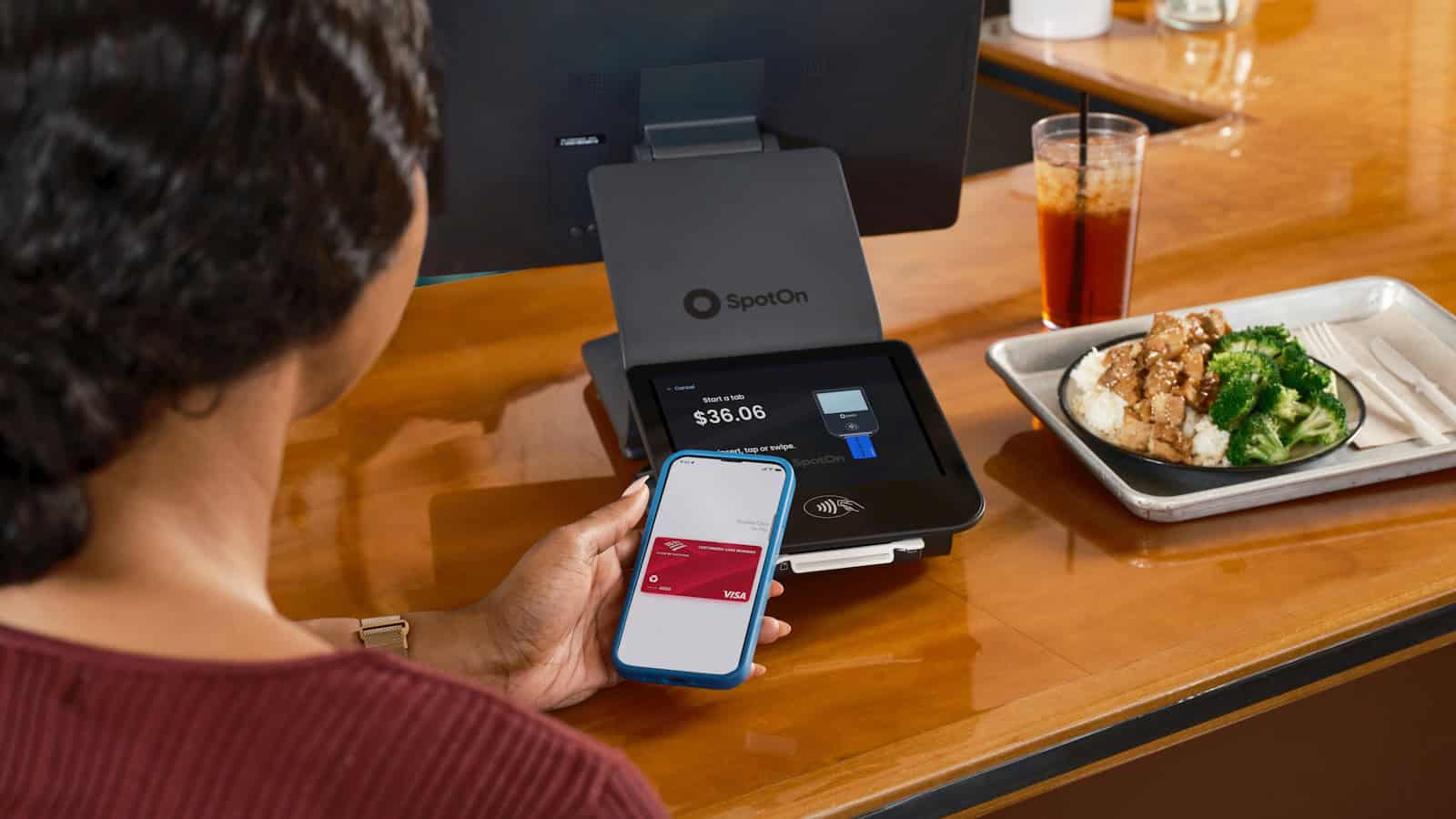
For most people, NFC on Android is the thing that makes Google Wallet work at the checkout. Tap, beep, done, forget it exists. Which is a shame, because that little chip near the top of your phone is one of the most quietly versatile pieces of hardware you own, and almost nobody uses it for anything else.
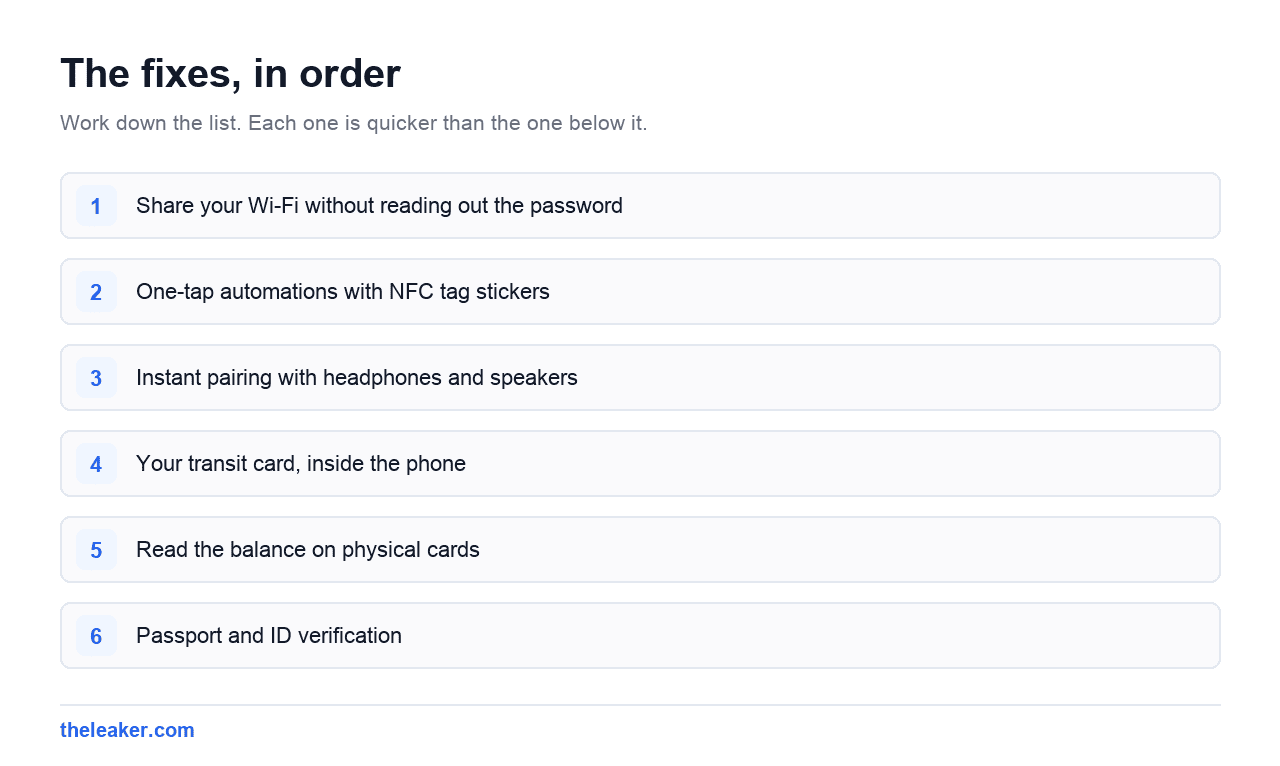
NFC (near-field communication) is a short-range radio that works over a few centimeters. That tiny range is the feature, not the limitation: because a tap requires deliberate physical contact, NFC is perfect for “do this exact thing, right now, with zero setup” interactions. Here are ten NFC uses on Android that have nothing to do with paying.
The quick answer: Beyond tap-to-pay, your phone’s NFC chip can share Wi-Fi with guests via a tap, pair instantly with headphones and speakers, trigger automations through cheap NFC tag stickers (tap your nightstand to start bedtime mode, tap the car mount to launch navigation), read the chip in your passport for identity verification apps, act as your transit card, serve as a digital car or hotel key, share your contact details like a business card, top up and read balance on transit and stored-value cards, and let you check what’s written on any tag before you trust it. Blank NFC tags cost about a dollar each, need no battery, and last for years: pair them with a free app like NFC Tools, or native tag routines on Samsung and Xiaomi, and they become physical buttons for anything your phone can do.
1. Share your Wi-Fi without reading out the password
Android can already share Wi-Fi via QR code, but write that same network info to an NFC tag stuck near your router or by the front door, and guests just tap their phone against it to join. No unlocking your phone, no finding the QR screen, no spelling out “capital J, underscore, the number four.” Apps like NFC Tools (free on the Play Store) have a dedicated Wi-Fi record type: pick the network, enter the password once, write the tag. It keeps working for every guest after that, forever, with no battery.
2. One-tap automations with NFC tag stickers
This is the rabbit hole. Blank NFC stickers cost roughly a dollar apiece in packs, and each one can trigger anything your phone can do. The pattern: stick a tag where a context lives, and tapping it sets up that context. Real examples people actually keep using:
- Nightstand tag: tap to enable Do Not Disturb, set the alarm, dim the screen, start white noise.
- Car mount tag: tap to launch Google Maps, connect Bluetooth, open Spotify.
- Desk tag: tap to silence the phone and start a focus timer.
- Gym bag tag: tap to start your workout playlist and open your tracking app.
- Door tag: tap on the way out to remind you about keys, or toggle smart home scenes.
How to build them: write simple records (open app, toggle setting, open URL) directly with NFC Tools. For multi-step routines, pair tags with automation: Samsung’s Modes and Routines supports NFC tag triggers on many models, Xiaomi ships a tag-reading shortcut feature, and the popular route on any phone is an automation app such as Tasker or MacroDroid reacting to a specific tag. Home Assistant users get first-class NFC tag support in the companion app, which is why “nfc tags home assistant” is one of the most-searched uses of the whole technology.
The magic compared to voice assistants or widgets: zero ambiguity and zero friction. You don’t ask, you don’t search, you don’t unlock. You physically tap the place, and the place happens.
3. Instant pairing with headphones and speakers
Plenty of Bluetooth speakers and some headphones carry an NFC logo. Tap your phone on it and the Bluetooth pairing handshake happens automatically: no digging through the Bluetooth menu while the speaker flashes at you. Sony has shipped this on speakers and headphones for years. Even without built-in NFC on the accessory, you can fake it: write a tag that toggles Bluetooth on and stick it on the speaker’s base.
4. Your transit card, inside the phone
Transit is arguably NFC’s biggest non-payment success story. Google Wallet supports transit cards in a long list of cities (Suica and Pasmo in Japan, Oyster-style contactless in London, Clipper in San Francisco, and many more) letting your phone be the card at the gate. Depending on the system, you can add a card, top up the balance from the phone, and tap through turnstiles even when the phone’s screen is off. Check Google Wallet > Add to Wallet > Transit pass to see what your city supports.
5. Read the balance on physical cards
Even when your transit system doesn’t live in Google Wallet, many contactless cards (transit cards, some stored-value and laundry cards) can be read by your phone. Cities with official apps often include a “check balance” feature: hold the physical card against the back of your phone and it reads the chip. Third-party reader apps exist for common card standards too. It’s a small thing, but never queueing at a machine just to see if your card has enough for the fare is a genuine quality-of-life upgrade.
6. Passport and ID verification
Modern passports contain an NFC chip storing the same data as the photo page, cryptographically signed. A growing number of official apps use your phone to read it: airline and border apps for pre-travel checks, and identity-verification flows for banks and government services that ask you to scan the photo page, then hold the passport against your phone. The NFC read is what makes the verification strong. The chip can’t be photoshopped. If an app ever asks you to “hold your passport to the back of your phone,” now you know what’s happening.
7. Digital car keys and hotel keys
Car makers including BMW, Hyundai, Kia, and Genesis support digital key standards where your phone unlocks and starts the car: with NFC as the tap-the-door-handle fallback that works even when the phone’s battery is nearly dead, because the NFC secure element can operate in a low-power reserve mode. On the travel side, major hotel chains have rolled out room keys in Google Wallet, so check-in ends at your phone instead of the front desk. Support depends on the specific car, hotel, and region, but this category has moved from gimmick to genuinely common in the last few years.
8. A business card that never runs out
Write your contact details (a vCard record) or a link to your portfolio, LinkedIn, or a link-in-bio page onto a tag, or onto an NFC-equipped business card, which several companies now sell. The other person taps their phone against it and your details pop up, no app required on their end, because Android reads standard NFC records natively. For conferences, this beats QR codes in one specific way: it works instantly at arm’s length without anyone framing a camera shot.
9. Quick device-to-device sharing (and its history)
Old-timers remember Android Beam, where you pressed two phones together to send a photo. Beam is gone: replaced by Quick Share, which uses Bluetooth and Wi-Fi Direct and is faster in every way. But NFC still plays setup roles: tap-to-pair for accessories, and the initial handshake in some cross-device flows. If you regularly move files between devices, Quick Share is the modern tool for the job. We’ve covered hidden Android settings worth enabling, and sharing settings are among the ones most people never open.
10. Inspect any tag before you trust it
Here’s the security-flavored use: NFC tags in the wild (posters, tables in cafés, conference badges) can contain any URL, and tapping one pops a preview on your phone. With a reader app like NFC Tools, you can inspect a tag’s full contents (record types, URLs, text) before acting on anything. The rule of thumb mirrors QR codes: reading a tag is harmless, but treat an unexpected URL from a random public tag with the same suspicion as a link in a spam text. And when writing your own tags, you can lock them read-only so nobody overwrites your nightstand tag with something else.
Getting started: settings and buying tags
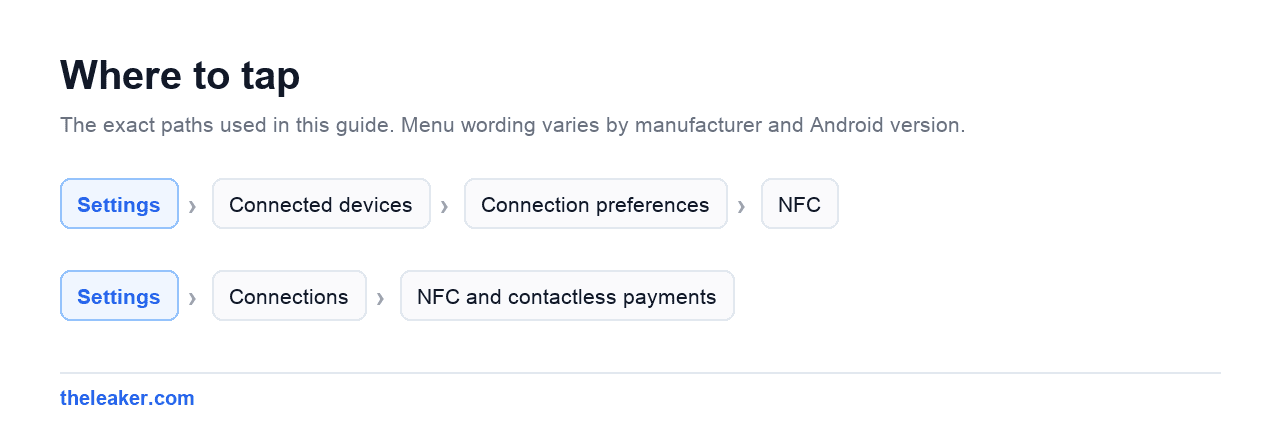
First, confirm NFC is on: Settings > Connected devices > Connection preferences > NFC on stock Android, or Settings > Connections > NFC and contactless payments on Samsung. NFC uses so little power that leaving it on permanently costs effectively nothing. It only draws meaningful current during an actual tap.
Buying tags: look for NTAG215 or NTAG216 stickers: widely compatible, enough storage (about 500 and 880 bytes respectively) for URLs, Wi-Fi credentials, and contact cards, and cheap in packs of ten or more. Avoid mounting tags directly on metal surfaces unless you buy “on-metal” tags with a shielding layer; ordinary tags stop working against metal because it detunes the antenna.
The tap point on your phone is usually the upper back, if a tag seems dead, sweep the phone slowly over it; different phones put the antenna in slightly different spots.
Frequently asked questions
Does leaving NFC on drain the battery or pose a risk?
Battery impact is negligible. The chip idles at near-zero power and only wakes for a tap. Security-wise, the few-centimeter range means an attacker essentially needs to touch your phone, payments require unlocking or authentication anyway, and reading a malicious tag still shows you a confirmation before anything opens. It’s fine to leave on.
How many times can an NFC tag be rewritten?
Common NTAG-series tags are rated for tens of thousands of write cycles and effectively unlimited reads, with data retention measured in years. For a home automation tag you’ll rewrite a handful of times, durability is a non-issue. If you lock a tag read-only, though, that’s permanent: lock only tags whose contents you’re sure about.
Do NFC tags need batteries or an internet connection?
Neither. The tag is a passive chip powered entirely by your phone’s radio field during the tap. What happens after the tap (opening a URL, running a routine) depends on your phone, which may need a connection for internet-dependent actions.
Can iPhone users read the tags I make?
Yes. Modern iPhones read standard NDEF records (URLs, contacts, Wi-Fi) natively, so a link tag or digital business card works across both platforms. Phone-specific automations don’t transfer. A tag that triggers your Samsung routine will just show its underlying record on someone else’s phone.

A tech Journalist and Photographer, Dhawal Sharma is a technology enthusiast who loves to research the latest innovations and technology. He has contributed to the Honor Community for a very long period and has crucial expertise in writing tech news and reviewing smartphones and laptops. Analyzing and bringing the facts about any piece of tech is what he loves the most. He is a great product photographer and is the Gizmopedia of TheLeaker. Find him on Facebook and Instagram, and you can also email him at [email protected].