
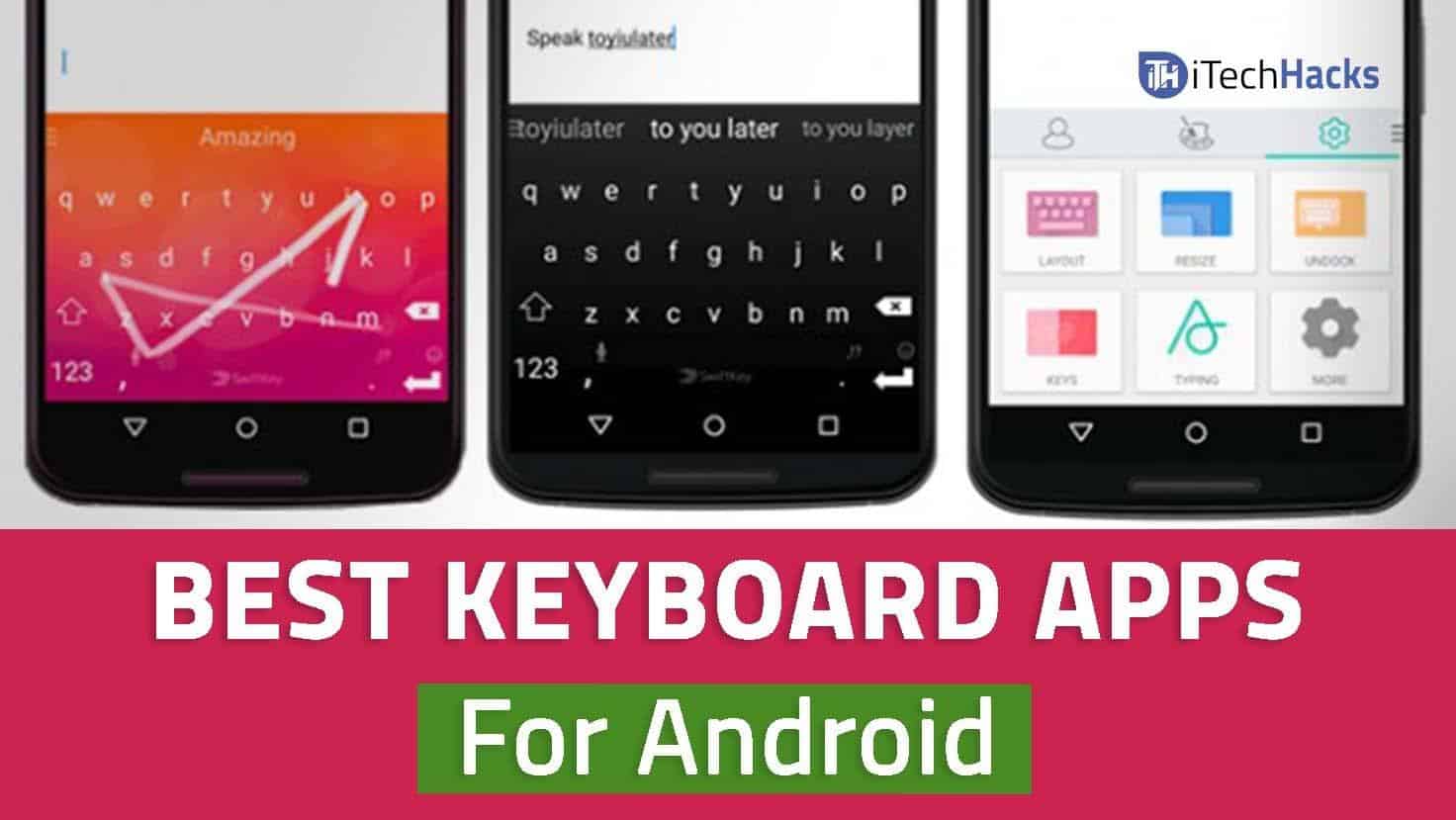
Your keyboard is the single most-used app on your phone. It’s also the one app that sees literally everything: every password you type manually, every message, every search, every note you’d never post publicly. That’s worth thinking about for more than the four seconds most people spend on it.
Here’s the uncomfortable conclusion after actually testing the best Android keyboards you can get in 2026: the keyboard that came with your phone is probably the right one already, and the flashy ones in the app store are the ones you should worry about.
The quick answer: Most people should use Gboard and stop thinking about it. It’s free, has no ads, gets constant updates, handles swipe typing and voice input better than almost anything else, and it’s already installed on most Android phones. Microsoft’s SwiftKey is the one genuinely strong alternative: better at learning your personal writing style and excellent for multilingual typing. Samsung Keyboard is fine if you own a Samsung and don’t want to install anything. If privacy is your priority, the open-source options HeliBoard and FlorisBoard run entirely offline with no network access at all, at the cost of weaker prediction. Everything else (the theme packs, the sticker keyboards, the “AI keyboard” that appeared last month) deserves real suspicion, because a keyboard is the highest-trust permission you can grant on a phone.
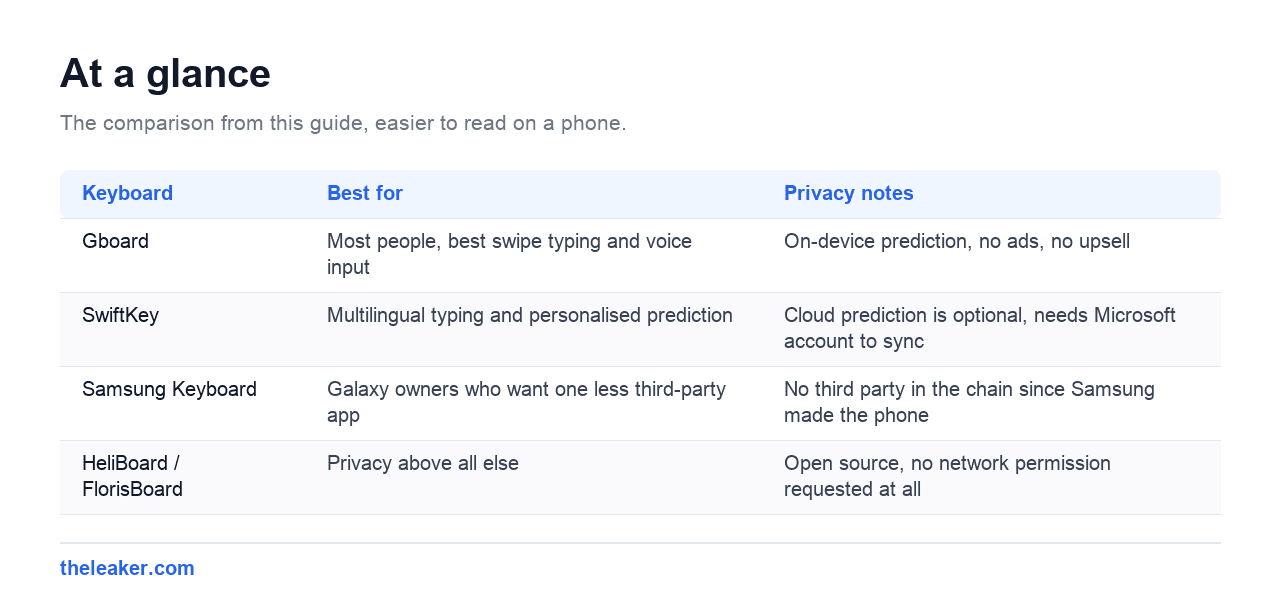
| Keyboard | Best for | Privacy notes |
|---|---|---|
| Gboard | Most people, best swipe typing and voice input | On-device prediction, no ads, no upsell |
| SwiftKey | Multilingual typing and personalised prediction | Cloud prediction is optional, needs Microsoft account to sync |
| Samsung Keyboard | Galaxy owners who want one less third-party app | No third party in the chain since Samsung made the phone |
| HeliBoard / FlorisBoard | Privacy above all else | Open source, no network permission requested at all |
Why keyboards are a genuine privacy issue
Android warns you about this and everyone ignores it. When you enable a new keyboard, the system throws up a dialog saying the app “may be able to collect all the text you type, including personal data like passwords and credit card numbers.” That’s not boilerplate. It’s literally accurate.
An input method has to see your keystrokes. That’s the job. The question is what happens next. A well-behaved keyboard does prediction on-device and sends nothing, or sends only anonymized aggregate data you can opt out of. A badly-behaved one ships your typing to a server for “cloud prediction,” or worse, monetizes it.
Concrete things to look at before installing any keyboard:
- Does it request the Internet permission? A keyboard doesn’t need network access to type. If it has it, prediction, themes, GIFs or telemetry are going somewhere.
- Who publishes it? Google, Microsoft and Samsung are large, regulated, and have a lot to lose. A developer account with three apps and no website does not.
- Is it maintained? Check the last update date. A keyboard that hasn’t been updated in two years is running against modern Android with old assumptions.
- What does the Data Safety section say? Play Store listings must disclose what they collect. Read it. Some keyboards openly declare they collect device IDs and usage data for advertising.
- Are ads in it? An ad-supported keyboard is monetizing your attention while sitting on top of your typing. That’s a poor arrangement.
The historical case study everyone cites still matters. several popular third-party keyboards over the years have been caught transmitting more than users expected, and at least one major manufacturer’s preinstalled keyboard had a serious remote vulnerability affecting hundreds of millions of phones. This isn’t hypothetical paranoia.
The practical rule: install keyboards from major vendors or from open-source projects you can verify. Skip the ones that lead with themes and stickers.
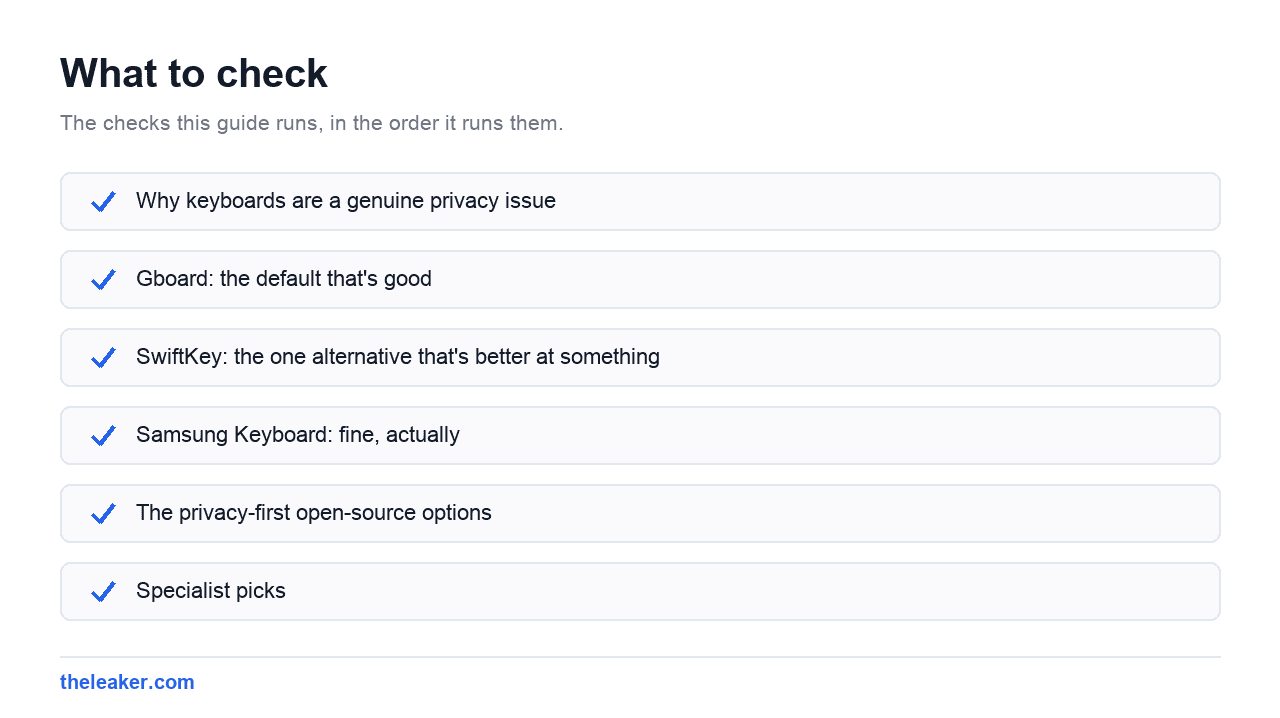
Gboard: the default that’s good
It’s easy to be cynical about recommending Google’s keyboard on Google’s operating system, but Gboard earns it on merit.
Swipe typing is the best in the category. It recovers from sloppy gestures better than anything else, which matters more in real use than raw accuracy tests suggest. Voice typing is excellent, works offline on most modern phones, and handles punctuation commands well. The built-in clipboard manager keeps your recent copies and lets you pin items, which is one of those small features you can’t give up once you’ve used it. Multilingual typing lets you enable several languages at once and switch without touching anything.
Google has also folded its Gemini AI features into Gboard on supported devices for proofreading and rewriting suggestions. Useful if you want it, and it can be turned off if you don’t.
On the privacy side, Gboard does the bulk of its prediction on-device and offers a fairly clear settings panel for what it shares. Google’s business model means you’re still inside Google’s ecosystem. If that’s a dealbreaker, skip to the open-source section. But there’s no ad layer and no upsell, and it’s a serious piece of software that gets constant attention.
Worth turning on: the number row (Settings → Preferences), one-handed mode if you have a big phone, and the glide-to-delete gesture. Worth turning off: emoji suggestions if you find them noisy, and “Share usage statistics” if you’d rather not.
SwiftKey: the one alternative that’s better at something
Microsoft’s SwiftKey has been around longer than most and its distinguishing strength hasn’t changed: prediction that adapts to how you write. Over a few weeks it picks up your slang, your names, your abbreviations, in a way that feels noticeably more personal than Gboard’s more generic model.
It’s also the best pick if you type in multiple languages. SwiftKey supports a very large number of languages with automatic detection, so it can predict across two or three at once without you switching layouts.
Microsoft has added Copilot integration for rewriting and tone adjustment. Same as Gboard’s version: handy sometimes, ignorable otherwise.
The trade-off: it’s a Microsoft account ecosystem if you want your learned dictionary to sync across devices, and cloud prediction is an option you should consciously decide about rather than leave on by default. Free, no ads.
Who should switch to it: heavy typists who find Gboard’s suggestions generic, and anyone typing in more than one language daily. Everyone else won’t notice enough difference to bother.
Samsung Keyboard: fine, actually
If you own a Galaxy, the keyboard already on it is competent. Good haptics, deep integration with Samsung’s own features, solid swipe input, and there’s no third party in the chain because Samsung already made your phone. It’s not as good as Gboard at swipe recovery or voice, but the gap is smaller than it used to be, and “one less app with keystroke access” is a legitimate argument. If you’re happy with it, there’s no compelling reason to change.
The privacy-first open-source options
HeliBoard is currently the strongest choice if your priority is that nothing leaves your device. It’s open source, distributed through F-Droid, and it requests no network permission at all, which is a stronger guarantee than any privacy policy, because a permission Android hasn’t granted can’t be quietly used. Prediction is on-device using downloadable dictionary files. Swipe typing requires adding a separate gesture library, which is a bit fiddly.
FlorisBoard is the more modern-feeling open-source option, also privacy-focused, with a nicer visual design. It’s been in active development for years and is still maturing in places.
AnySoftKeyboard is the long-running veteran: open source, endlessly configurable, with add-on language packs. It looks its age but it works and it’s honest about what it does.
Be realistic about the trade. These keyboards have meaningfully weaker autocorrect and prediction than Gboard or SwiftKey, because that quality comes from enormous amounts of training data and engineering. You’re buying privacy with typing speed. For some people that’s obviously worth it. For most it isn’t, and pretending otherwise doesn’t help anyone.
Specialist picks
Fleksy still exists and is still built around raw speed, with a compact layout and gesture-heavy input. Worth a look if you type fast and find standard layouts limiting.
Unexpected Keyboard is a niche open-source favorite: every key has extra characters on its corners accessed by swiping, which is brilliant for anyone typing code or symbols on a phone.
Simple Keyboard and similar minimal keyboards do nothing but type. No emoji, no GIFs, no prediction. Some people love this.
Notably absent from this list: most of the keyboards that dominate app store search results with theme packs, neon animations and sticker packs. Many are ad-supported, several are from developers with no track record, and the feature they’re selling, visual customization, is something Gboard and SwiftKey both do adequately for free without the risk.
How to switch (and how to switch back)
Install the keyboard from the Play Store or F-Droid. Then go to Settings → System → Languages & input → On-screen keyboard → Manage on-screen keyboards, and toggle the new one on. Read the warning dialog properly, then accept it. Switch active keyboards by tapping the small keyboard icon in the navigation bar while typing, or long-pressing the space bar.
Two housekeeping steps people skip: disable the keyboards you’re not using, because an inactive keyboard still has the app installed with its permissions, and give any new keyboard a full week before judging it. Prediction models need time to learn you, and switching back on day two tells you nothing.
If your keyboard feels laggy after switching, that’s usually a phone-level issue rather than the app: a few hidden Android settings can noticeably speed up your phone, including animation scaling, which makes every app including the keyboard feel snappier.
The contrarian bit: you probably shouldn’t switch
Typing on a phone is muscle memory. You’ve built thousands of hours of it. Changing keyboards resets your autocorrect training, moves the punctuation keys, and makes you slower for a week or two, in exchange for feature differences that are, at this point in the category’s maturity, fairly marginal.
Switch if you have a specific problem: you type in two languages and your current keyboard fights you, you want zero network access on your input method, or you dislike the prediction. Those are real reasons.
Don’t switch because a listicle told you a keyboard is “amazing.” The best keyboard is the one whose key positions your thumbs already know.
FAQ
Can a keyboard app steal my passwords?
A malicious one could, yes. That’s exactly what the Android warning dialog is telling you. In practice, password managers autofill through a separate system that doesn’t route through the keyboard, so a manager-filled password isn’t exposed. Anything you type manually is. Stick to keyboards from major vendors or verifiable open-source projects, and use a password manager so you’re typing credentials by hand as rarely as possible.
Is Gboard or SwiftKey better?
Gboard wins on swipe typing, voice input and general polish. SwiftKey wins on personalized prediction and multilingual typing. Both are free with no ads. If you’re undecided, use Gboard. It’s already installed and it’s the safer default. Try SwiftKey only if something specific about Gboard annoys you.
Do keyboard apps drain battery?
Barely, if they’re well built. A keyboard is only active while you’re typing. If you see meaningful battery drain attributed to a keyboard in Settings → Battery, that’s a warning sign. It suggests background activity that a keyboard shouldn’t need, and it’s a reason to uninstall it.
What about keyboard themes and custom fonts?
Both Gboard and SwiftKey include theme options and can use a photo as a background, which covers most of what people actually want. The “custom font” keyboards generally work by substituting Unicode lookalike characters. These often render as boxes on other people’s devices and break screen readers and search. They’re a novelty, and not a good reason to install a keyboard from an unknown developer.

Hi there! I am Pranav. As an I.T. engineer, I am always curious about the arrival of new technology & trends. So here I am to share my curiosity. When I am not working, I am a cricket buff or researching random stuff, right from a Pinto Astrophysics.