
You type out a text, hit send, and there it is: the little red triangle and the words “Message not sent.” You tap retry. Nothing. You reboot. Still there. This error has annoyed Android users for over a decade, and in 2026 it’s still around, though the causes have shifted. The old culprit was flaky SMS delivery; today it’s just as often an RCS hiccup, an eSIM quirk, or a messaging app that lost its default status. The good news: almost every case is fixable in minutes without losing your conversations.
The short version: First rule out the basics: check you have signal, airplane mode is off, and your plan is active with your carrier. Toggle airplane mode on for ten seconds and back off to reset the connection. If you’re using Google Messages and texts to certain people fail, the problem is usually RCS: open Messages settings, tap RCS chats, and turn it off and on again, or send that one message as SMS instead. Still stuck? Set your messaging app as the default SMS app, clear its cache, and make sure it has SMS permission. For a stuck “message not sent” notification that won’t swipe away, delete the failed message inside the conversation thread and the notification disappears with it. A carrier settings refresh or SIM reseat fixes the stubborn leftovers.
Start with the 30-second checks
Before you dig into settings, rule out the obvious stuff. It’s boring, but it solves more of these cases than anything else:
- Signal. If you have zero or one bar, the message may simply be timing out. Move near a window or step outside and hit retry.
- Airplane mode. Make sure it’s off. Then turn it on, wait ten seconds, and turn it off again. This forces your phone to re-register with the network, which clears a surprising number of send failures.
- Your plan. Prepaid balance run out? Bill unpaid? Carriers silently block outgoing SMS first. Check your carrier app.
- The number itself. Sending to a short code or landline that can’t receive texts will fail every time. Also check the number isn’t blocked: some phones will let you type a message to a blocked contact and then fail to send it.
- Restart the phone. Yes, really. It resets the radio and the messaging service in one go.
If none of that helps, the fix depends on how the message was being sent, so let’s sort that out next.
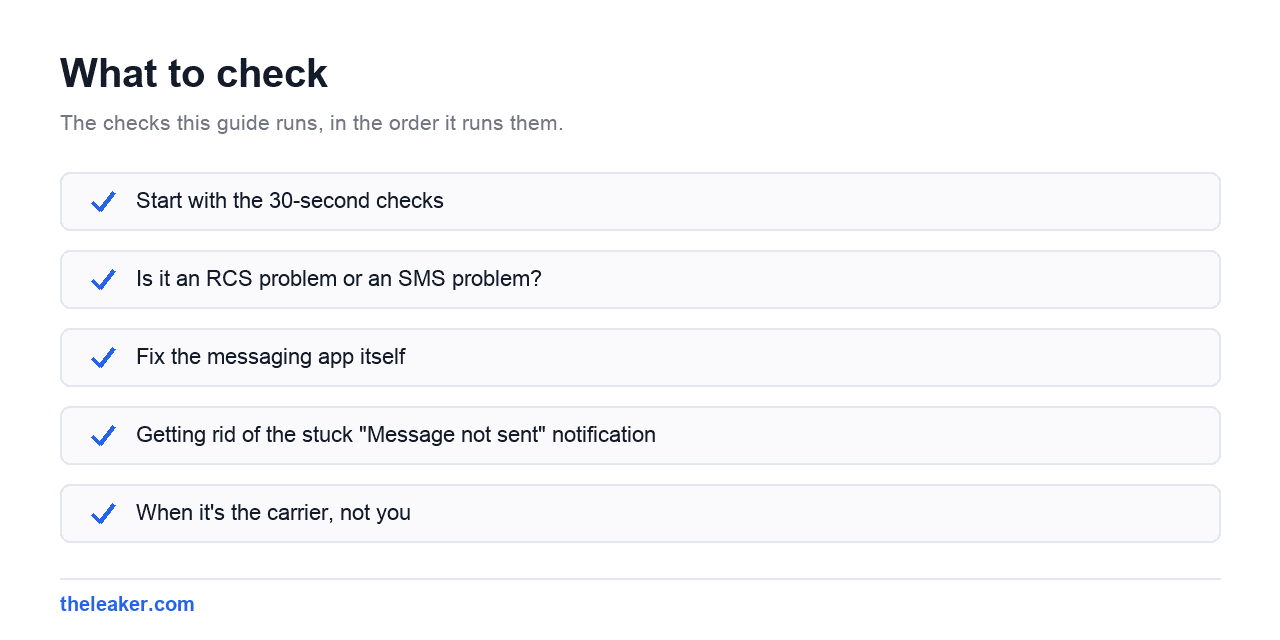
Is it an RCS problem or an SMS problem?
In 2026, most Android texting runs through RCS (the modern chat protocol in Google Messages and Samsung Messages) with plain SMS as the fallback. They fail in different ways. Look at the conversation: if the send box said “RCS message” or “Chat message” and your messages usually show read receipts, you’re on RCS. If it said “Text message” or “SMS,” you’re on the classic system.
Fixing RCS send failures
RCS messages travel over the internet, so they fail when your data connection is poor or when the RCS service itself gets into a bad state. Try these in order:
- Check your data connection. RCS needs Wi-Fi or mobile data. If you’re connected to a Wi-Fi network with no internet (hotel portals are notorious), RCS messages will sit unsent while your phone insists it’s online. Switch to mobile data and retry.
- Resend as SMS. Long-press the failed message in Google Messages and look for the option to resend as a text message. This bypasses RCS entirely and usually goes through immediately.
- Toggle RCS off and on. In Google Messages, tap your profile picture, then Messages settings > RCS chats. Turn it off, wait a moment, and turn it back on. Wait for the status to show “Connected.”
- Check the recipient. If one specific contact never gets your messages, they may have switched phones or lost RCS registration. Ask them to check their end, or just send them SMS for a while; Messages will fall back automatically once it notices.
Fixing plain SMS failures
SMS goes over the carrier network, and when it fails consistently, the usual suspect is a broken message center number (SMSC) or stale carrier settings:
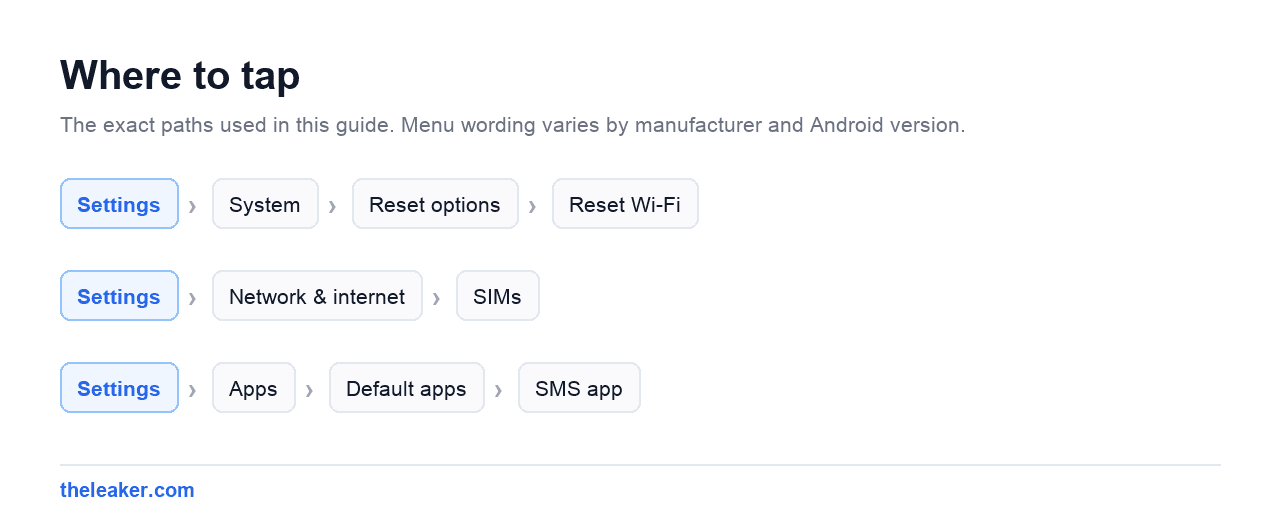
- Reset network settings. Go to Settings > System > Reset options > Reset Wi-Fi, mobile & Bluetooth (wording varies by brand). This refreshes carrier configuration without touching your files. You’ll need to rejoin Wi-Fi networks afterward.
- Reseat the SIM or reactivate the eSIM. With a physical SIM, power off, pop it out, wipe the contacts gently, and reinsert. With an eSIM, check Settings > Network & internet > SIMs and make sure the right SIM is enabled and selected for SMS. On dual-SIM phones, messages silently fail if the messaging app is trying to send from a SIM with no plan.
- Verify the SMSC. If you recently switched carriers, the message center number can be wrong. Your carrier’s support page lists the correct SMSC, though a network settings reset usually corrects it automatically.
Fix the messaging app itself
If the network side checks out, the app is the next suspect.
Make sure it’s the default SMS app
Android only lets one app send SMS. If you installed a second messaging app at some point, your main one may have lost default status. Go to Settings > Apps > Default apps > SMS app and confirm the right app is selected. While you’re in Settings, open the app’s info page and check that SMS permission is allowed; a denied permission produces exactly this error.
Clear the app’s cache
Long-press the messaging app icon, tap App info > Storage & cache > Clear cache. This deletes temporary files, not your conversations. Avoid “Clear storage” unless you’re prepared to lose local message data. If your phone is nearly full, the app can also fail to write outgoing messages at all; anything above 95 percent storage use causes weird failures across the board, and our guide to freeing up storage on Android without deleting anything can get you out of that hole quickly.
Update or reinstall
Check the Play Store for an update to your messaging app and to Carrier Services (a background app that handles RCS plumbing for Google Messages). If a recent update broke things, an update usually unbreaks them. As a last step, uninstall updates or reinstall the app.
Getting rid of the stuck “Message not sent” notification
Sometimes the message actually went through, or you no longer care, but the notification refuses to leave. The trick is that the notification is tied to the failed message itself, not to the notification shade:
- Open your messaging app and go to the conversation with the failed message. Look for the message marked with a red exclamation icon.
- Long-press the failed message and choose Delete. The notification disappears with it.
- If you can’t find the failed message, clear the messaging app’s cache as described above, then restart the phone.
- Still stuck? Open the app’s notification settings (long-press the notification, tap the gear) and toggle the “Failed messages” category off and back on. That flushes the stale notification.
Years ago the popular workaround was installing a third-party SMS app to hunt down undelivered messages. That’s no longer necessary; modern messaging apps let you see and delete failed messages directly in the thread.
When it’s the carrier, not you
If messages to everyone fail on both RCS and SMS, from a phone that worked fine yesterday, and every fix above has failed, call your carrier. Common carrier-side causes include: an expired plan or SMS block on the account, a number ported without SMS provisioning completing, spam filters flagging your line after you sent many identical messages (common if you invited a big group to something), or a local outage. Carriers can re-provision your line in minutes once you’re on the phone with them.
One more wrinkle: if you moved from iPhone to Android and some friends’ texts vanish into the void, make sure your old number is deregistered from iMessage on Apple’s website.
Frequently asked questions
Why do my messages fail to send to only one person?
Nearly always an RCS mismatch or a block. Either their phone lost RCS registration (they switched devices, or moved to iPhone without deregistering), or one of you has blocked the other. Long-press the failed message and resend it as SMS. If SMS also fails to just that contact, ask them to verify their number is active and that you’re not blocked.
Will clearing my messaging app’s cache delete my texts?
No. Clearing the cache only removes temporary files like image thumbnails and can be done safely anytime. Clearing storage (sometimes labeled “Clear data”) is the dangerous one; it can wipe locally stored conversations. Before doing that, back up with Google One backup or your phone brand’s backup tool so your message history is safe.
Why does my phone say “not sent” when the message actually arrived?
This happens when the message went out but the delivery confirmation never made it back to your phone, usually due to a patchy connection or an RCS-to-SMS fallback mid-send. The recipient gets the text; your phone just doesn’t know it. Delete the failed copy to clear the notification, and toggle airplane mode to refresh your connection so confirmations flow again.
Do I need a special app to fix message errors in 2026?
No. Everything in this guide uses the settings already on your phone. Third-party “SMS fixer” or cleaner apps don’t have any special access to the messaging system and mostly just show ads. The only apps worth updating are the ones already involved: your messaging app and, for Google Messages users, Carrier Services from the Play Store.

I am the chief editor of TheLeaker. I also maintain the backend stuff of the site. I’m a tech enthusiast and loves to do Python coding in my free time. I have worked at many giant publications like XDA Developers and NXTtech before starting TheLeaker.
You can get in touch with me at Garv[at]theleaker.com.