
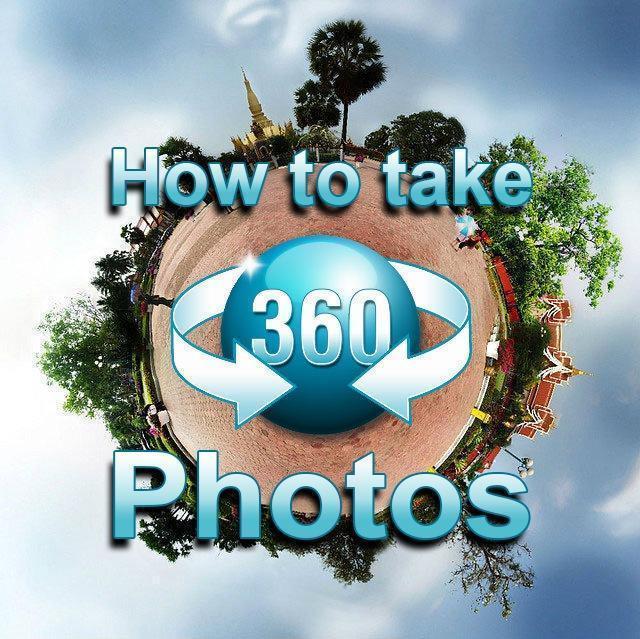
360-degree photos never really went away. They just changed homes. The apps Google once pushed for capturing them have been shuffled around or retired, VR headsets have made immersive photos interesting again, and dedicated 360 cameras have gotten genuinely good. So in 2026, how do you actually take a 360-degree photo with the Android phone already in your pocket? Here’s the full picture, from simple panoramas to true spherical shots.
The quick answer: Most Android phones can capture a photo sphere (a stitched, look-in-every-direction image) using the camera app’s panorama or 360 mode. On Pixels, open the Camera app, go to the panorama modes, and pick the 360-degree option; you’ll rotate in place, lining up a series of target dots while the phone stitches everything into a sphere. Samsung and other brands offer wide panoramas in their stock camera apps, and third-party 360 camera apps fill the gap on phones without a built-in sphere mode. Google’s old standalone Street View app, which many people used for this, has been discontinued: capture now happens in the camera app or third-party tools instead. For sharing, Google Photos and Facebook both recognize 360 photos and let viewers pan around. And if you want smooth, high-quality results, a dedicated 360 camera like an Insta360 is the real upgrade.
Panorama vs Photo Sphere vs True 360: What’s the Difference?
These terms get mixed up constantly, so let’s sort them out before you start spinning in circles in a park.
- Panorama: A wide horizontal strip. You sweep the phone left to right, and it stitches the frames into one long image. Great for landscapes, but you can’t look up or down. It’s a strip, not a sphere.
- Photo sphere: A full spherical image built from dozens of individual photos taken in every direction (up, down, and all around) then stitched together by software. When viewed in a compatible viewer, you can drag around and look anywhere. This is what your phone can capture.
- True 360: A spherical image captured in a single instant by a dedicated camera with two (or more) ultra-wide lenses. Same viewing experience as a photo sphere, but with no stitching seams from moving subjects, because the whole scene is captured at once.
The practical difference: a phone-made photo sphere takes a minute or two to shoot and struggles with anything that moves (people walk through your frame and get sliced in half at the seams). A true 360 camera captures instantly. For static scenes (landscapes, architecture, real estate, that mountaintop view) a phone photo sphere holds up surprisingly well.
Fun aside: spherical images like these are also what visual-effects artists and game engines use as HDRI environment maps to light 3D scenes. The photo sphere you shoot on holiday is a cousin of a professional lighting tool.
How to Take a Photo Sphere on a Pixel
Pixel phones still carry the torch here. The photo-sphere capability that debuted way back in Android 4.2 lives on inside the Pixel Camera’s panorama modes. Here’s the flow:
- Open the Pixel Camera app and swipe to Modes, then choose Panorama.
- Look for the panorama type options: alongside the standard wide panorama you’ll find wider spherical options, including a full 360-degree capture.
- Hold the phone vertically and center the on-screen target dot inside the circle. The phone captures a frame automatically.
- Rotate your body, not just your wrists, to the next dot, keep the phone as close to one fixed point as you can, and repeat until every dot is captured. A full sphere means covering the horizon, then the upper and lower rings, plus straight up and straight down.
- Tap the checkmark when you’re done. The phone stitches the frames into a sphere; this can take a little while.
- Open the result in Google Photos and drag around inside it.
Tips for cleaner spheres: pivot around the camera lens rather than your feet, keep your elbows tucked, avoid scenes with lots of people or traffic, and shoot in even lighting so the exposure doesn’t jump between frames. Overcast days stitch better than harsh noon sun.
What About Samsung and Other Android Phones?
Samsung’s stock camera app includes a Panorama mode that produces very wide sweeping shots. You’ll find it in the “More” tab of the camera app. It’s excellent for landscapes, but it captures a wide strip rather than a full sphere. The same is broadly true of the stock camera apps from most other manufacturers: wide panoramas are standard, full spherical capture usually isn’t.
If your phone’s built-in camera doesn’t offer a sphere mode, you have two realistic options:
- Third-party 360 capture apps. The Play Store has a rotating cast of panorama and 360 photo apps that guide you through a multi-shot spherical capture and stitch the result, much like the Pixel flow described above. Quality varies a lot between apps and phones, so check recent reviews before trusting one with a once-in-a-lifetime view. We’re deliberately not naming a single “best” app here. This category churns, and yesterday’s favorite is often today’s abandonware.
- Companion apps for 360 cameras. If you own or borrow a dedicated 360 camera, its companion app (Insta360, Ricoh, and others) handles capture, stitching, and export far better than any phone-only solution.
One important note on the elephant in the room: Google’s standalone Street View app: for years the go-to free tool for shooting photo spheres on any Android phone: was discontinued and pulled from app stores. If an older guide tells you to “just download the Street View app,” that advice is out of date. Contributions to Street View itself now go through Google’s tools for professionals, while casual photo-sphere capture has moved back into camera apps and third-party tools.
Viewing and Sharing Your 360 Photos
A 360 photo is only fun if people can actually pan around it instead of seeing a weirdly stretched rectangle. The photo is saved as a normal JPEG with extra metadata that tells viewers “this is a sphere”, so where you share it matters.
- Google Photos: The easiest home for your spheres. Photos recognizes the 360 metadata and gives you a draggable, pannable view. Share a link and the recipient gets the same interactive experience.
- Facebook: Still one of the best mainstream places to post 360 photos. Upload one and Facebook renders it as an interactive sphere your friends can drag around, complete with a little compass icon.
- VR headsets: Spherical photos are a natural fit for VR: viewed in a headset, a good photo sphere feels like standing in the place again. Most headset photo viewers accept standard 360 JPEGs.
- Everywhere else: Platforms that don’t understand 360 metadata (most chat apps, Instagram’s standard feed) will show the flat, distorted “unwrapped” version. If a platform mangles your sphere, share a Google Photos link instead.
Keep the original file safe. If an app strips the metadata during editing or compression, the photo stops behaving as a sphere, so do your cropping and filtering on a copy.
When a Dedicated 360 Camera Is Worth It
Phone photo spheres are free and fun, but they have hard limits: stitching seams, ghosting when anything moves, and a capture process that takes a couple of minutes per shot. If you’re shooting real estate tours, travel content, or anything with people in it, a dedicated 360 camera is a different league.
Cameras like the Insta360 line and Ricoh’s Theta series use two back-to-back fisheye lenses to capture the entire sphere in a single instant. That means no seams from moving subjects, one-tap capture, 360 video as well as stills, and companion apps that make reframing and sharing painless. Entry-level models cost less than most phone upgrades, and they pair with your Android phone for previewing and editing. If you tried a phone photo sphere and loved the result but hated the process, that’s your sign.
Frequently Asked Questions
Can any Android phone take 360-degree photos?
Effectively, yes. Any reasonably modern Android phone can produce a spherical photo: either through a built-in photo-sphere or 360 panorama mode (as on Pixels) or via a third-party capture app that guides you through the multi-shot process. The sensor doesn’t need anything special; the magic is in the guided capture and stitching software. Quality varies with your patience and how still the scene is.
Where did the Google Street View app go?
Google discontinued the standalone Street View app and removed it from app stores. Its casual photo-sphere capture role wasn’t replaced one-to-one; spherical capture now lives in the Pixel Camera’s panorama modes, in third-party apps, and in the tools Google offers for professional Street View contributors. Any tutorial that hinges on installing the Street View app is describing a workflow that no longer exists.
What’s the best way to share a 360 photo?
For friends and family, a Google Photos link is the most reliable. The interactive sphere works on any device without an app install. For a public audience, Facebook renders uploaded 360 photos as draggable spheres natively. Avoid platforms that flatten the image; if someone sees a distorted strip instead of a sphere, the platform ignored the 360 metadata.
Phone photo sphere or 360 camera: which should I use?
Use your phone for static scenes when you have a minute to capture carefully: viewpoints, interiors, landscapes. Buy a 360 camera if you shoot often, need people or motion in frame, want 360 video, or can’t accept stitching seams. The phone costs you nothing to try, so start there. You’ll know quickly whether the hobby justifies the hardware.
That’s the state of 360 photography on Android in 2026: the tools moved, but the capability is better than ever. Grab your phone, find a spot with a view in every direction, and give a photo sphere a spin: literally.

I am the chief editor of TheLeaker. I also maintain the backend stuff of the site. I’m a tech enthusiast and loves to do Python coding in my free time. I have worked at many giant publications like XDA Developers and NXTtech before starting TheLeaker.
You can get in touch with me at Garv[at]theleaker.com.