

ERR_CONNECTION_REFUSED is Chrome’s blunt way of saying: “I reached out to that website’s server, and it slammed the door.” Unlike a 404, the page didn’t fail to exist. The connection itself was rejected before any page could load. The upside: you can fix ERR_CONNECTION_REFUSED in Chrome from your side more often than it looks, and the fixes are quick.
The quick answer: first check whether the site is down for everyone (search “downforeveryoneorjustme” and test the URL), if it is, nothing on your device will fix it. If the site works for others, the problem is local: restart your router, clear Chrome’s DNS cache (chrome://net-internals/#dns), switch your DNS to Google (8.8.8.8) or Cloudflare (1.1.1.1), disable any VPN or proxy, and test in Incognito to rule out a misbehaving extension. One of those resolves the overwhelming majority of ERR_CONNECTION_REFUSED cases on both Windows and Android.
What causes ERR_CONNECTION_REFUSED
- The site’s server is actually down, or refusing connections because it’s overloaded.
- Stale DNS. Your device remembers an old, wrong address for the site.
- A dead proxy or VPN: traffic is being routed somewhere that no longer answers.
- Firewall or antivirus overreach: security software blocking the connection.
- A poisoned hosts file (Windows): often left behind by sketchy software.
- A misbehaving Chrome extension: usually an ad blocker or “privacy” tool.
- Router trouble. The least glamorous and second-most-common cause.
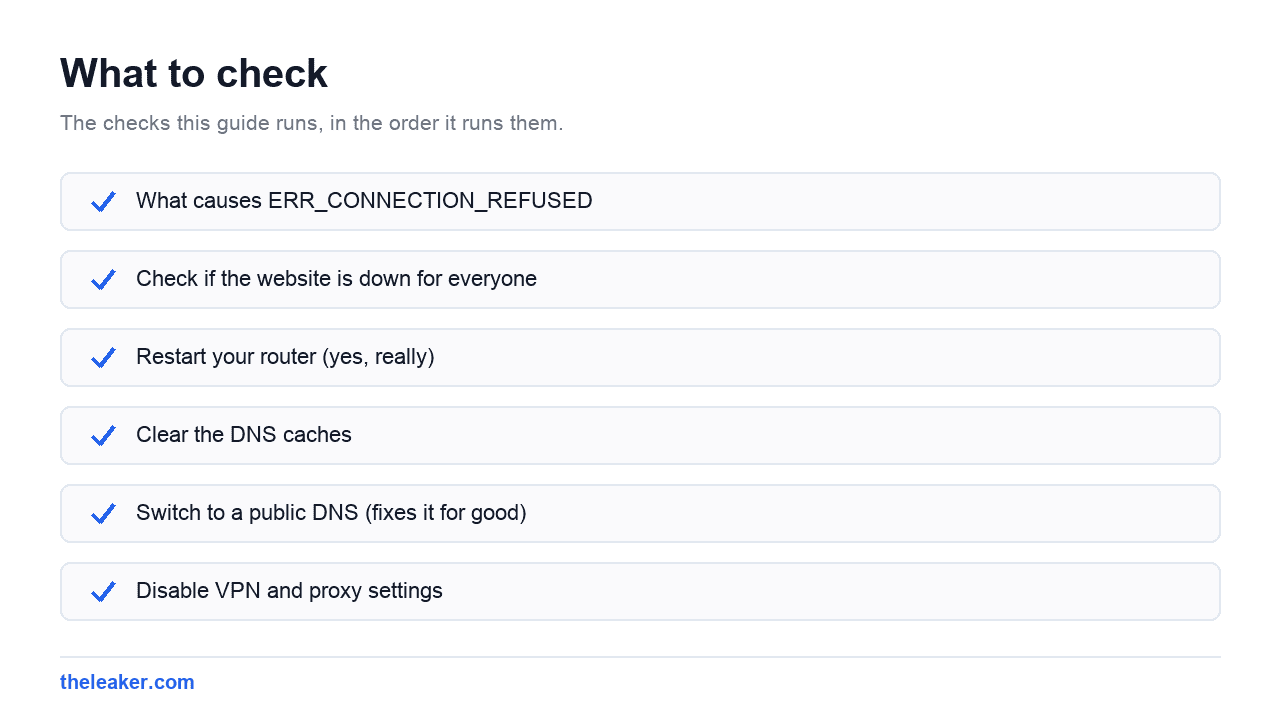
Fix 1: Check if the website is down for everyone
Before touching a single setting, spend 20 seconds ruling out the server side. Search for “down for everyone or just me” and test the URL, or check Downdetector for big services. If the site is down globally, you’re done: no local fix exists, and everything below is wasted effort. If it’s “just you,” continue.
Fix 2: Restart your router (yes, really)
Unplug it for 30 seconds, plug it back in, wait for it to fully boot, and retry. Routers run for months without a reboot and accumulate connection-table junk that produces exactly this kind of refusal. This one step quietly fixes an enormous share of “just me” connection errors: do it before the fancier fixes, not after.
Fix 3: Clear the DNS caches
DNS is your device’s phone book for websites. When an entry goes stale (the site moved servers, your ISP’s resolver hiccuped) Chrome keeps calling a number that refuses to answer. Clear both layers:
Chrome’s internal cache (Windows and Android): type chrome://net-internals/#dns in the address bar and hit Clear host cache. While you’re there, chrome://net-internals/#sockets → Flush socket pools closes any stuck connections.
Windows’ system cache: open Command Prompt as administrator and run:
ipconfig /flushdns
Android: toggling airplane mode on and off flushes network state; a reboot does it thoroughly.
Fix 4: Switch to a public DNS (fixes it for good)
If your ISP’s DNS servers are slow or flaky, stale-DNS errors keep coming back. Pointing your device at Google or Cloudflare DNS is free, takes two minutes, and usually makes browsing faster across the board:
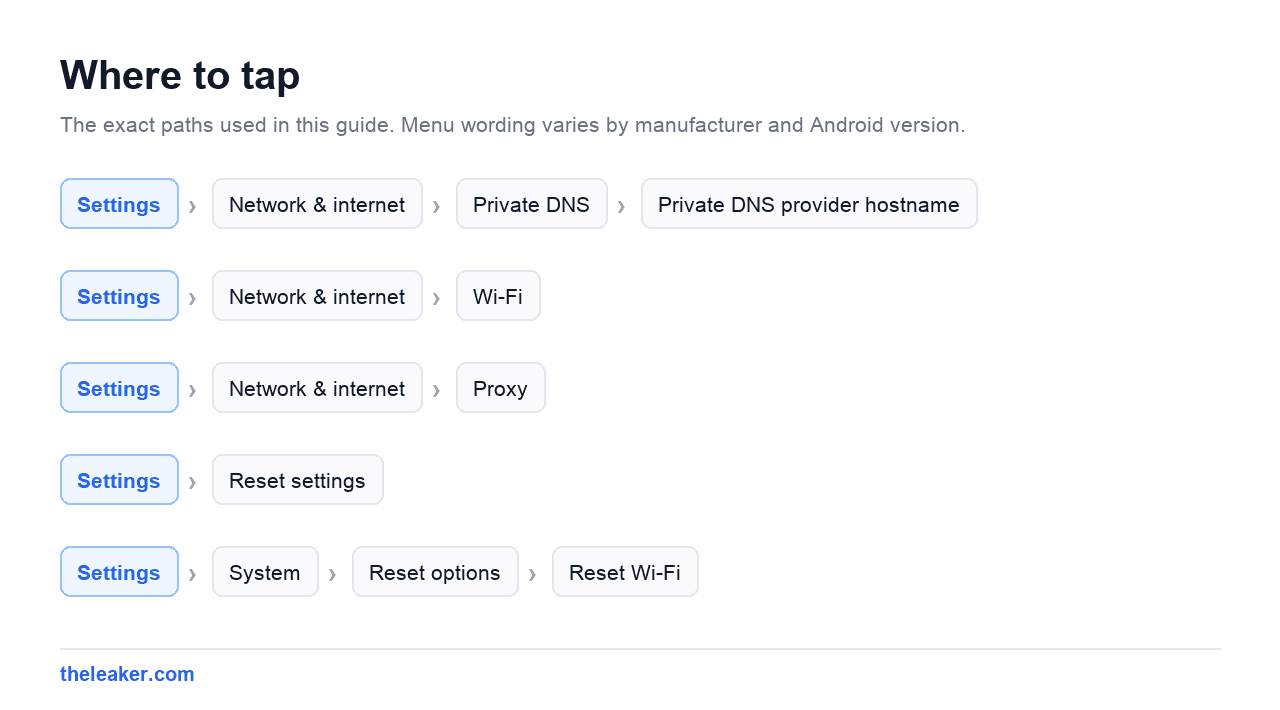
- Android (easiest, works on any network): Settings → Network & internet → Private DNS → Private DNS provider hostname → enter
dns.googleorone.one.one.one. This is one of the most underrated Android settings, period. We cover why in our hidden Android settings guide. - Windows 11: Settings → Network & internet → Wi-Fi (or Ethernet) → Hardware properties → DNS server assignment → Edit → Manual → IPv4 on → Preferred DNS
8.8.8.8, Alternate8.8.4.4(or Cloudflare’s1.1.1.1/1.0.0.1). Windows 11 also lets you pick “On (encrypted)” for DNS-over-HTTPS while you’re there.
Fix 5: Disable VPN and proxy settings
A VPN whose server has gone stale, or a proxy configured long ago and forgotten, silently routes your traffic into a wall. Turn off any VPN app and retry. Then check for a lurking proxy on Windows: Settings → Network & internet → Proxy: “Automatically detect settings” can stay on, but if “Use a proxy server” is on and you didn’t set it up, switch it off. On Android, proxies live per-network: long-press your Wi-Fi network → Modify/Advanced → Proxy → None.
Fix 6: Test in Incognito, then audit extensions
Open the same site in an Incognito window (extensions are disabled there by default). If it loads, one of your extensions is the culprit: ad blockers, antivirus browser add-ons, and “web protection” extensions are the usual suspects. Go to chrome://extensions, toggle them off in batches, and re-test until you find the one. Keep Chrome itself updated too (chrome://settings/help): connection-handling bugs do get patched.
Fix 7: Check firewall, antivirus, and the hosts file (Windows)
Overzealous security software sometimes blocks legitimate sites. Briefly disable your third-party antivirus’s “web shield” and retry, if that was it, whitelist the site rather than leaving protection off permanently.
Also inspect the hosts file, especially if you’ve ever installed cracked or bundled software: installers abuse it to block sites, and the blocks persist for years. Open Notepad as administrator, then open:
C:WindowsSystem32driversetchosts
Every line should start with # (comments). Legit exceptions aside, any line mapping a real website to 127.0.0.1 or 0.0.0.0 that you didn’t create is a block: delete the line, save, and run ipconfig /flushdns again.
Still refused? The final checklist
- Try another network entirely, if the site loads on mobile data but not Wi-Fi, the problem is your router or ISP (some ISPs block specific sites; a reputable VPN confirms this in one test).
- Try another browser, if Edge/Firefox load it, reset Chrome: Settings → Reset settings.
- On Android, reset network settings: Settings → System → Reset options → Reset Wi-Fi, mobile & Bluetooth. It wipes saved Wi-Fi passwords, so it’s last on the list.
Frequently asked questions
Is ERR_CONNECTION_REFUSED my fault or the website’s?
Roughly even odds, which is why the down-for-everyone check comes first. Server down = their side, wait it out. Loads for others = your side, and the DNS and proxy fixes above will almost certainly find it.
Why do I only get this error on one specific website?
Single-site refusal points to stale DNS for that domain, a hosts-file entry, an extension filtering it, or your ISP/network blocking it. Site-wide errors across many websites point to your router, VPN/proxy, or connection instead.
Does clearing Chrome’s cache delete my passwords?
No: clearing cached images/files (or the DNS host cache) touches neither saved passwords nor cookies unless you explicitly tick those boxes. The DNS clear at chrome://net-internals/#dns has no visible side effects at all.
What’s the difference between ERR_CONNECTION_REFUSED and ERR_CONNECTION_TIMED_OUT?
Refused means a server actively answered “no”: something is there, rejecting you. Timed out means silence: nothing answered at all, which leans more toward network/firewall problems on the path. The fixes overlap heavily, but a timeout makes the router restart and different-network tests even more likely to be the answer.

I am the chief editor of TheLeaker. I also maintain the backend stuff of the site. I’m a tech enthusiast and loves to do Python coding in my free time. I have worked at many giant publications like XDA Developers and NXTtech before starting TheLeaker.
You can get in touch with me at Garv[at]theleaker.com.