
Your earbuds paired fine yesterday. Today your phone can’t even see them, or it connects for two seconds and drops, or it pairs but no audio comes out. If Bluetooth is not connecting on your Android phone, it feels random, but it almost never is.
The quick answer: most Android Bluetooth pairing failures come down to one of five causes. The device isn’t actually in pairing mode, your phone is holding onto a stale record of a previous pairing, the Bluetooth stack itself needs a restart, the device is already connected to something else, or you’ve hit your accessory’s device memory limit. Start with the boring basics: toggle Bluetooth off and on, restart both devices, and make sure the accessory is genuinely in pairing mode (usually a long press until an LED flashes, not just switching it on). If it still fails, forget the device on your phone, factory reset the accessory, and pair again from scratch. That fresh-pairing routine fixes the overwhelming majority of cases. For connections that drop constantly, the culprit is usually interference, battery optimization killing a companion app, or a car head unit juggling too many phones.
First, understand what “pairing” actually is
Pairing isn’t just a connection. When two Bluetooth devices pair, they exchange encryption keys and store a record of each other. Every future connection depends on both sides having matching records. When one side updates, resets, or corrupts its record and the other side doesn’t, you get the classic symptom: two devices that used to work together suddenly refuse to connect, with no error message that explains why.
That’s why “forget and re-pair” fixes so many problems. You’re not just reconnecting. You’re throwing away a broken key exchange and doing a clean one. Keep that in mind as you work through the fixes below, because it explains why the order matters.
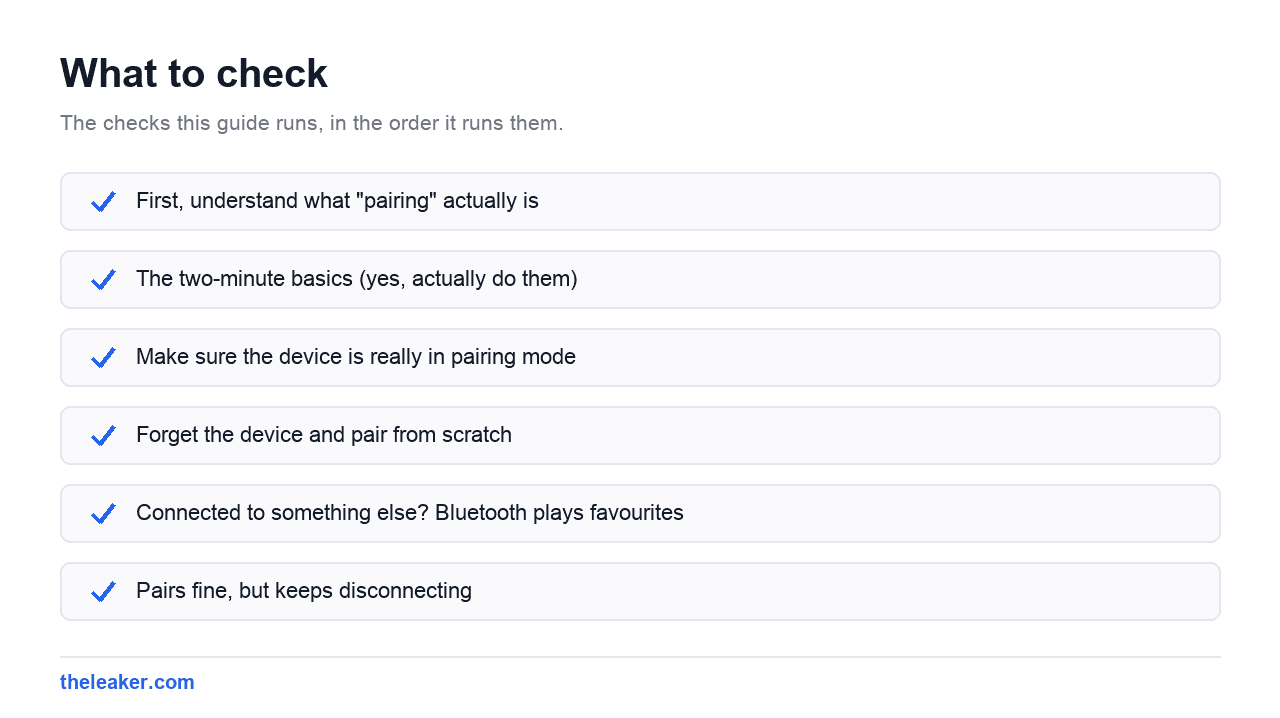
The two-minute basics (yes, actually do them)
Before anything clever, run through these. Each one clears a different kind of temporary glitch.
- Toggle Bluetooth off, wait ten seconds, turn it back on. This restarts the radio and drops any half-dead connections.
- Restart your phone. Android’s Bluetooth stack is a background service, and like any service it can wedge itself into a bad state. A reboot fully restarts it.
- Restart the accessory. Power it fully off and on. For earbuds, put them back in the case, close the lid, wait a few seconds, and take them out again.
- Charge both devices. Many accessories quietly refuse to pair or behave erratically below a certain battery level.
- Move closer. Pair within a metre of the phone, with nothing between the two devices.
It feels insulting to suggest a restart, but Bluetooth is exactly the kind of subsystem where it works. If you skipped these steps, go back and do them. The fixes below assume you have.
Make sure the device is really in pairing mode
This is the single most common reason a phone “can’t find” a device. Powered on is not the same as discoverable. Most accessories only broadcast their presence when they’re explicitly in pairing mode, and each brand triggers it differently:
- Earbuds: usually a long press on the case button, or holding both buds, until an LED flashes: often alternating colours. Some pair automatically the first time you open the case near a phone, but only the first time.
- Headphones and speakers: typically hold the power button past the “on” point until you hear a pairing prompt or see a flashing light.
- Smartwatches: most need their companion app to handle pairing. Pairing a watch directly from Bluetooth settings often half-works and causes problems later: use the app.
- Cars: you usually need to start pairing from the head unit’s own phone or Bluetooth menu, not just have the screen on.
Another catch: many accessories can only be paired with a limited number of devices, and they exit pairing mode after a minute or two of no activity. If you fumbled the first attempt, put the device back into pairing mode before trying again rather than tapping the same greyed-out entry repeatedly.
Forget the device and pair from scratch
If your phone sees the device but pairing fails, or it pairs and instantly disconnects, a stale pairing record is the prime suspect. Fix it on both sides:
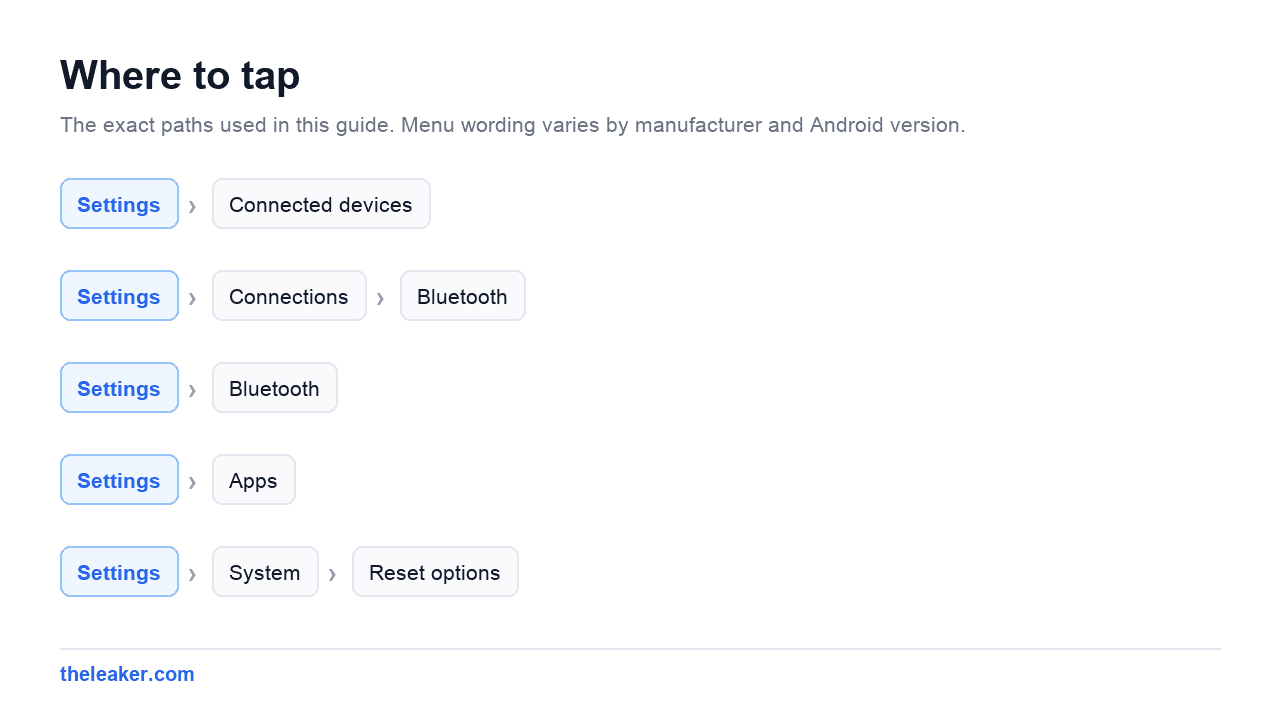
- On your phone, open Bluetooth settings: Settings → Connected devices on Pixel, Settings → Connections → Bluetooth on Samsung’s One UI, Settings → Bluetooth on Xiaomi’s HyperOS.
- Tap the gear or info icon next to the problem device and choose Forget or Unpair.
- Now reset the accessory itself. Most earbuds and headphones have a factory reset gesture. A long hold of a button or a specific button combination. Check the manual or the manufacturer’s site for the exact steps, because this varies by model.
- Put the accessory back into pairing mode and pair fresh.
Step 3 is the one people skip, and it matters. If you only forget the device on the phone, the accessory still holds its old key. Some devices handle that gracefully; plenty don’t. A clean slate on both sides is the closest thing Bluetooth has to a guaranteed fix.
Connected to something else? Bluetooth plays favourites
An accessory that’s already connected to another device often won’t appear in your phone’s scan at all. That old tablet in the drawer, your laptop, your partner’s phone, if the earbuds auto-connected to any of them first, your phone gets nothing.
Turn Bluetooth off on other devices the accessory has been paired with, or at least disconnect it from them, then scan again. Multipoint headphones that support two simultaneous connections reduce this pain but add their own quirks: audio can jump to whichever device makes noise first. If your multipoint headphones keep switching away from your phone mid-song, check the manufacturer’s app for an option to prioritise one device or disable multipoint entirely.
Pairs fine, but keeps disconnecting
Random dropouts are a different disease from failed pairing, and they have their own causes:
- Battery optimization killing companion apps. Watches, fitness bands, and some earbuds rely on an app to hold the connection. If Android puts that app to sleep, the accessory drops. Find the app in Settings → Apps, open its battery settings, and set it to unrestricted. Aggressive battery managers on Xiaomi and some other brands are notorious for this. You may also need to lock the app in the recent-apps view.
- Interference. Bluetooth shares the 2.4 GHz band with Wi-Fi, microwaves, and every other Bluetooth gadget nearby. If audio stutters in one room or one gym and nowhere else, it’s the environment, not your phone.
- Your body. Water blocks 2.4 GHz signals well, and you’re mostly water. Phone in a back pocket with an earbud on the far side is a genuinely marginal radio link. Move the phone to the same side and see if dropouts stop.
- Distance and walls. Real-world range for most earbuds is roughly ten metres with a clear line of sight, and far less through brick.
- Too many paired devices in the accessory’s memory. Many accessories store a limited list of pairings and behave badly when it’s full. A factory reset of the accessory clears it.
If your phone is also running hot while Bluetooth misbehaves, the two can be related. A phone under thermal stress throttles radios too. Our guide to cooling down an overheating phone covers that side of it.
Car Bluetooth: its own special circus
Car head units are the most complained-about Bluetooth devices for a reason: they run old software, they’re rarely updated, and they juggle phone audio, media audio, and contact syncing as separate connections that can fail independently. If your phone pairs with the car but calls don’t work, or music plays but contacts won’t sync, that’s usually profile-level, not pairing-level.
- Delete your phone from the car’s own Bluetooth menu, forget the car on the phone, then pair fresh. The same both-sides rule as everywhere else.
- If the car has multiple phones paired, delete the ones you don’t use. Many head units try to reconnect to every phone in their list and trip over themselves.
- After pairing, tap the gear next to the car in your phone’s Bluetooth settings and check which profiles are enabled: calls, media audio, contact sharing. Toggling a broken profile off and on can revive it.
- For wireless Android Auto specifically, the connection uses Bluetooth only for the handshake and then runs over Wi-Fi. Dropouts there are usually a Wi-Fi problem, a weak cable habit finally biting, or an old head unit firmware: check for updates from the car manufacturer.
What NOT to do
Bluetooth trouble attracts bad advice. Skip these:
- Don’t install “Bluetooth booster” or “Bluetooth fixer” apps. Apps can’t repair the Bluetooth stack, extend radio range, or fix pairing. These exist to show you ads.
- Don’t factory reset your phone as an early step. It’s the most drastic fix for what is usually a per-device problem. Everything above, plus a network settings reset, comes first.
- Don’t clear data for random system apps based on decade-old forum posts. Modern Android manages Bluetooth storage differently than the Android 4-era advice floating around suggests, and poking system apps blindly can create new problems.
- Don’t assume the phone is at fault. If the accessory also misbehaves with a second phone or a laptop, the accessory is the problem, and no amount of phone-side fiddling will save it.
The escalation path when nothing works
Still stuck? Work up this ladder in order:
- Update everything. Install pending system updates on your phone, and update the accessory’s firmware through its companion app if it has one. Bluetooth fixes ship in both constantly.
- Reset network settings. Usually under Settings → System → Reset options (Samsung keeps it in General management → Reset). This wipes all Bluetooth pairings plus saved Wi-Fi networks, so you’ll re-pair and re-join everything, but it rebuilds the radio configuration cleanly and fixes stubborn cases.
- Test the accessory with another device. This tells you definitively which side is broken.
- Safe mode test. Boot your phone into safe mode (hold the power-off button on screen until the safe mode prompt appears on most phones). If Bluetooth behaves there, a third-party app is interfering: recently installed audio, automation, or “cleaner” apps are the usual suspects.
- Hardware. If Bluetooth fails with every device, even after a network reset and in safe mode, the radio itself may be faulty. That’s a repair-shop conversation, and it’s rare.
While you’re in the settings menus anyway, a few minutes of tidying can make the whole phone feel snappier: see our roundup of hidden Android settings that speed up your phone.
FAQ
Why does my phone find the device but fail to pair?
Usually a stale pairing record on one side, or the device dropped out of pairing mode before the handshake finished. Forget the device on your phone, factory reset the accessory, put it back into pairing mode, and try again within its pairing window.
Why does Bluetooth pair but play no sound?
Check that media audio is enabled for the device: tap the gear next to it in Bluetooth settings. Also check the media volume slider specifically, since Android keeps separate volumes for calls, media, and notifications, and confirm the phone hasn’t routed audio to a different connected device.
Does resetting network settings delete anything important?
It removes all saved Wi-Fi networks, Bluetooth pairings, and mobile network preferences. No photos, apps, or accounts are touched. Budget a few minutes afterwards to re-enter your Wi-Fi password and re-pair your accessories.
Why does my Bluetooth keep disconnecting only in one place?
That’s interference. Gyms, offices, and busy streets are saturated with 2.4 GHz traffic from Wi-Fi and other Bluetooth devices. Keeping your phone on the same side of your body as the earbud’s primary side helps more than people expect.

Hello, folks, my name is Akshay, and from the beginning, I like to play with the latest phones, gaming consoles, PCs, Laptops’s and whatnot. When I get spare time, I like to do Photography, and you will always find me playing with Photoshop, Lightroom, Premiere Pro, etc. In Love with Gadgets, my gear Motorola Moto G5 Plus. You can contact him on akshaydua[@]theleaker.com.