
Sooner or later almost every Android owner opens their battery or storage screen and finds something called com.google.android.gms sitting near the top, eating more than apps they actually use. It looks like something that snuck onto the phone. It is not, and switching it off is the one thing you should not do.
The quick answer: com.google.android.gms is the package name for Google Play services, a system component that ships with virtually every Android phone sold outside China. It is not an app you installed and not malware. It handles the work dozens of other apps rely on: location, push notifications, account sign-in, payments, Find My Device, security scanning and app updates. It appears high in battery and data lists because it is doing that work on behalf of other apps, so its usage is really their usage pooled together. You cannot uninstall it on a normal phone, and disabling it breaks notifications, sign-ins and Maps across the system. If it is draining battery, the fix is to find which app is leaning on it, not to remove it.
What it actually does
Android apps do not each build their own location engine, push notification system or payment stack. They call Google Play services instead, which does the work once for everything on the phone. That design saves an enormous amount of battery overall, but it has one confusing side effect: the usage shows up under Play services rather than under the app that triggered it.
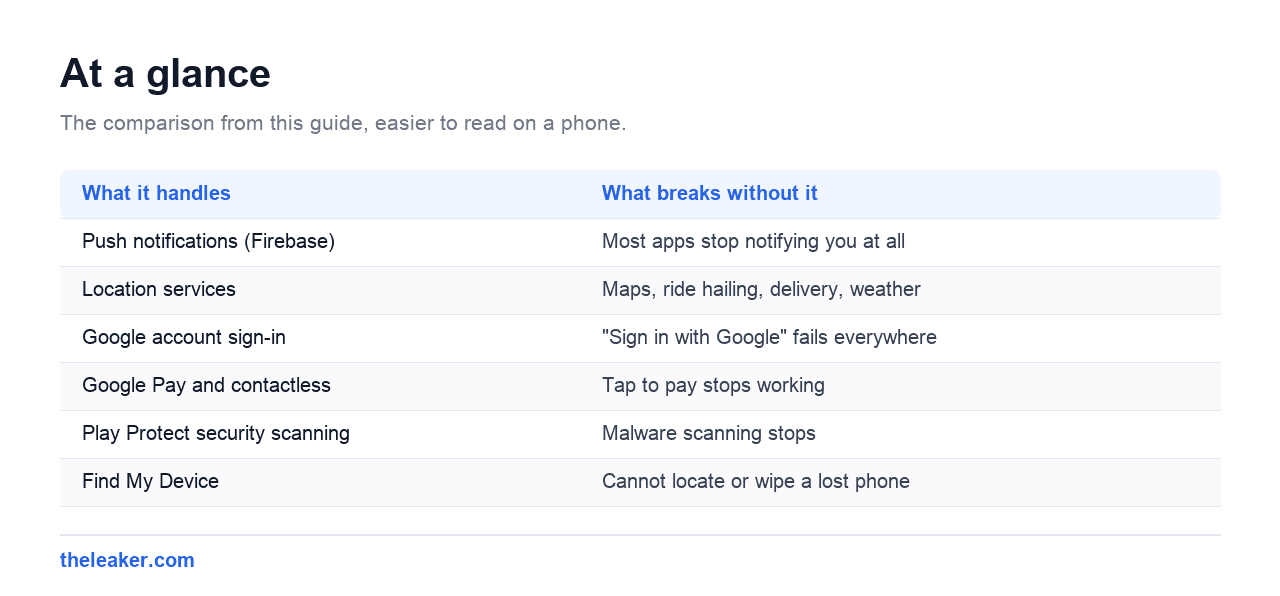
| What it handles | What breaks without it |
|---|---|
| Push notifications (Firebase) | Most apps stop notifying you at all |
| Location services | Maps, ride hailing, delivery, weather |
| Google account sign-in | “Sign in with Google” fails everywhere |
| Google Pay and contactless | Tap to pay stops working |
| Play Protect security scanning | Malware scanning stops |
| Find My Device | Cannot locate or wipe a lost phone |
| App and API updates | Apps break as they expect newer components |
That table is the reason every guide telling you to disable it is bad advice. You are not removing bloat, you are removing the layer the rest of the phone stands on.
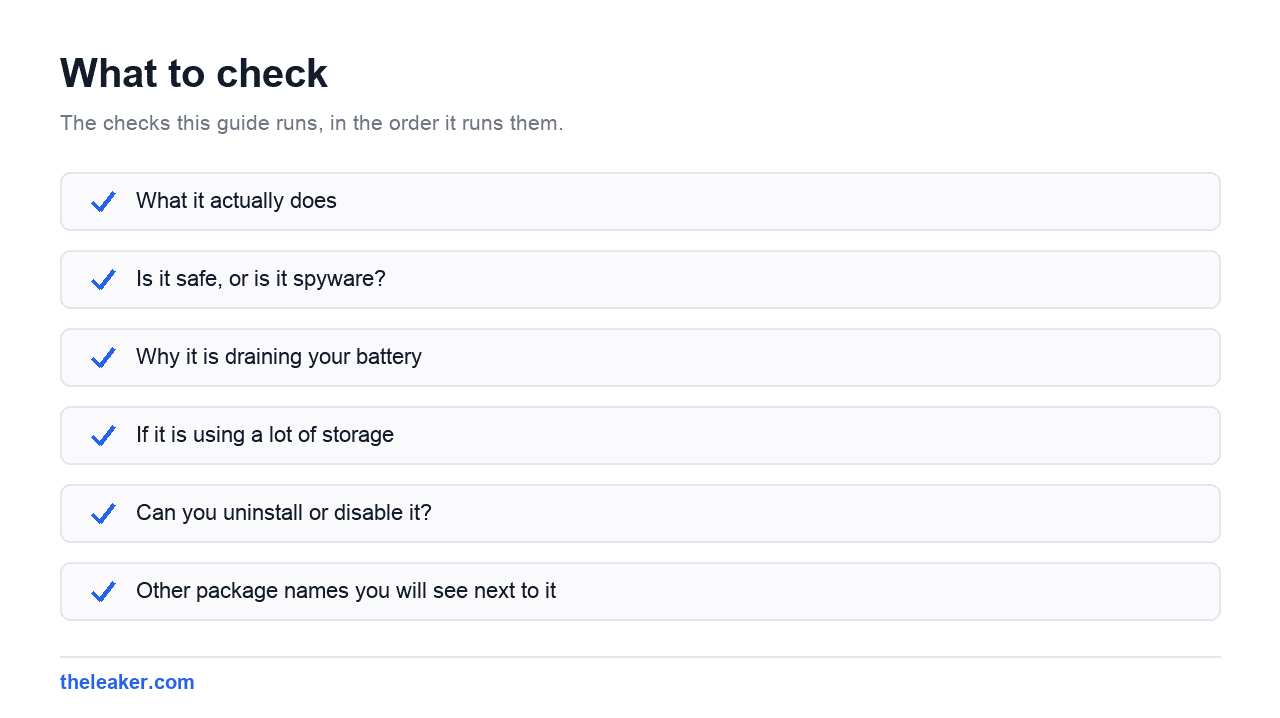
Is it safe, or is it spyware?
It is genuine Google software and it is present on essentially every Android phone with the Play Store. It is not a virus and its presence is not a sign your phone is compromised.
The fair criticism is a privacy one rather than a security one: Play services does collect data, including location, and it runs with deep system permissions. That is a reasonable thing to dislike, and it is why de-Googled Android builds exist. But it is a different question from “has something infected my phone”, and the answer to that is no.
One genuine caution: because the name is well known and looks technical, malware occasionally uses a similar name to hide. The real package is exactly com.google.android.gms. Anything like com.google.android.gms.helper or a near-miss spelling, appearing as a separate entry you can uninstall normally, is worth investigating.
Why it is draining your battery
Almost always because another app is asking it to do something repeatedly. The usual culprits, in rough order:
- An app requesting location constantly. Delivery, fitness, weather and social apps set to “Allow all the time” are the most common cause by a distance.
- A stuck account sync. An account that cannot authenticate will retry indefinitely, and every retry is logged against Play services.
- Poor signal. In weak coverage the phone works much harder to maintain connections, and that cost lands here.
- A bad Play services update. Less common, and usually fixed within days by the next update.
How to find the real culprit
- Open Settings, then Location, then App location permissions.
- Change everything set to Allow all the time to Allow only while using the app, except navigation apps you genuinely need running in the background.
- Go to Settings, then Accounts, and look for any account showing a sync error. Remove and re-add it.
- Reboot, then leave it a day before judging. Battery figures reset and need real usage to become meaningful again.
That sequence resolves the large majority of cases without touching Play services itself.
If it is using a lot of storage
Play services caches data for other apps, and that cache can grow to a surprising size. Clearing it is safe and non-destructive.
Go to Settings, then Apps, then show system apps, then Google Play services, then Storage, then Clear cache.
Use Clear cache, not Clear storage. Clearing storage wipes the component’s data and will sign accounts out, break notifications until things re-register, and on some phones require re-adding your Google account.
Can you uninstall or disable it?
On an ordinary phone, no. It is a system component, so the uninstall option is greyed out. With root or ADB it can be removed, and the result is a phone where notifications, location, Google sign-in and contactless payments no longer work. That is not an optimisation, it is a different product.
If avoiding Google services is genuinely what you want, the coherent route is a de-Googled build such as GrapheneOS or /e/OS, which replaces the whole layer rather than deleting it and leaving a gap. Stripping Play services from a normal phone produces the worst of both.
Other package names you will see next to it
Once you start reading the battery and storage screens, several similar names show up. They are commonly mistaken for each other, so here is what each one is.
| Package name | What it is | Safe to disable? |
|---|---|---|
com.google.android.gms |
Google Play services, the shared layer described above | No |
com.android.vending |
The Google Play Store app itself | No, you lose app updates |
com.google.android.gsf |
Google Services Framework, handles device registration and push routing | No |
com.android.systemui |
The status bar, notification shade and navigation bar | No, the interface disappears |
com.google.android.googlequicksearchbox |
The Google app and Assistant | Yes, if you do not use Assistant |
android.process.acore |
Core contacts and provider process | No |
The pattern worth remembering: anything beginning com.android. or com.google.android. without a recognisable app name attached is usually a system component doing shared work, not an app you can safely remove.
Frequently asked questions
Why is com.google.android.gms using more battery than apps I actually open?
Because it is doing work for those apps. Its figure is the pooled cost of location, sync and notifications for everything on the phone, not a separate app misbehaving.
Can I stop it running in the background?
You can force stop it, and Android will restart it within seconds because other apps immediately call it. There is no lasting way to keep it stopped on a normal phone.
Is com.google.android.gms the same as the Play Store?
No. The Play Store is com.android.vending. Play services (com.google.android.gms) is the background layer other apps depend on. They are separate components that are often confused.
It says “Google Play services keeps stopping”. Is that the same problem?
Different problem, different fix. That is a crash rather than resource usage, and it is usually resolved by clearing the cache, updating Play services and checking the phone’s date and time settings.
Changelog
- 1 August 2026: Page created.
Related: What Is com.google.android.gsf? Google Services Framework Explained · What Is Carrier Hub on Android? Processing Requests and Battery Drain Explained

Shivam has been working as a Tech journalist since 2014. He has worked at many Tech news blogs and Amazon India after that he joined TheLeaker in 2017 as a staff writer and now he’s an editor on the portal. When he is not working, you can find him playing games and listening to pop music. You can find him on Facebook and Twitter and can also contact him via email at [email protected]