
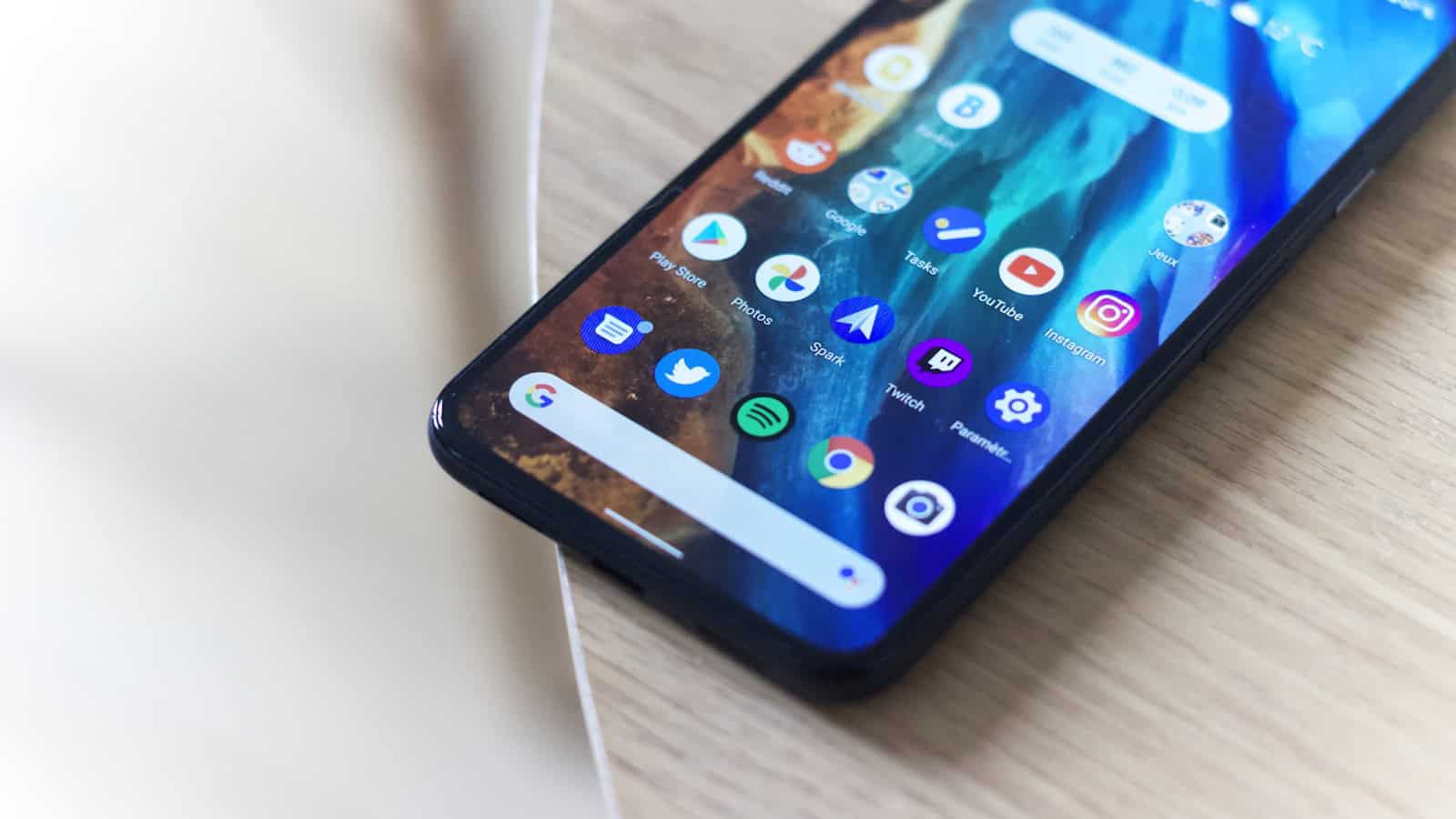
Most people’s home screens are a grid of icons they never look at and one weather widget they inherited from setup. Widgets are the one part of Android that lets your phone show you things before you ask. Used well, they cut the number of apps you open in a day by half.
The quick answer: Long-press an empty spot on your home screen and tap Widgets to open the picker. Drag one onto the screen, then drag its edge handles to resize. Most widgets are resizable and many change what they show at different sizes, so always try a bigger version before deciding a widget is useless. Build around three roles: one glanceable widget for information you check constantly (calendar, weather, battery), one action widget for something you do repeatedly (a note capture, a music control, a specific contact), and stacks or folders for everything else so you’re not scrolling. Samsung and Pixel both support stacking widgets on top of each other, which is the single biggest space saver. Widgets that don’t update usually have a battery optimisation problem, not a bug.
How to actually add and resize one
Long-press any empty area of the home screen. You’ll get a menu with options like Wallpaper, Widgets, and Home settings. Tap Widgets.
The picker lists widgets grouped by app. Scroll or use the search field at the top if your launcher has one. Long-press the widget you want and drag it to the screen, or on some launchers just tap it to place it automatically.
Once it’s down, long-press it and release. Handles appear on the edges. Drag them to resize. This is the step most people skip, and it matters more than it sounds, because a lot of widgets are essentially different products at different sizes. A calendar widget at 2×2 shows your next event. The same widget at 4×4 shows your whole day. A weather widget at its smallest is a number; at full width it’s an hourly forecast.
If a widget won’t resize, it’s been built with a fixed size. Nothing you can do about that one.
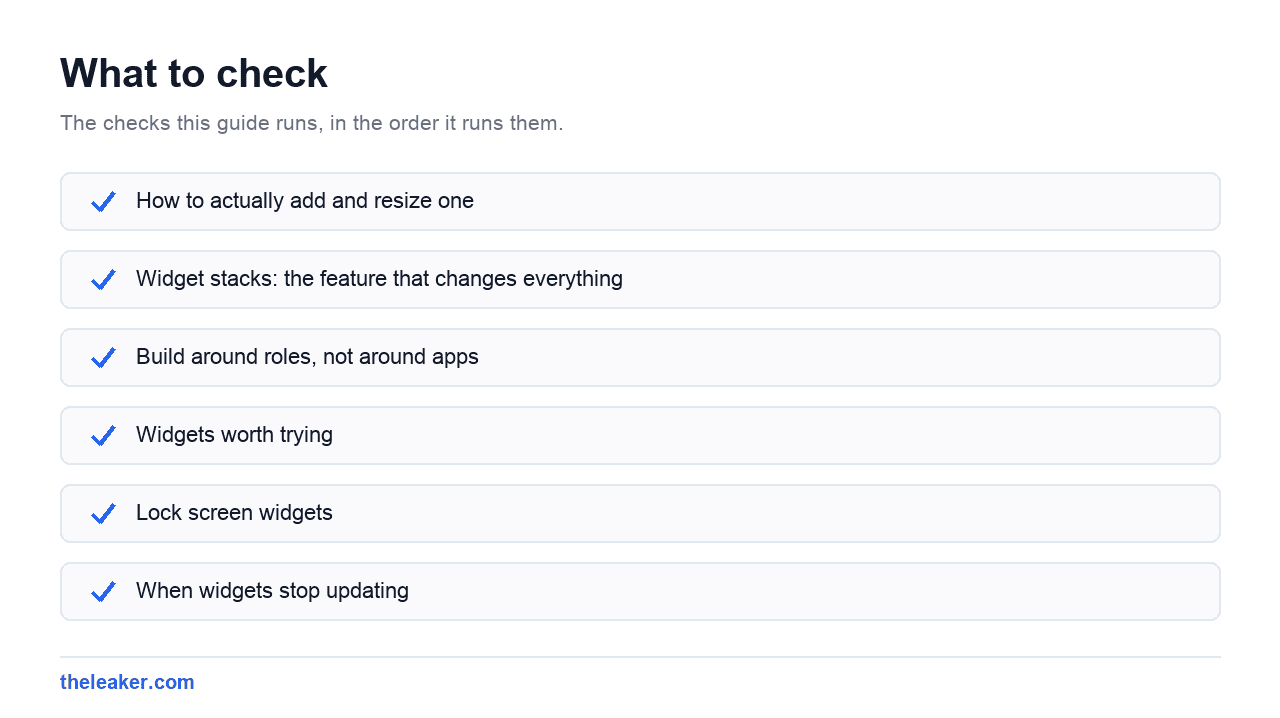
Widget stacks: the feature that changes everything
If you’re running out of room, stacking is the answer.
On Pixel and stock Android, drag one widget directly on top of another of the same size and they combine into a stack you swipe through. On Samsung One UI, the same drag-on-top gesture creates a stack, and One UI adds a smart rotation option that surfaces the most relevant one at the time. On Xiaomi HyperOS support varies by version and by whether you’re using the stock launcher.
The practical use: put weather, calendar, and your fitness ring in one 4×2 stack. Three widgets, one slot. Swipe between them. Your home screen stays clean and you lose nothing.
One caveat worth knowing: stacks generally only accept widgets of matching size, so plan your sizes before you start stacking.
Build around roles, not around apps
The mistake is adding a widget for every app you like. You end up with four screens of widgets and you check none of them.
Think in three roles instead.
Role one: the glance
One widget that answers a question you ask yourself many times a day. For most people that’s the calendar, weather, or both. This one goes at the top of your main home screen where your eye lands first.
The test for a good glance widget: if the answer it gives you means you don’t open the app, it’s earning its space. If you look at it and then open the app anyway, it’s the wrong size or the wrong widget.
Role two: the action
One widget that saves you taps on something you do repeatedly. Note-taking apps often have a widget with a “new note” button that skips straight to a blank note. Music apps have transport controls so you’re not unlocking, finding the app, and tapping play. Messaging apps have direct-contact shortcuts.
Count the taps you save. Three taps, ten times a day, is worth a home screen slot. Once a week isn’t.
Role three: the everything else
Stacks and a secondary home screen page. Anything you look at occasionally but not daily goes here. Your step count, your smart home controls, a to-do list. It’s one swipe away, which is exactly the right distance for things you check but don’t live in.
Widgets worth trying
Rather than naming specific third-party apps, here’s what to look for in the widget picker, because you probably already have most of these installed.
Calendar. Almost always the highest-value widget on the phone. Go big with it. A full-width agenda view showing today and tomorrow removes an entire category of “wait, when is that” moments.
Clock and world clock. Undervalued if you work with people in other timezones. A dual-clock widget is faster than any mental arithmetic.
Notes. The capture-a-thought widget. The whole point is to remove friction between having the thought and writing it down, and a widget removes almost all of it.
Media controls. Note that Android already shows media controls in the notification shade and on the lock screen, so a media widget is only worth it if you want something the system controls don’t offer.
Battery. Useful mainly if you have earbuds or a watch, because a multi-device battery widget shows all of them at once.
Contacts and direct dial. Old-fashioned and still effective if there’s someone you call constantly.
Search. The search bar most launchers put at the bottom is technically a widget. If you’ve been living with it in an awkward spot, you can usually move or remove it like any other.
Lock screen widgets
Recent Android versions have expanded what you can put on the lock screen, though what’s available depends heavily on your phone and Android version. Samsung has long offered a set of lock screen widgets accessible by tapping the clock. Pixel supports lock screen customisation including shortcut buttons at the bottom corners.
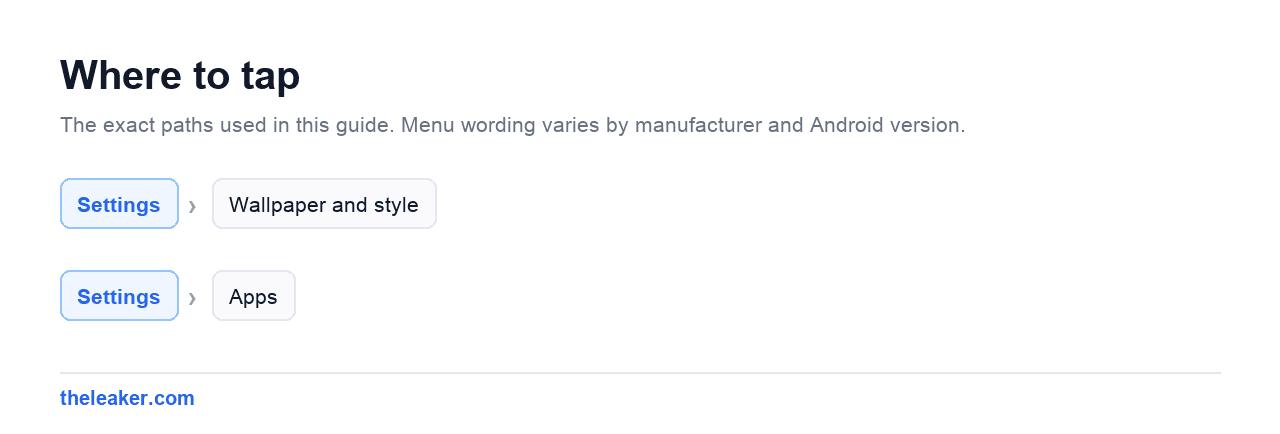
Check Settings > Wallpaper and style or Settings > Lock screen on your device. What you find there varies more between phones than home screen widgets do, so it’s worth a look rather than an assumption.
The security point: anything on your lock screen is visible to anyone holding your phone. A calendar widget showing your day is convenient and also tells a stranger where you’ll be. Decide accordingly.
When widgets stop updating
This is the number one widget complaint, and the cause is usually the same.
Widgets refresh in the background. Android’s battery optimisation aggressively restricts background activity, and manufacturer skins layer their own, more aggressive restrictions on top. Samsung, Xiaomi, and several others are known for this. The result: your widget shows yesterday’s weather.
The fix is to exempt that specific app from battery optimisation. Go to Settings > Apps, find the app, open its battery settings, and set it to unrestricted. Do this only for the two or three apps whose widgets you genuinely rely on, not for everything, because these restrictions exist for a reason and blanket-exempting apps does cost you battery.
Other causes worth checking:
- The app lost a permission. A weather widget with location permission revoked will silently stop updating.
- Data saver is on. System data saver blocks background data, which kills widget refreshes on mobile data.
- The widget genuinely updates slowly by design. Some widgets refresh on a fixed schedule and there’s nothing to configure.
If a widget goes blank or shows “Problem loading widget”, removing it and adding it again fixes it more often than it should. If that fails, clearing the app’s cache usually does.
Widgets disappeared after an update or a restore
Two common scenarios.
After restoring to a new phone, widgets often come back empty or missing because the widget was placed before the app finished installing. Wait for all apps to finish downloading, then re-add.
After a launcher change, widgets from the old launcher’s layout won’t carry over. Switching back usually restores them.
And if widgets vanished with no obvious trigger, check whether the app was uninstalled, disabled, or moved to an SD card. A widget whose app isn’t available shows as a grey placeholder or disappears entirely.
Do widgets drain your battery?
Slightly, and less than people assume. A widget that refreshes hourly costs very little. A widget pulling live data every few minutes over mobile data costs more. In practice, the screen is drawing far more power than the widget on it.
The bigger cost is attention, not battery. A home screen packed with live information is a home screen that keeps pulling you back. That’s a real trade-off, and it’s worth being deliberate about it rather than maximising for density.
If your phone genuinely feels sluggish rather than just battery-hungry, the causes are usually elsewhere. There are hidden Android settings that speed up your phone that will do far more than removing a widget.
A layout that works
If you want a starting point, try this. Main home screen: one large calendar or agenda widget at the top, a row of your five most-used app icons at the bottom, and nothing else. Second page: a stack with weather, fitness, and battery, plus whatever else you check weekly. Everything else lives in the app drawer where it belongs.
It looks sparse for about two days and then feels obviously correct.
Frequently asked questions
Why can’t I find a widget for an app I have installed?
Not every app ships a widget. If it doesn’t appear in the picker, the developer hasn’t built one. Some apps also hide their widget behind a setting inside the app, so check there before giving up.
Can I put widgets in a folder?
Generally no. Folders hold app icons. Widget stacks are the equivalent feature for widgets, and they work on most modern launchers by dragging one widget onto another of the same size.
Why is my weather widget showing the wrong location?
Almost always a location permission issue. Check that the app has location access, and check whether it’s set to “allow only while using the app”, which stops it updating in the background. Setting it to allow all the time fixes most cases.
Do I need a third-party launcher to get good widgets?
No. Stock launchers on Pixel, Samsung, and Xiaomi all support resizing and stacking. Third-party launchers add things like custom grid sizes and widget overlapping, which are nice but not necessary for a good setup.
Start small
Add one widget, make it as large as it’ll go, and live with it for a week. If you find yourself opening that app less, it worked. If you don’t, swap it. Building a home screen that works is iteration, not a one-time configuration, and the whole point is that you should have to think about your phone less, not more.
Related: How to Change Default Apps on Android (Browser, Launcher, and More) · How to Turn On Dark Mode Everywhere on Android (Including Apps That Don't Support It)

Hola everyone! I’m Sajid and I’m a typical freelance Graphic Designer with a keen interest in technology and science stuff. I actually like to write about the recent happenings around the world of technology as a part of The Leaker.