
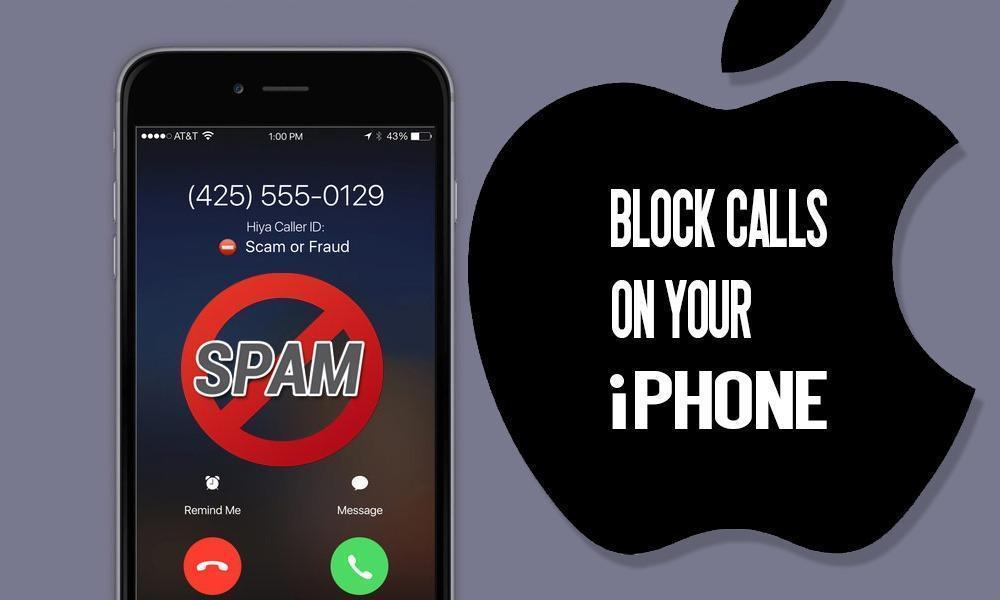
Spam calls have a talent for showing up at the worst moment: mid-meeting, mid-nap, mid-dinner. And it’s not just robocallers. Sometimes there’s one specific number you simply never want to hear from again. The good news: in 2026, every phone worth owning can block numbers in a few taps, and both Android and iOS have grown some genuinely smart tools for screening the calls you haven’t blocked yet.
The quick answer: On almost any Android phone, open the Phone app, go to Recents, tap the number, and choose Block (or long-press the entry and pick Block/Report spam). On an iPhone, open the Phone app, tap the info (i) button next to the number in Recents, scroll down, and tap Block Caller. Blocked numbers can’t call, FaceTime, or text you. For unknown spam in general, turn on Caller ID & spam protection on Android (or Call Screen on a Pixel) and Silence Unknown Callers or Call Screening on iPhone. Messages apps have their own block lists too, and your carrier likely offers a free spam-blocking service on top. Details for Samsung, Xiaomi, Pixel, and iPhone below.
Block a number on Android (works on almost every phone)
Most Android phones in 2026, whether they run Android 16 or the newer Android 17, use either the Google Phone app or the manufacturer’s own dialer. The steps are nearly identical everywhere:
- Open the Phone app.
- Tap the Recents tab.
- Tap (or long-press) the call from the number you want to block.
- Choose Block or Block/Report spam.
- Confirm. If you tick “Report as spam,” Google also uses the report to improve spam detection for everyone.
That’s it. The number can no longer ring your phone: calls go straight to voicemail without a peep on your end.
Block a number that hasn’t called you yet
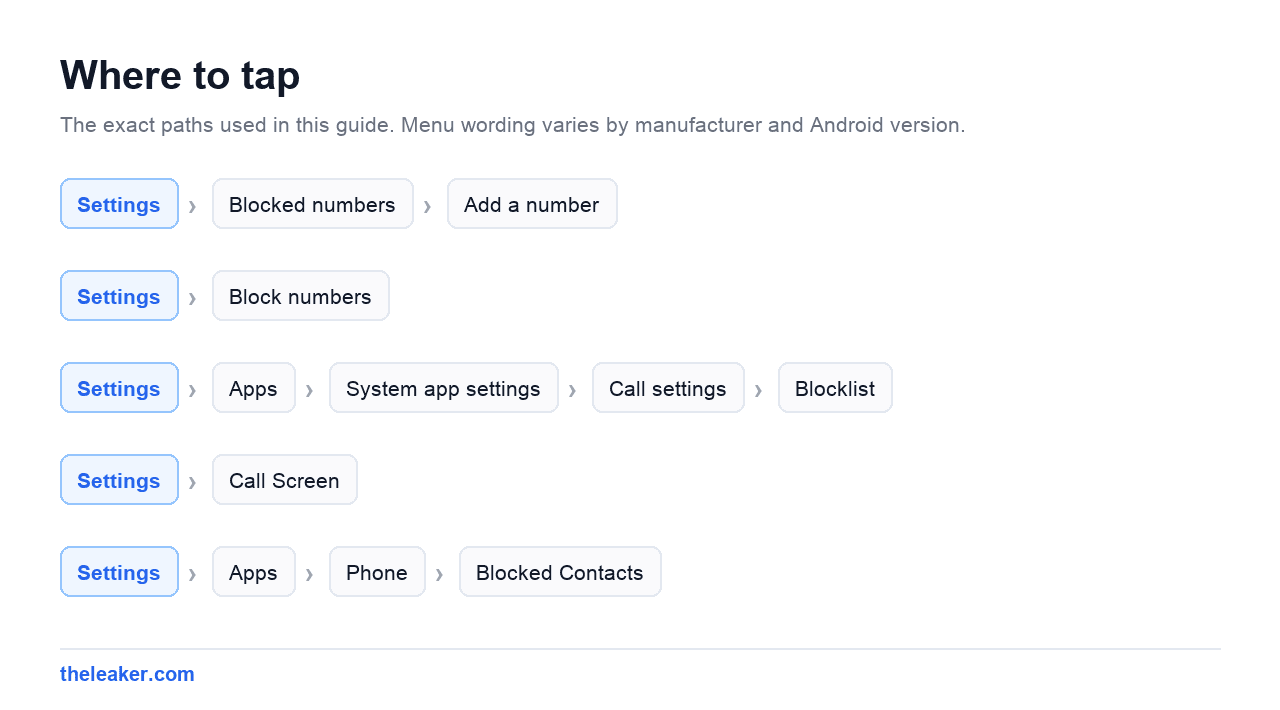
You don’t have to wait for a call. In the Google Phone app, tap the three-dot menu, go to Settings > Blocked numbers > Add a number, and type it in manually. You’ll also find a toggle here to block all calls from unidentified (hidden) numbers.
Samsung Galaxy phones (One UI 7 and One UI 8)
Samsung uses its own dialer, but the flow is familiar:
- Open the Phone app and go to Recents.
- Tap the number, then tap the three-dot menu (or the info screen) and choose Block.
- To manage your list, go to Phone > three-dot menu > Settings > Block numbers. You can add numbers manually here, and there’s a handy toggle to Block calls from unknown numbers.
Samsung phones also ship with Smart Call (powered by Hiya): find it in Phone settings under Caller ID and spam protection. Turn it on and known scam numbers get flagged or blocked automatically before you ever answer.
Xiaomi, Redmi and POCO phones (HyperOS)
Xiaomi’s dialer buries blocking one level deeper, but it’s still quick:
- Open the Phone app and find the number in your call history.
- Tap the number to open its details, then tap Block (on some HyperOS versions it’s under the three-dot menu as Blocklist).
- For the full blocklist, head to Settings > Apps > System app settings > Call settings > Blocklist, or use the Security app’s Blocklist section. You can block by exact number, by prefix, or block all unknown numbers.
Xiaomi’s prefix blocking is useful if you keep getting spam from the same series of numbers: block the first few digits and the whole batch goes quiet.
Google Pixel: block less, screen more
Pixels use the Google Phone app, so blocking works exactly as described above. But the Pixel’s real superpower is Call Screen. When an unknown number calls, Google Assistant answers on your behalf, asks who’s calling, and shows you a live transcript. Robocallers usually hang up; real humans state their business and you decide whether to pick up. On recent Pixels running Android 16 or later, Call Screen can handle obvious spam fully automatically. You never even see the call. Turn it on in Phone app > Settings > Call Screen.
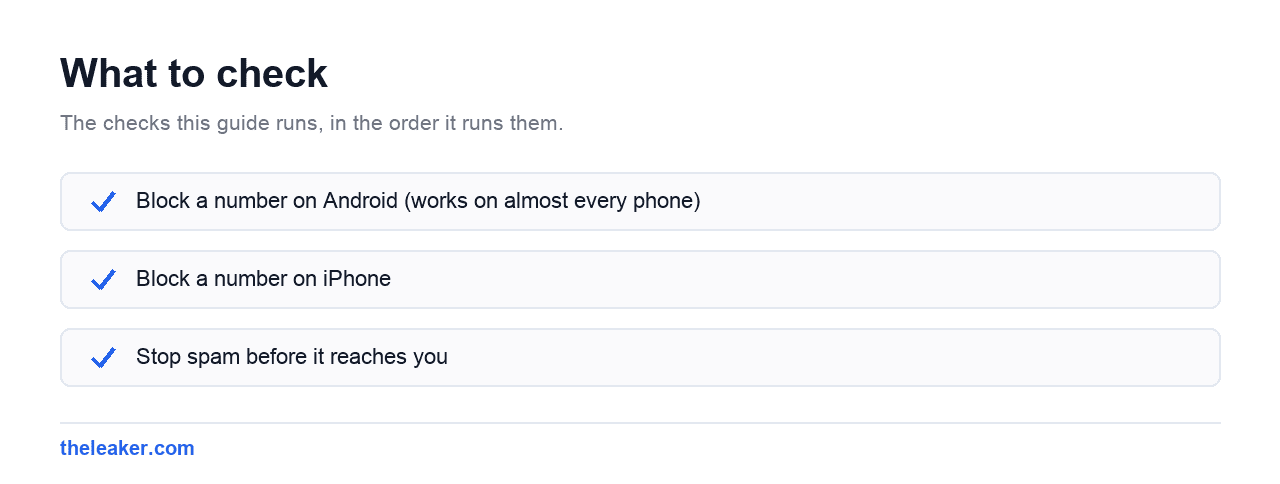
Block a number on iPhone
Apple keeps this simple, and it’s been in the same place for years: including on current iOS 26:
- Open the Phone app and tap Recents.
- Tap the info (i) button next to the number.
- Scroll down and tap Block Caller, then confirm.
Blocking on iPhone is thorough: the number can’t call you, FaceTime you, or send you iMessages or SMS. You can review and edit your blocklist any time under Settings > Apps > Phone > Blocked Contacts.
Silence or screen unknown callers on iPhone
Blocking individual numbers is whack-a-mole when spammers rotate numbers daily. iOS gives you two stronger options in Settings > Apps > Phone:
- Silence Unknown Callers: anyone not in your contacts, recent calls, or Siri suggestions goes straight to voicemail. Brutal but effective.
- Call Screening / Live Voicemail: on iOS 26, your iPhone can automatically answer unknown callers, ask why they’re calling, and show you a transcript so you decide in real time. It’s Apple’s answer to Pixel’s Call Screen, and it works well.
Block texts too
Blocking a caller on iPhone blocks their texts as well. On Android, blocking in the Phone app usually also blocks SMS, but you can block directly from Google Messages: long-press the conversation, tap the block icon, and optionally report it as spam.
Stop spam before it reaches you
A few extra layers make a big difference:
- Built-in spam protection. In the Google Phone app, go to Settings > Caller ID & spam and make sure both toggles are on. Samsung’s Smart Call and Xiaomi’s spam ID do the same job on their phones.
- Carrier tools. In the US, the big carriers offer free spam filtering (AT&T ActiveArmor, T-Mobile Scam Shield, Verizon Call Filter). In India, you can dial or SMS 1909 to activate DND (Do Not Disturb) and cut telemarketing calls dramatically.
- Do Not Call registries. US numbers can be registered free at donotcall.gov. It won’t stop scammers who ignore the law, but it does cut legitimate telemarketing.
- Third-party apps. Truecaller, Hiya, and similar apps maintain huge crowd-sourced spam databases. They work, but they do involve sharing call data with a third party. The built-in tools cover most people fine.
While you’re poking around your phone’s settings anyway, it’s worth exploring what else is buried in there. We’ve rounded up some hidden Android settings that can speed up your phone in a separate guide.
Frequently asked questions
Will a blocked caller know I blocked them?
Not directly. There’s no notification on their end. Their call typically rings once or goes straight to voicemail, and texts appear to send normally but never arrive. A persistent caller might figure it out from the pattern, but the phone never tells them.
Do blocked callers still reach my voicemail?
Usually, yes. On both Android and iPhone, blocked calls are routed to voicemail rather than dropped entirely. You just don’t get a ring or a notification. On iPhone, blocked voicemails sit in a separate “Blocked Messages” folder at the bottom of the Voicemail tab, so you’ll only see them if you go looking.
Can I block all unknown or hidden numbers at once?
Yes. On iPhone, enable Silence Unknown Callers (or Call Screening on iOS 26) in the Phone settings. On Android, the Google Phone app’s Blocked numbers screen has an “Unknown” toggle for hidden caller IDs, Samsung offers “Block calls from unknown numbers,” and Pixel’s Call Screen filters unknown callers intelligently without silencing real people.
What if the spam calls keep coming from new numbers?
Rotating numbers is standard spammer behavior, so lean on screening instead of one-by-one blocking: turn on your phone’s spam protection, enable Call Screen (Pixel) or Call Screening (iPhone), activate your carrier’s free filter, and report spam when you block it. Each report helps the detection systems catch the next number before it rings.

I am the chief editor of TheLeaker. I also maintain the backend stuff of the site. I’m a tech enthusiast and loves to do Python coding in my free time. I have worked at many giant publications like XDA Developers and NXTtech before starting TheLeaker.
You can get in touch with me at Garv[at]theleaker.com.