
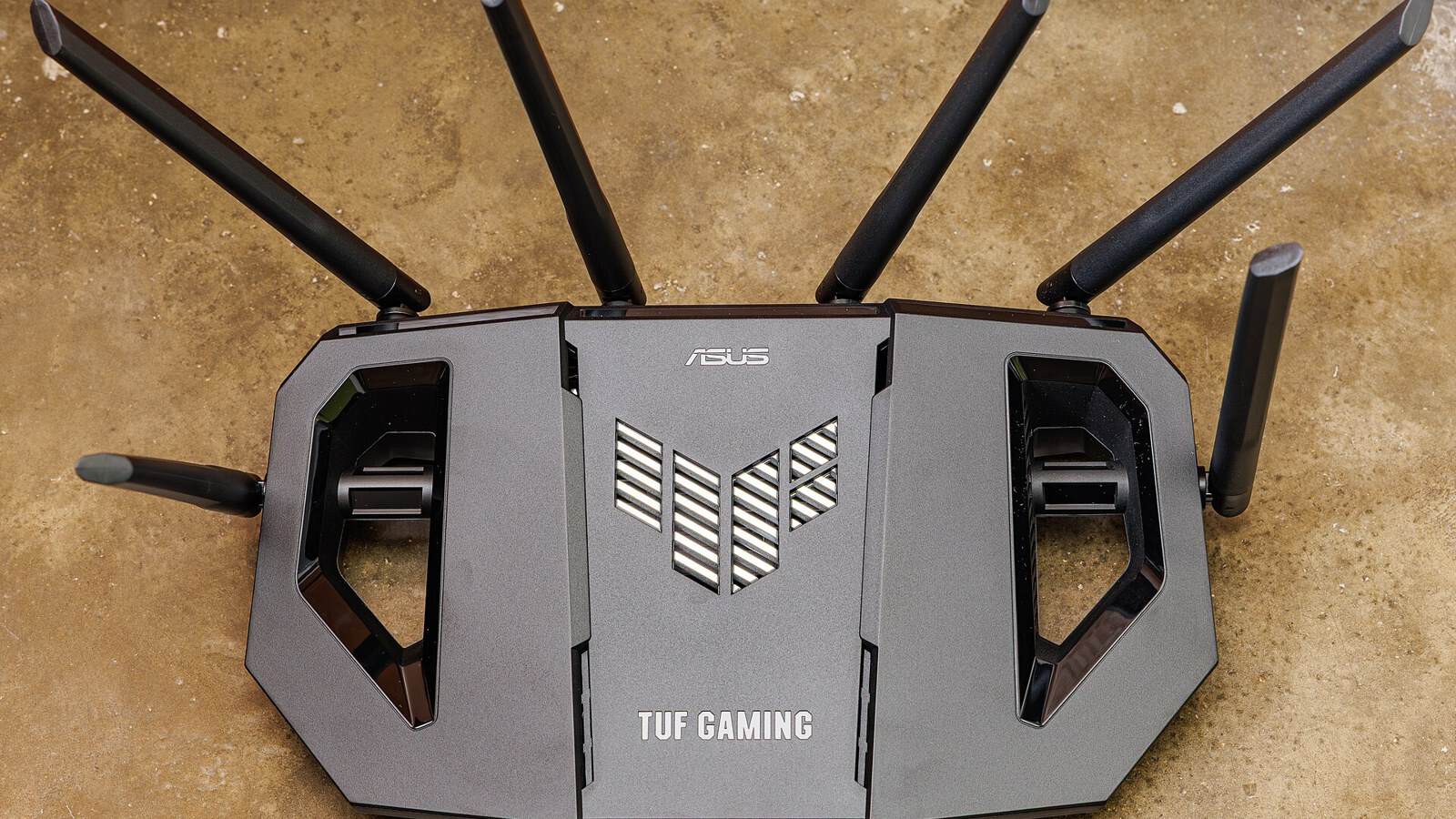
The short answer: there are two reliable ways to see every device on your Wi-Fi. The authoritative one is your router’s own device list: open your ISP’s app, or type your router’s address (usually 192.168.1.1, 192.168.0.1 or 10.0.0.1) into a browser, sign in, and find the page called Connected Devices, Attached Devices or DHCP Clients. The friendlier one is a scanner app like Fing, which lists everything with recognizable brand names in a few seconds. If either list shows a device you genuinely can’t account for, the fix isn’t to block it one time, it’s to change your Wi-Fi password so every device has to reconnect.
The catch with both methods is the same. The raw list is a wall of cryptic names and numbers, and telling “my thermostat” from “a stranger’s phone” takes a minute of matching. So this guide does two things. First, get the list. Then, work out which line is a device you own and which, if any, isn’t.
Method 1. Your router’s list, the most authoritative source
Your router sees the devices connected to it, which makes its list the most authoritative starting point, even if it can still miss a static-IP device, a separate guest network, or clients sitting on another mesh node or access point. There are two ways into it, and the easy one has quietly become the default.
The easy way in is your provider’s app
If you rent your router from your internet provider, their app almost certainly shows connected devices without any of the address-typing below. Verizon’s, Xfinity’s, Spectrum’s and most other big-carrier apps have a “devices” or “network” screen that lists what’s online, lets you rename each one, and often lets you pause or remove a device with a tap. Check there first, because it’s built for exactly this and skips the login hunt.
The universal way is the router admin page
If you own your router, or your provider has no app, go in directly.
- On a device connected to the Wi-Fi, open a browser and type your router’s address. Try 192.168.1.1 first, then 192.168.0.1 or 10.0.0.1. On many current routers you can also type the address printed on the router’s own label.
- Sign in. If you’ve never changed them, the admin username and password are on the sticker on the router or in its manual. This is the router’s admin login, which is often different from your Wi-Fi password.
- Find the device list. Router makers all name it differently, so look for Connected Devices, Attached Devices, Device Manager, Network Map, Client List or DHCP Clients.
Each row typically shows a device name, an IP address, a MAC address (a hardware ID in the form A1:B2:C3:...), and which band or mesh node it’s using. Those last details are what you’ll use to identify the odd one out.
Method 2. A scanner app, for names you can read
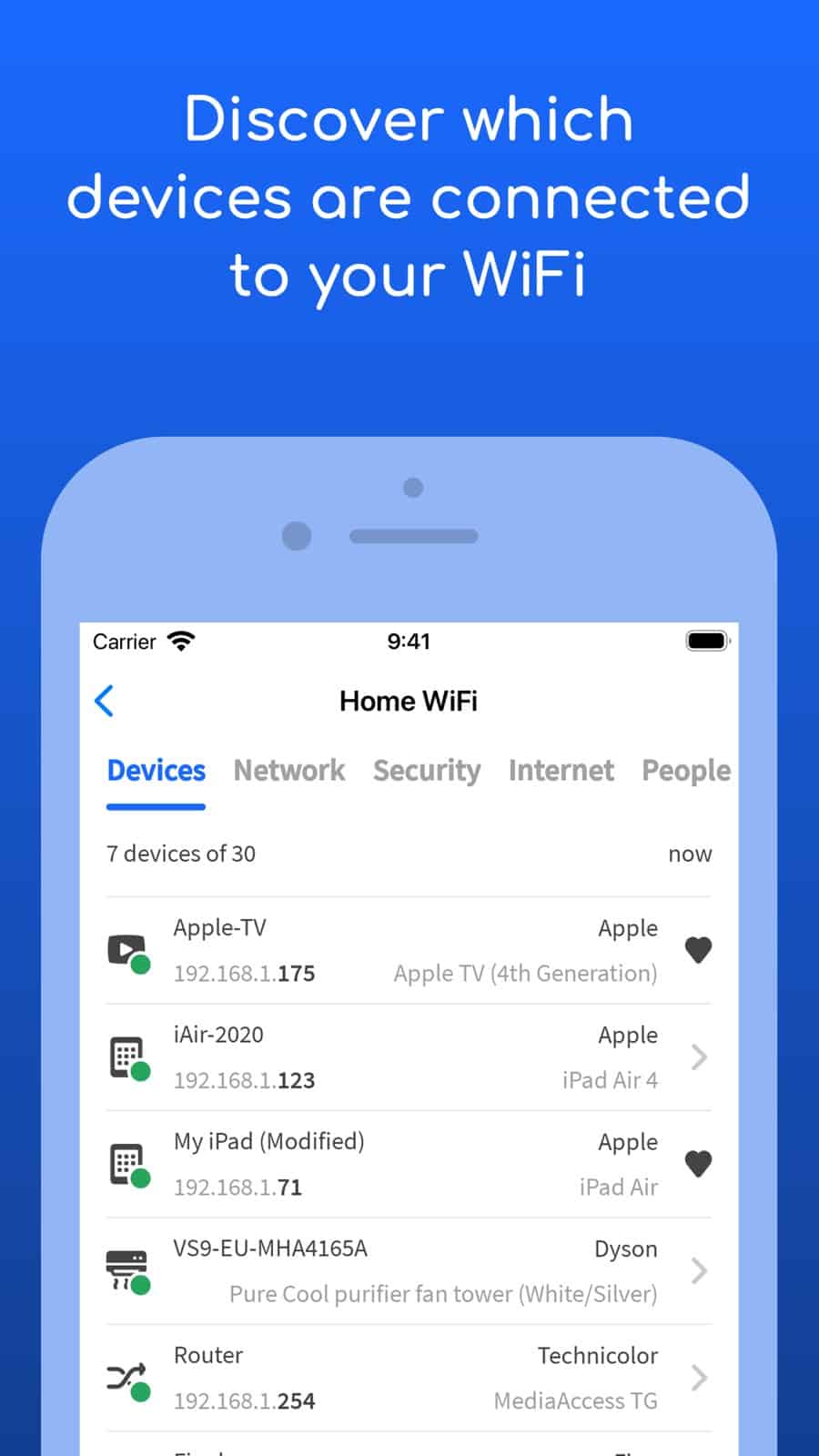
A router’s list often shows a phone as android-8f2c or nothing but a MAC address, which is useless for spotting an intruder. A network scanner app fixes the readability problem. Fing is the one most people land on: connect to your Wi-Fi, run a scan, and it identifies each device by brand, model and type, matching the MAC to its manufacturer so “Amazon” or “Samsung” appears instead of a code. It gives you a best-effort snapshot of what’s visible from the segment it’s joined to, with recognizable names attached, which you then reconcile against the router or mesh controller. Recognition can still be wrong or incomplete, especially when a device uses a randomized MAC address.
A scanner is the faster daily tool, but remember it can only see the network it’s joined to. The Fing mobile app on its own can’t remove a device; blocking or pausing one needs it paired with Fing Desktop, a Fing Agent or a Fingbox, and even then within documented limits. For a straightforward eviction you’ll still go back to the router. Use the scanner to find, the router to fix.
How to spot the device that shouldn’t be there
Once you have a list, the job is subtraction. Account for everything you own, and see what’s left. This is slower than people expect, because a normal home now runs fifteen to thirty Wi-Fi devices. Walk the whole house in your head. Phones, tablets, laptops, the TV, streaming sticks, the games console, smart speakers, video doorbell, thermostat, plugs, bulbs, printer, robot vacuum, and anything a guest connected and you forgot.
Two clues help you name a mystery line:
- The manufacturer. On a globally assigned (non-private) MAC address, the first half identifies who made the network chip, which is why a scanner can show “Google” or “LG”. A device using a private, locally administered address won’t give up a dependable maker this way, so treat a recognizable brand you don’t own as a flag, and a blank or generic maker as inconclusive rather than suspicious.
- The hostname. Many devices announce a name, like
Living-Room-TVorKais-iPhone. A name you don’t recognize, or a stranger’s first name, is worth a hard look.
One honest complication that trips a lot of people up. Modern phones and laptops use private MAC addresses by default, so the address a device shows isn’t its real hardware ID. On current iOS the private address is fixed per network on secured (WPA2 or stronger) Wi-Fi, so your iPhone keeps the same address on your home network rather than changing daily; the rotating mode that does change over time applies to weak or open networks, or when you switch it on yourself, per Apple’s documentation. The practical upshot is unchanged, because a device can still appear under an address that doesn’t obviously map to anything you own. Before you panic, check whether the “intruder” is just your own phone. If a mystery device vanishes the moment you switch your own phone’s Wi-Fi off, you found your answer.
When to act, and where the line is
Here’s the decision rule, because “an unfamiliar device” alone isn’t cause for alarm.
- You can eventually identify every device, so relax. The scary hostname was the neighbor kid’s console from a sleepover, or a smart plug you forgot you owned. Rename it in the app and move on.
- One device remains that you cannot identify, after accounting for everything you own and everyone who’s visited. Act now. Don’t try to block that single device, because a determined one can return under a new address. Change the Wi-Fi password, which disconnects everything at once and forces every real device to re-enter the new one. Anything that can’t is gone.
- Unsure? Change the password. It costs nothing.
Changing the Wi-Fi password is the single most effective removal there is, and it’s why one-tap “block” buttons are the wrong tool for a real intruder. Blocking plays whack-a-mole with a randomized address. A new password changes the lock.
Lock it down so it doesn’t happen again
An unknown device usually means the password is weak, shared too widely, or the network is running old security. Fix the network once and you stop rechecking it every month. Do these in order.
- Set a long, unique Wi-Fi password. Aim for 16-plus characters that aren’t your address, your surname or a dictionary word. This is the change that actually evicts an intruder.
- Use WPA3 if your router offers it, WPA2 (AES) if not. In the router’s wireless-security settings, choose WPA3-Personal. The Wi-Fi Alliance, which defines the standard, says WPA3-Personal users get increased protection against password-guessing attempts compared with older security.
- Turn off WPS. WPS is the “push a button to connect” shortcut, and its PIN version has a long-known weakness that lets attackers guess their way in. You don’t need it for normal password joining, so disable it and leave it off.
- Change the router’s admin password too. The login that got you into the admin page is often still the factory default. Change it, so nobody who reaches the page can undo your work.
- Update the router’s firmware and turn on automatic updates if offered. Old firmware is how known holes stay open.
One thing I’d skip: MAC address filtering, the feature that lets you allow-list specific devices. On paper it sounds like the answer, but randomized MACs make the list a chore that breaks constantly, and a capable attacker can copy an allowed address anyway. A strong password on WPA3 does the same job without the maintenance. For a fuller hardening walkthrough, US CISA’s home Wi-Fi guidance is a solid reference, and you’ll find more phone and network how-tos in our guides hub.
Frequently asked questions
Can someone use my Wi-Fi without knowing the password?
Not on a properly secured network. If your Wi-Fi uses WPA2 or WPA3 with a strong password and WPS is off, a stranger can’t join without the key. The usual way an unknown device gets on is a password that’s short, guessable or shared with too many people, or an old open or WEP network. If you’re seeing intruders, that’s the real hole, not a hacking movie scenario.
Will changing my Wi-Fi password kick everyone off?
Yes, and that’s the point. Every device drops the instant you save the new password, and only devices you re-enter it on come back. Budget twenty minutes to retype it on your phones, TVs, speakers and plugs. It’s mildly annoying and it’s the most thorough reset available, because a device with no password has no way back in.
Why do I see more devices than I think I own?
Because a single “smart” gadget can appear as more than one entry, and old DHCP leases can linger in the list after a device has changed address or left. A smart TV, a soundbar and a streaming stick are three separate lines, and every plug, bulb and sensor is its own device too. Counting them once, room by room, usually reconciles the number.
Does a scanner app like Fing let someone control my network?
No. A scanner reads the network to list what’s connected, but it can’t change router settings or remove devices. That power lives in the router’s admin page, behind the router’s own login. The scanner is a flashlight. It isn’t a key.
The bottom line
Pull the list from your provider’s app or the router’s admin page, run a scanner like Fing if the names are unreadable, then subtract everything you own until either nothing is left or one line isn’t. If one line isn’t, don’t block it, change the Wi-Fi password and harden the network in the order above. Rule out your own phone’s private address before you assume the worst, because the “intruder” often turns out to be something you own.

I am the chief editor of TheLeaker. I also maintain the backend stuff of the site. I’m a tech enthusiast and loves to do Python coding in my free time. I have worked at many giant publications like XDA Developers and NXTtech before starting TheLeaker.
You can get in touch with me at Garv[at]theleaker.com.