
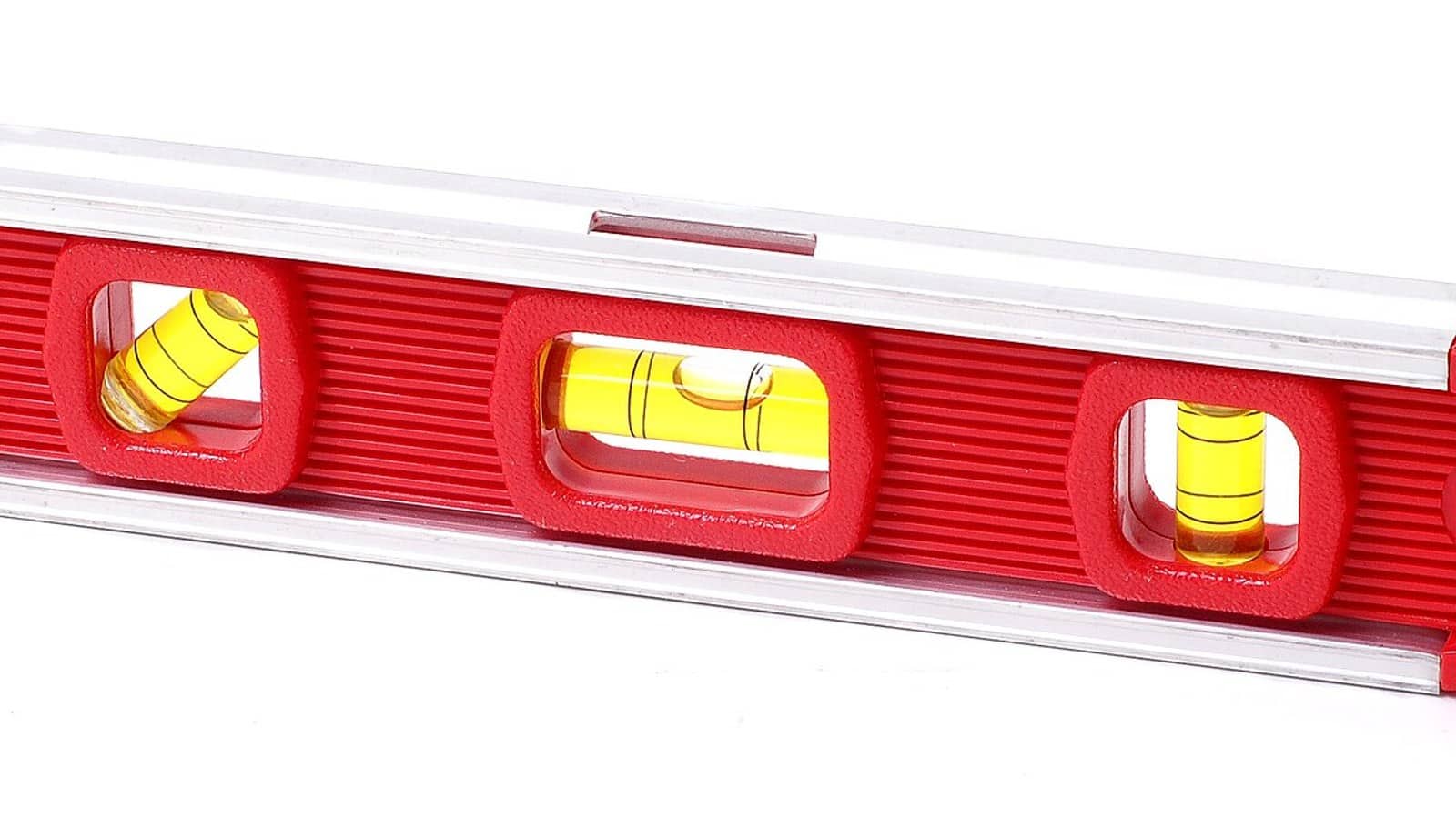
The short answer: you don’t need a level app, because your iPhone already has one built in. Open the Measure app (it ships with iOS), tap the Level tab at the bottom, and hold the phone flat on a surface or flush against a wall. The screen shows how many degrees off level you are, and turns solid green at 0°. These readings are only ever approximate, so it’s fine for hanging a shelf and wrong for anything that needs a calibrated tool. The one thing it can’t do is measure the angle between two surfaces, and that’s the gap a third-party app actually fills.
Most people never find this because the level used to live inside the Compass app, and every old tutorial still says so. On current iOS it moved into Measure, which is easy to miss if you deleted Measure thinking it was bloatware. If that’s you, reinstall it free from the App Store and the level comes back with it.
Where the level lives now: Measure, not Compass
On iOS 26 the level is the second tab of the Measure app, labeled Level. It is not in Compass anymore. Compass housed a swipe-across level on much older versions of iOS, which is why searching for “iPhone level” still turns up screenshots of a Compass second screen. Ignore those. If you swipe left in Compass today you get nothing, and you’ll conclude your phone lost a feature it simply relocated.
If you can’t find Measure at all, swipe down on the home screen and search “Measure”. Deleted it? Grab it again from Apple’s App Store listing at no cost. There’s no separate download for the level itself, because it’s a tab inside that one app.
How to actually use it
The level works in two orientations, and they read differently, which trips people up.
- Flat on a surface (checking a shelf, a table, a picture frame lying down). Lay the phone screen-up on the surface. The big number in the center is the slope in degrees. Nudge the surface until it reads 0° and the whole screen flips green.
- Flush against something vertical (a wall, a door frame, a mounted TV). Press the back of the phone against it in portrait. Now the screen shows how far off plumb the object is, again going green at 0°.
This works because the level reads the iPhone’s accelerometer, the same motion sensor that rotates your screen, and translates gravity’s pull into an angle. There’s one extra trick that most people miss: tap the screen once to set the current angle as your new zero. That relative mode is how you match a second shelf to a first one that isn’t itself perfectly level. Tap again to reset back to true horizontal.
Apple’s own support guide for the Level states plainly that its measurements are approximate. That’s the honest ceiling on all of this. A phone laid on a benchtop is measuring the phone’s own back glass, case lump and all, not the surface, so treat it as a good carpenter’s-eye check rather than a machinist’s tool.
What the built-in level can’t do
The Measure level does plumb and flat, and that covers most of a home’s hang-a-thing jobs. It runs out of road in five specific places:
- The angle between two surfaces. The built-in level reports deviation from horizontal or vertical only. It won’t tell you that two boards meet at 43°. That job needs an angle finder.
- A camera protractor. Measuring the pitch of a distant roof or a ramp you can’t lay a phone on wants an app that overlays a protractor on the live camera.
- A readout you can see across a room. On a ladder, the small centered number is hard to read. Some apps blow it up to fill the screen.
- Holding or logging a reading. The built-in level doesn’t save anything. If you’re checking twenty fence posts and want a record, you need an app that captures readings.
- Percent-grade slope. Degrees only.
The apps that fill those gaps, by capability
Pick by the specific thing the built-in level won’t do, not by star rating. Here’s the honest map.
- Angle finder plus AR protractor: an app like Measure Angles – Bubble Level adds a camera protractor and an angle-between-two-objects mode on top of an ordinary spirit level. It’s free to download.
- Dedicated inclinometer with fine precision: tools that market a 0.1° readout, such as the various “Angle Finder” and clinometer apps on the store, are built for slopes and inclines rather than quick plumb checks.
- Protractor for drawings and camera angles: single-purpose protractor apps like Protractor lean into measuring angles on screen and through the lens.
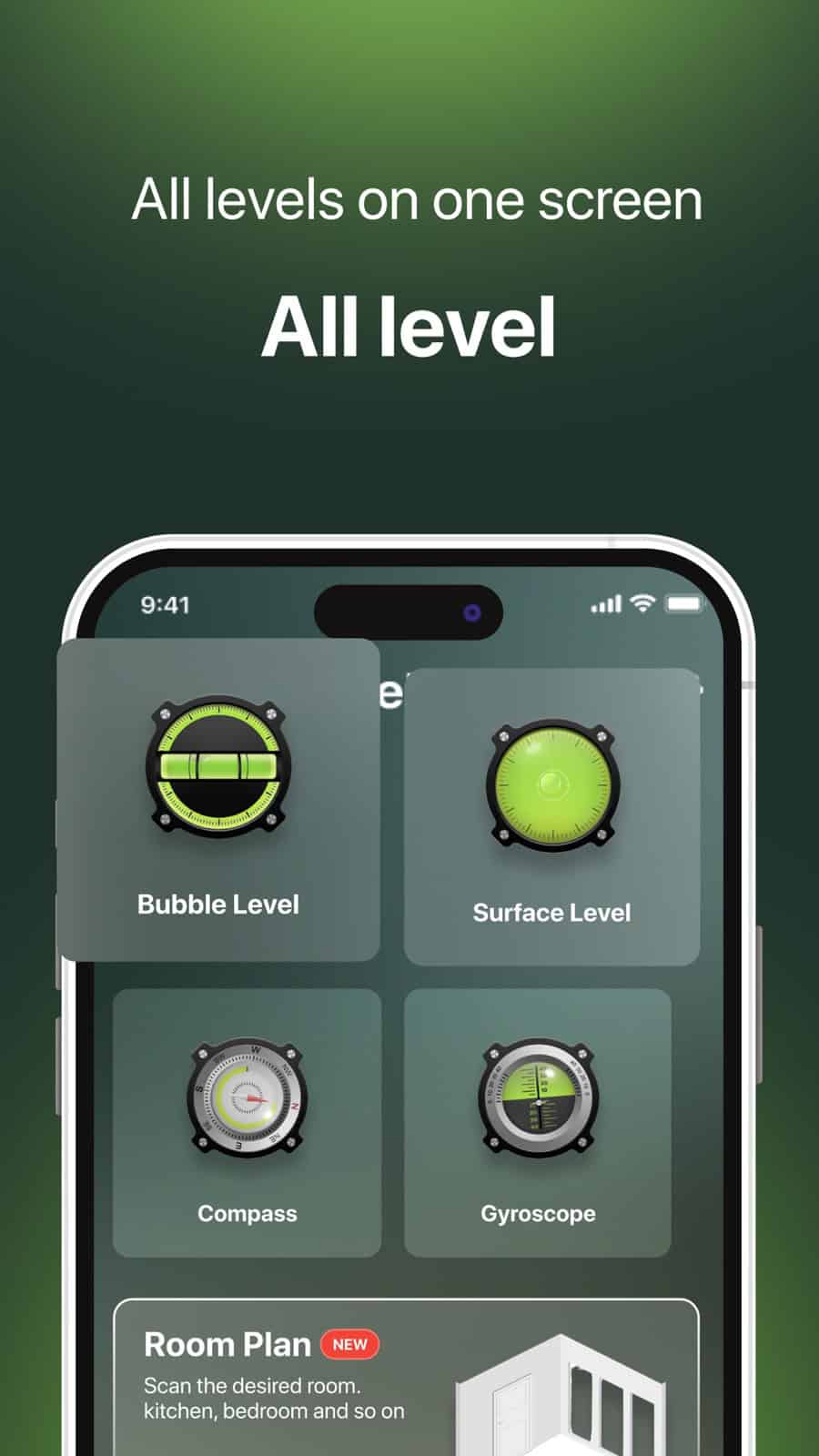
Here’s my one strong opinion, and it’ll save you money. Almost every “level and angle” app on the store is a subscription trap now, bundling a flashlight, a compass, an altimeter and a decibel meter around a tool you’d use twice a year, then charging weekly for the privilege. I’d install one only when I hit a real angle-finder job the Measure app can’t touch, use it, and cancel the trial the same day. For plain “is this shelf straight”, the free built-in level is not just adequate, it’s the one I’d reach for first every time.
Frequently asked questions
How accurate is the iPhone level, really?
Close enough for hanging pictures, framing and DIY, and too imprecise for anything with a real tolerance. The readings are approximate by design, and the phone is reading its own body against gravity, so a case, a raised camera bump or a warped back can each nudge it a fraction of a degree. For a fence or a shelf that’s invisible. For setting a machine or a laser, buy the real instrument.
Can I calibrate the iPhone level?
There’s no calibration menu, and the tap-to-zero gesture isn’t one. It doesn’t correct the phone’s own sensor error. What it does, in Apple’s description, is capture the current surface as a reference slope so you can compare another surface against it. That’s genuinely useful for matching a second shelf to a first, but it’s a relative reference, not a fix for the phone’s built-in imprecision.
Does the level work in landscape and while charging?
Yes to both. It reads the accelerometer regardless of a cable, and it tracks orientation, so you can hold the phone sideways against a wide object. What can throw it is vibration, resting it on an uneven surface, or the phone’s own sensor bias, though none of those usually matters for a shelf or a picture frame.
My iPhone has no Measure app. Where did it go?
It was deleted, which is easy to do by accident because Measure looks like a stock app you’d never use. It’s a free redownload from the App Store, and the Level tab returns with it. There is no way to get only the level without Measure, because the level is a tab inside it.
The bottom line
Before you install anything, open Measure, tap Level, and see whether it already does the job. For plumb and flat it will, for free, and it’s been sitting on your phone the whole time. Reach for a paid app only for the jobs the built-in tool skips: the angle between two surfaces, a protractor through the camera, a logged series of readings, and if you happen to need them, an oversized readout or a percent-grade slope. If you want more phone how-tos in this vein, our guides hub collects them.

A tech Journalist and Photographer, Dhawal Sharma is a technology enthusiast who loves to research the latest innovations and technology. He has contributed to the Honor Community for a very long period and has crucial expertise in writing tech news and reviewing smartphones and laptops. Analyzing and bringing the facts about any piece of tech is what he loves the most. He is a great product photographer and is the Gizmopedia of TheLeaker. Find him on Facebook and Instagram, and you can also email him at [email protected].