

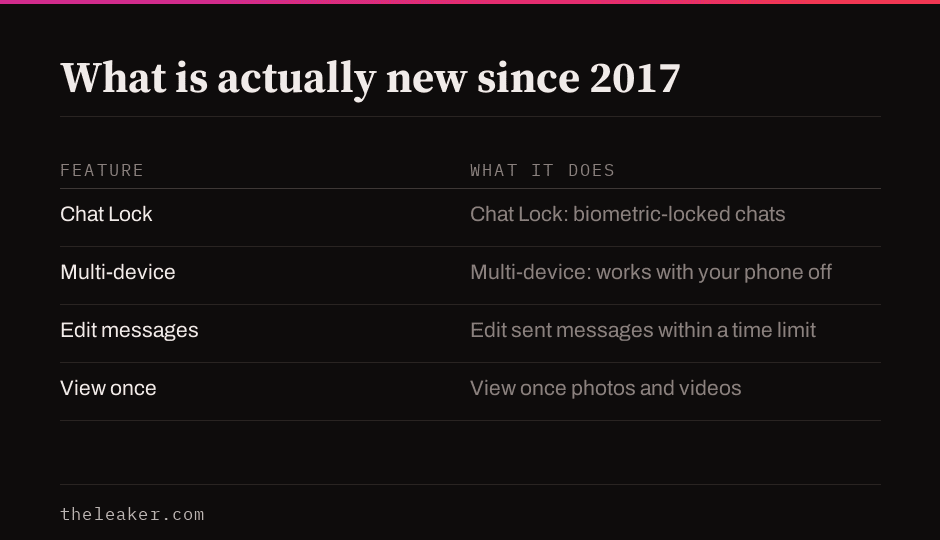
The single most useful WhatsApp feature added since this list was first written is Chat Lock, which hides a conversation behind your phone’s own biometric or PIN unlock. Alongside it, multi-device support means your linked devices keep working even when your phone is off, and edit sent messages fixes a typo without deleting and resending. For hiding photos from your gallery specifically, use WhatsApp’s own Media Visibility toggle rather than the manual folder trick this article used to recommend; it does the same job without needing a file manager permission that most people no longer have configured.
Hide WhatsApp photos and videos from your gallery, the current way
Go to Settings, then Chats, then turn off Media Visibility, or open a specific chat’s info screen to do it for just that conversation. New photos and videos stop appearing in your phone’s gallery app entirely, with no file manager or folder renaming involved.
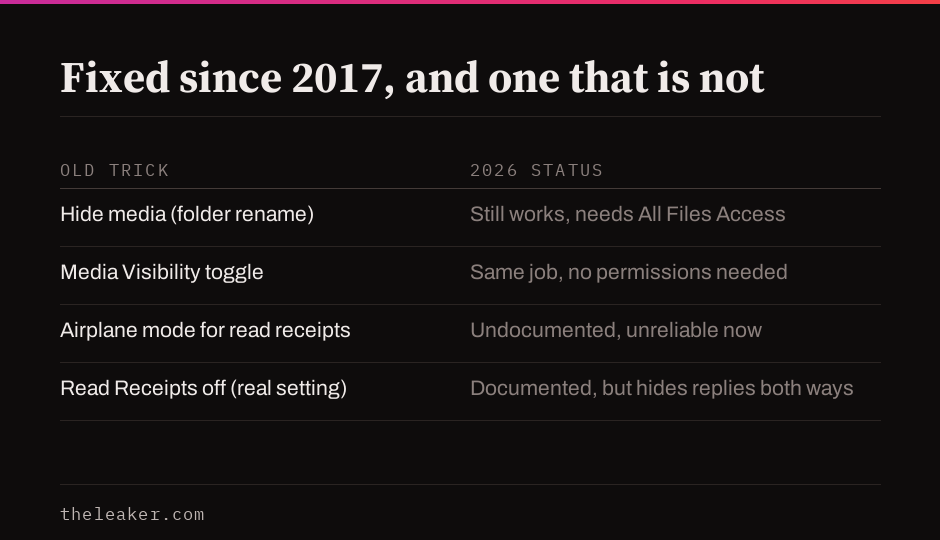
The older method, renaming the WhatsApp media folder to add a leading dot, still works mechanically in 2026, but only through a file manager that has been explicitly granted All Files Access, since Android’s scoped storage rules restrict ordinary access to other apps’ folders. WhatsApp also moved its media to a different path than it used in 2017. Given the native toggle does the same job with none of that setup, treat the folder method as a fallback rather than the primary answer.
Lock a specific chat behind biometrics
Chat Lock, added in 2023, moves a conversation into a separate, locked folder that requires your phone’s fingerprint, face unlock, or PIN to open, and hides its content in notifications. Long-press any chat and choose Lock Chat. A companion Secret Code feature can hide the locked folder entirely from the main chat list, reachable only by typing the code into the search bar.
Format messages, still exactly as it was
Put asterisks around a word for *bold*, underscores for _italic_, and tildes for ~strikethrough~. This is the one trick from the original list that has not changed at all.
Use WhatsApp on a computer without a phone nearby
Multi-device support, rolled out in 2021, changed how WhatsApp Web and Desktop work at a fundamental level. Up to four linked devices now keep working even if your phone is switched off or has no signal, rather than mirroring a live connection to it. Open WhatsApp on your phone, go to Settings, then Linked Devices, then Link a Device, and scan the QR code shown on web.whatsapp.com or the desktop app.
Fix a typo without deleting the message
Editing sent messages shipped in 2023. Tap and hold any message you sent, choose Edit, and change the text. The recipient sees a small “edited” label, and there is no visible history of what it said before, so this is different from delete for everyone, which removes the message entirely. Edits are only available within a limited window after sending; our full guide to deleting and editing sent messages covers both in detail.
Send a photo or message that disappears after one view
Tap the photo or video icon while composing, then tap the 1 that appears near the send button to mark it view once. The recipient can open it a single time, and it cannot be forwarded, saved, or screenshotted from within the chat, though nothing stops someone photographing the screen with a second device.
Message many people without a group
Broadcast sends one message to multiple contacts individually rather than into a shared group thread, so replies come back to you privately rather than being visible to everyone. Open the menu, choose New Broadcast, and select recipients. This part of the original list still works exactly as described.
Turn off read receipts, properly
Go to Settings, then Privacy, then Read Receipts, and turn it off. This is the documented way to stop blue ticks appearing when you read a message, and it carries one real trade-off: it also stops you from seeing anyone else’s read receipts, and it does not apply inside group chats at all.
The airplane-mode trick from the original list, switching to airplane mode before reading a message so it never registers as read, is not something WhatsApp has ever documented, and current reports describe it as unreliable on modern versions, since the read status can sync the moment your connection returns regardless of when you actually opened it. Turning off read receipts properly is the method that actually works.
Back up your chats without hitting a message limit
Emailing a chat export still exists, under a chat’s menu, then More, then Export Chat, but it is capped: 40,000 of the most recent messages if you export without media, or 10,000 if you include it. WhatsApp’s own recommended path now is its native encrypted chat backup to Google Drive or iCloud, which has no such limit and is what the app itself steers you toward from Settings, then Chats, then Chat Backup; see our complete backup and restore guide for setting it up properly.
Share your location
Tap the attachment icon in any chat and choose Location. This one is unchanged from the original list too.
Frequently asked questions
Is the folder-rename trick to hide media dangerous or against WhatsApp’s rules? No, but it is unnecessary now that Media Visibility exists as a built-in setting doing the same job without a file manager permission.
Can I recover an edited message’s original text? No. WhatsApp shows an “edited” label but does not display a history of previous versions to either party.
Does turning off read receipts hide the fact that I opened a message at all? It hides the blue-tick confirmation in one-on-one chats. It does not work in group chats, and the other person can still see when you were last online unless you have separately hidden that too.

I am the chief editor of TheLeaker. I also maintain the backend stuff of the site. I’m a tech enthusiast and loves to do Python coding in my free time. I have worked at many giant publications like XDA Developers and NXTtech before starting TheLeaker.
You can get in touch with me at Garv[at]theleaker.com.