
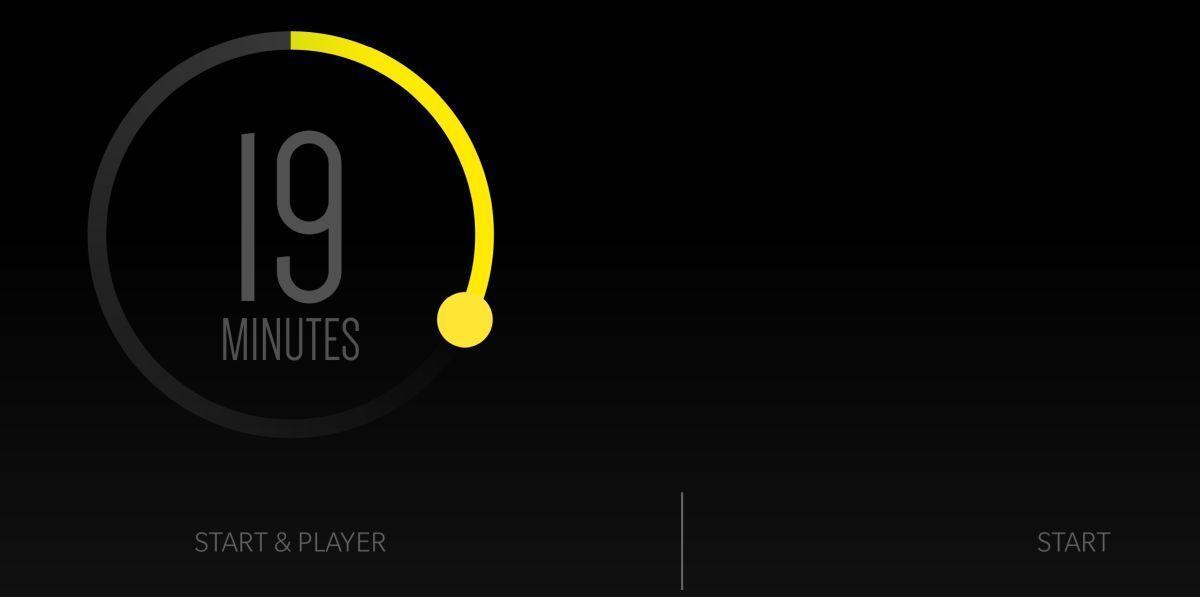
You put on music to fall asleep. It works. Then at 3 a.m. the playlist is still going, your battery is down 40 percent, and some algorithm has decided you need drum and bass. Sound familiar?
Back in 2020, the answer was “install a third-party sleep timer app.” In 2026, you don’t need one: your phone can turn off music automatically, no extra app required. Nearly every major music and podcast app now ships with a built-in sleep timer, and Android itself can stop media on a schedule through Digital Wellbeing. This guide walks through every method that actually works, from the fastest tap-and-done option to full nightly automation.
The quick answer: Open the app you’re listening with and look for a sleep timer first. YouTube Music has one under the three-dot menu on the Now Playing screen. Spotify hides it in the same place (tap the three dots, then Sleep timer), and yes, it works on the free tier. Pocket Casts, Google Podcasts successors, Audible, and nearly every podcast player have one too. If you want music to stop automatically every night without setting anything, use Digital Wellbeing’s Bedtime mode or, on a Samsung phone, a Modes and Routines rule that fires at your chosen time. Third-party sleep timer apps still exist and still work, but treat them as a fallback for apps with no native timer, not your first stop. Below, every method step by step.
Use the sleep timer built into your music app
This is the method most people should use. It takes two taps and stops exactly the app that’s playing.
Spotify
- Start playing anything and open the Now Playing screen.
- Tap the three-dot menu in the top-right corner.
- Scroll down and tap Sleep timer.
- Pick a duration (5 minutes up to 1 hour), or choose End of track / End of episode.
When the timer hits zero, playback fades out and stops. The timer clears itself, so nothing carries over to tomorrow. It’s available on both Free and Premium accounts.
YouTube Music
- Open the Now Playing screen.
- Tap the three-dot menu, then Sleep timer.
- Choose from the preset durations or End of track.
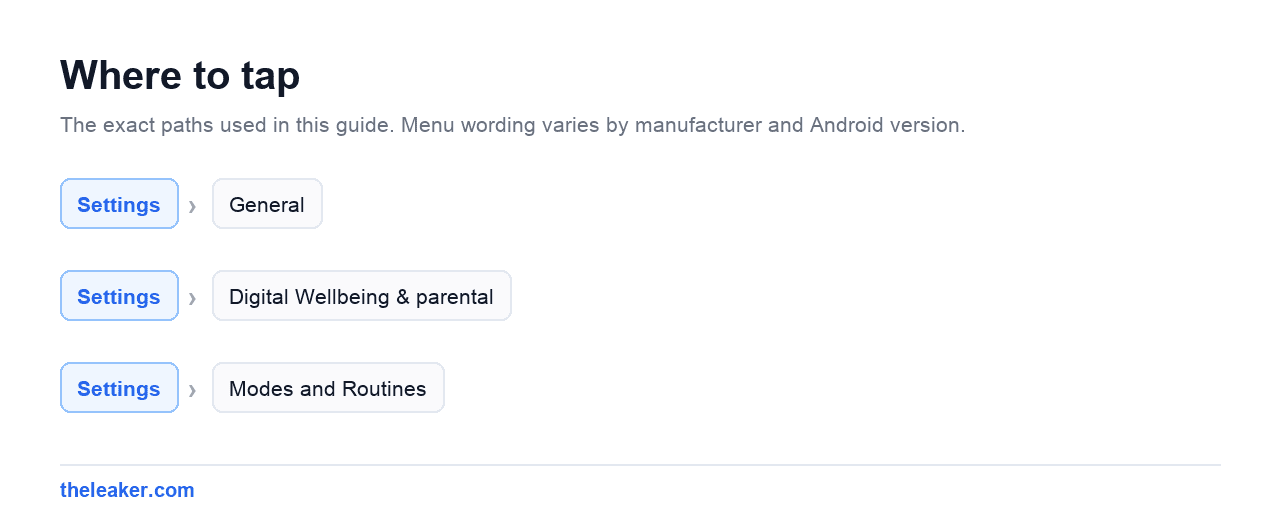
YouTube Music added this natively a few years ago, which finally killed the old workaround of casting to a speaker just to get a timer. The main YouTube app has a sleep timer too, in Settings > General or via the gear icon on a playing video, which is handy if you fall asleep to video essays instead of music.
Podcast and audiobook apps
Almost all of them have timers, usually one tap from the playback screen:
- Pocket Casts: tap the moon icon on the player. It can also stop at the end of the current episode and even restart the timer if it hears you moving.
- Audible: tap the crescent-moon Sleep button on the player screen. End-of-chapter is the killer option here.
- Apple Podcasts, Castbox, Podcast Addict, AntennaPod: all have timers in the playback screen or its overflow menu.
If your app of choice buries the option, search its settings for “sleep” before assuming it doesn’t exist. It almost always does in 2026.
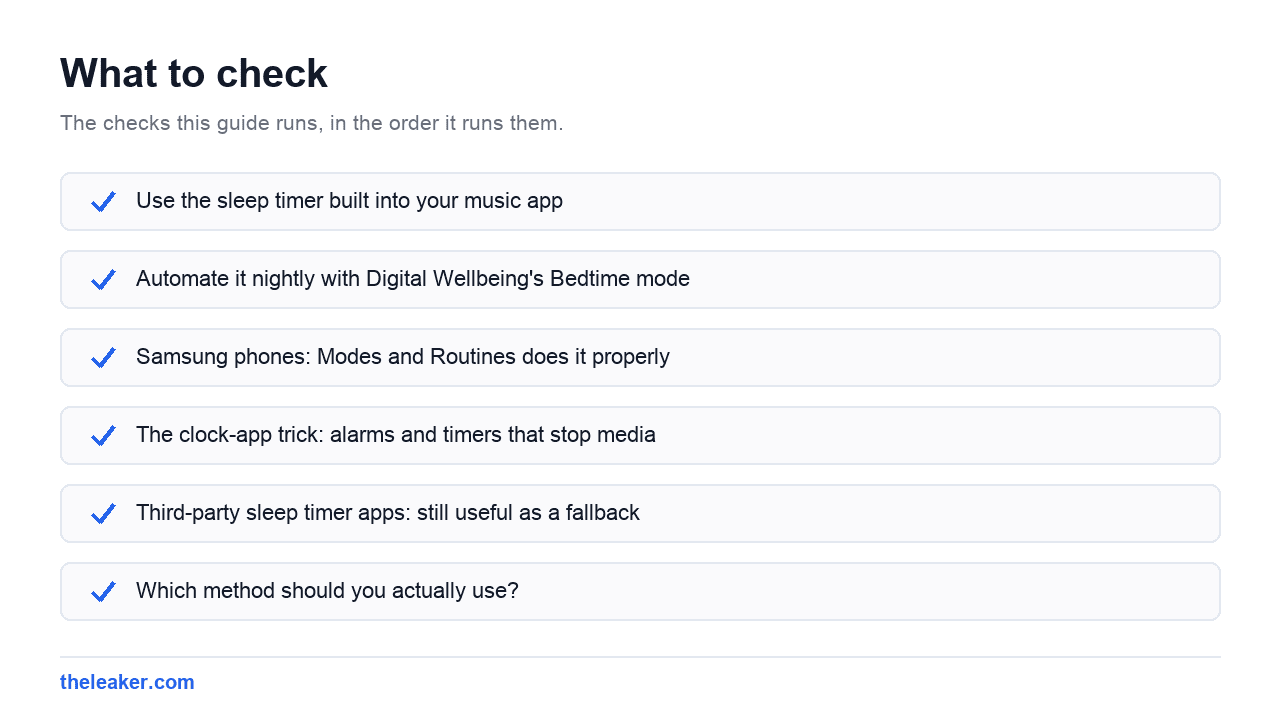
Automate it nightly with Digital Wellbeing’s Bedtime mode
Timers are great, but you have to remember to set them. If you want a hands-off nightly cutoff, Android’s Digital Wellbeing can do the scheduling for you.
- Open Settings > Digital Wellbeing & parental controls.
- Tap Bedtime mode.
- Set a schedule, for example 11:30 p.m. to 7:00 a.m., and pick which nights it runs.
- Turn on the options you want: Do Not Disturb, grayscale, and dimmed screen.
One honest caveat: Bedtime mode silences notifications and calms the screen, but on most phones it doesn’t hard-stop media that’s already playing. What it does brilliantly is act as the trigger for other automation. Pair it with your app’s own timer, or on Pixel phones, use the Bedtime tab in the Clock app, which can play sleep sounds and stop them automatically at your set bedtime. The Pixel Clock’s bedtime feature also shows a reminder when you’re up past your schedule, which is its own kind of sleep timer for your willpower.
Samsung phones: Modes and Routines does it properly
If you’re on a Galaxy phone running One UI, you have the most powerful option on this page built in. Modes and Routines (the evolution of Bixby Routines) can genuinely stop media at a scheduled time, no extra apps needed.
- Open Settings > Modes and Routines.
- Go to the Routines tab and tap + to create one.
- For the If condition, choose Time period or a specific start time, say 12:00 a.m. on weeknights.
- For the Then action, add Media volume > 0, or use the Stop media / playback control action if your One UI version offers it.
- Optionally stack more actions: enable Do Not Disturb, turn on the blue light filter, set the phone to vibrate.
You can also use the Sleep mode under the Modes tab, which activates on a schedule and can carry the same actions. Set it once and your phone goes quiet every night whether you remember or not. It’s the closest thing Android has to a set-and-forget solution, and it works with any music app because it operates at the system level.
The clock-app trick: alarms and timers that stop media
A lesser-known option: some clock apps can silence media as a side effect. On Pixels, the Clock app’s Bedtime tab lets you set a wake-up and bedtime schedule, play wind-down sounds, and have them stop automatically. On Samsung and some other phones, setting a timer with the sound output routed through the media stream will duck or interrupt playback when it rings, and dismissing it leaves your music paused.
It’s a hack rather than a feature, and behavior varies by manufacturer, so test it once before relying on it. But if you already use a bedtime alarm, it can double as your music cutoff for free.
Third-party sleep timer apps: still useful as a fallback
The dedicated sleep timer apps that were the whole story in 2020, like Sleep Timer by pboos, are still on the Play Store and still work. They pause media playback system-wide after a countdown, and many add niceties such as fade-out, shake-to-extend, and launching your music app for you.
When do they still make sense in 2026?
- Your music source has no native timer, for example a niche streaming app, a web radio player, or a local file player you refuse to give up.
- You want one timer that covers everything, regardless of which app is playing.
- You want extras like gradual volume fade over 20 minutes, which most built-in timers don’t offer.
Two things to check before you commit to one: that it’s been updated recently, since Android’s background-process restrictions have broken older timer apps, and that you’ve excluded it from battery optimization so the countdown doesn’t get killed mid-nap. Stick to well-reviewed apps from the Play Store, and skip anything that demands notification access or accessibility permissions it can’t justify.
Which method should you actually use?
- Most nights, most people: the built-in timer in Spotify, YouTube Music, or your podcast app. Two taps, zero setup.
- Same routine every night: Samsung Modes and Routines, or Digital Wellbeing Bedtime mode plus the Pixel Clock’s bedtime sounds.
- App with no timer: a third-party sleep timer app, battery-optimization exempted.
Whichever you pick, you’ll wake up to a charged phone and silence instead of hour six of a lo-fi playlist. That’s the whole win.
Frequently asked questions
Does Spotify Free have a sleep timer?
Yes. The sleep timer is available on both Spotify Free and Premium. Open the Now Playing screen, tap the three-dot menu, and choose Sleep timer. Free users get the same duration options, including End of track. The only limits on Free are the usual ones, like shuffle-heavy playback, not the timer itself.
Can a sleep timer stop video too, or just music?
Both, depending on where the timer lives. The YouTube app has its own sleep timer for videos, and YouTube Music covers audio. App-level timers only stop their own app, so a Spotify timer won’t halt a Netflix episode. System-level options, like Samsung’s Modes and Routines or a third-party sleep timer app, stop whatever media is playing, video included, because they act on the media stream rather than one app.
Can I schedule music to stop at the same time every night?
Yes, but not from inside most music apps, since their timers are one-off countdowns. For a nightly schedule, use Samsung’s Modes and Routines with a time trigger, or Digital Wellbeing’s Bedtime mode paired with the Pixel Clock’s bedtime feature. Some third-party sleep timer apps also support recurring schedules if you want that on a non-Samsung, non-Pixel phone.
Do sleep timers drain the battery while counting down?
Not meaningfully. A countdown is one of the cheapest things a phone does; the real battery cost is the playback itself, the screen, and the network streaming. Stopping music an hour after you doze off instead of eight hours later is exactly where the savings come from. Just make sure third-party timer apps are exempt from aggressive battery optimization, or the system may kill the timer before it kills the music.

I am a tech enthusiast, passionate about new technologies and innovations, and have been writing technology-related articles for the last 5 years. I have a soft spot for Android OS and am always eager to know about new apps and share my thoughts and knowledge on the same to a wider audience.