
Your phone tells you that you spent five hours on it yesterday and you feel vaguely bad about it for ninety seconds. Then you open the same app again. Digital Wellbeing on Android already gives you the numbers; screen time reports on their own change almost nothing, because the problem was never that you lacked information.
The quick answer: Deleting apps and locking your phone in a drawer rarely lasts, because most phone use is genuinely useful and going cold turkey removes the good with the bad. What works is adding friction to the specific loops that pull you in. Turn off notifications for everything that is not a person messaging you directly. Move your two or three worst apps off the home screen so you have to search for them. Set Bedtime mode to switch the screen to greyscale at night, which quietly drains the appeal of feeds. Use app timers on the handful of apps you actually lose time to, not on everything. Then check the Digital Wellbeing dashboard once a week rather than daily. Small, permanent changes beat dramatic ones you abandon in a fortnight.
Why “just use it less” fails
Phone overuse is not a willpower problem, it is a design problem. Feeds are infinite by construction. Notifications are engineered to create a small anxiety that only opening the app resolves. Autoplay removes the natural stopping point where you would have decided whether to continue.
Fighting that with resolve alone means winning the same argument fifty times a day. You will lose sometimes, and each loss feels like a personal failure, which is exactly the loop that makes people give up entirely.
The better approach is to change the environment so the decision comes up less often. You are not trying to become a person who resists their phone. You are trying to build a phone that does not ask so much.
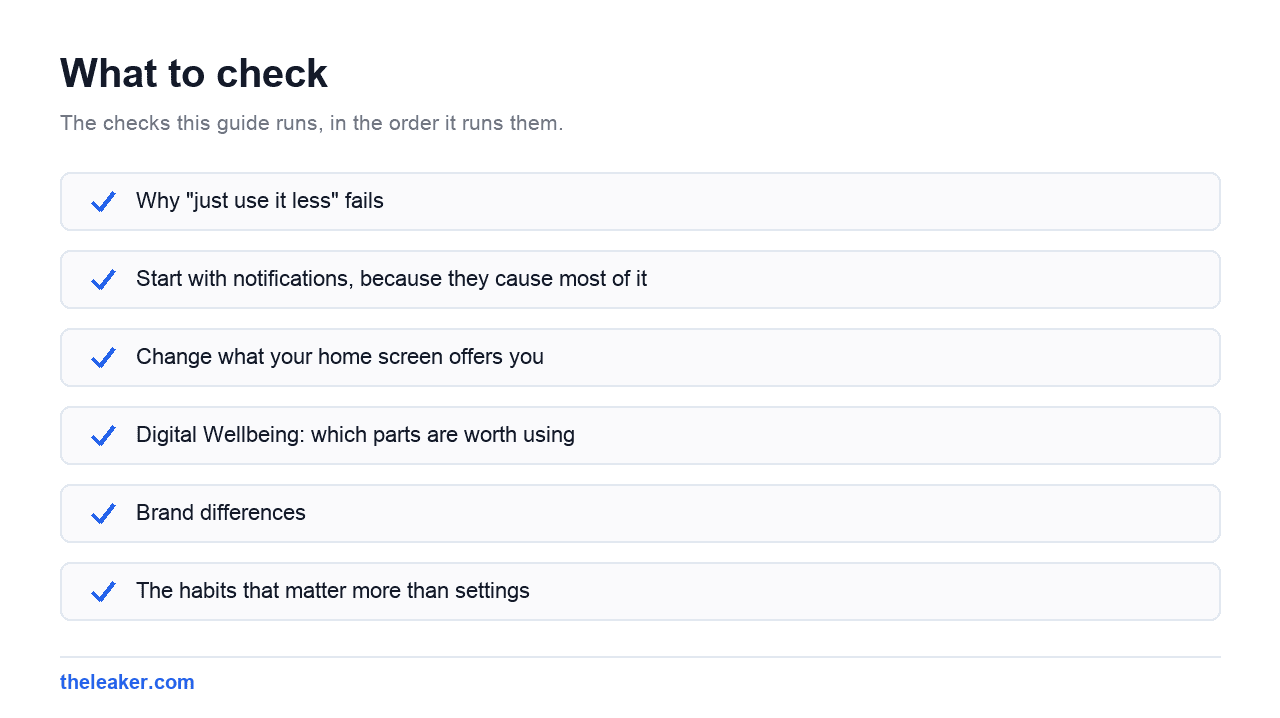
Start with notifications, because they cause most of it
Most phone pickups are not decisions. Something buzzed, you looked, and twenty minutes later you are somewhere you did not intend to go. Cut the trigger and a large part of the problem disappears without any self-control involved.
Go to Settings, then Notifications, then App notifications. Sort by most recent. You will find apps sending you dozens of notifications a week that you have never once been glad to receive.
Use this test: does this notification tell me a specific human wants something from me, right now? Messages from people pass. “Someone you might know posted”, “your weekly summary is ready”, “come back, you have not visited in three days”: all of those fail. Turn them off.
Android also lets you turn off notification categories within an app rather than the whole app. Tap into any app’s notification settings and you can usually keep direct messages while killing everything promotional. That granularity is what makes this stick. You are not cutting yourself off, you are cutting the noise.
One more thing worth doing: turn off notification badges. The little dots on app icons. They are a permanent low-grade nag with no information in them.
Change what your home screen offers you
Whatever sits on your home screen is what you open when you have ten idle seconds. That is the entire mechanism.
Take the two or three apps you genuinely lose time to and remove them from the home screen entirely. Leave them installed, in the app drawer, unfindable without searching. The app is still there when you actually want it. You just have to type its name, and that four-second gap is often enough for the automatic reach to fizzle out.
Fill the freed space with things that are useful but finite: a calendar widget, notes, a weather widget, the camera. The goal is a home screen that answers questions rather than one that offers entertainment.
Some people go further and remove the search bar or use a deliberately plain launcher. That is optional. Moving three apps does most of the work.
Digital Wellbeing: which parts are worth using
Open Settings, then Digital Wellbeing and parental controls. There is a lot in here and only some of it is useful.
Dashboard. Shows screen time, unlocks and notifications received per app. Useful once, to find out where the time actually goes. The answer is often not the app you assumed. After that, check it weekly at most. Watching the number daily just makes you feel bad without changing anything.
App timers. Set a daily limit on an app and its icon greys out when you hit it. This works, with a caveat: use it on two or three apps, not fifteen. Set a timer on everything and you will spend your day dismissing them until you switch the whole feature off. Set a realistic limit too. Cutting from three hours to two and a half sticks. Cutting to twenty minutes does not.
Focus mode. Pauses selected apps completely for a period you choose. Better than timers for work blocks, because it is time-based rather than budget-based. Pair it with a routine: during work hours, or while you are cooking dinner.
Bedtime mode. The most underrated feature here. It can silence notifications, dim the display, and switch the whole screen to greyscale on a schedule. Greyscale is the interesting part: without colour, feeds and video thumbnails lose a surprising amount of their pull. It is a genuinely effective intervention that costs you nothing.
Heads Up. Reminds you to look up when you are walking while staring at the screen. Minor, but harmless.
On recent Pixel software, Do Not Disturb and Bedtime mode are grouped under a broader Modes system, so the exact menu names shift a little between versions. The features are the same.
Brand differences
Samsung. One UI has its own Digital Wellbeing implementation plus the more powerful Modes and Routines system. Routines let you build conditional rules: when I connect to my work Wi-Fi, silence social apps and switch to a work home screen; when I plug in the charger after 10pm, enable Bedtime mode. If you like automation, this is the strongest tool any Android maker ships.
Xiaomi. HyperOS puts similar controls under Digital Wellbeing with its own Focus Mode, which is stricter than the Pixel version. It can lock you out fairly firmly for a set period. Useful if you need real commitment.
OnePlus and Oppo. Zen Mode is the notable one. It blocks everything except calls and the camera for a set duration and cannot be cancelled once started. That irreversibility is the whole point, and it is either exactly what you need or extremely annoying.
Pixel. Gets Google’s features first and keeps the interface simplest.
The habits that matter more than settings
Charge the phone outside the bedroom. This one change removes late-night scrolling and the first-thing-in-the-morning reach in one move. Buy a cheap alarm clock. It is the highest-impact thing on this list and it involves no software at all.
Decide before you unlock. Say what you are opening the phone for before the screen lights up. Half the time you will realise you had no reason.
Keep one screen-free stretch a day. Meals, a walk, the first thirty minutes after waking. One stretch, kept consistently, does more than an ambitious rule you break by Wednesday.
Turn off autoplay. In YouTube, Instagram and most video apps there is a setting that stops the next video starting automatically. That restores the natural gap where you get to decide.
Put your phone face down and out of reach. Not in your pocket. On a shelf across the room. Proximity is most of it.
Watch for substitution. If you block one app and immediately pour the same hours into another, the timer is not the problem. Ask what the phone is doing for you in that moment: filling boredom, avoiding a task, winding down. That answer points at a better fix than any setting.
A realistic two-week plan
Do not do all of this at once. Layer it.
- Days 1 to 3. Notifications only. Turn off everything that is not a person messaging you. Change nothing else.
- Days 4 to 6. Rearrange the home screen. Move your worst two or three apps into the drawer.
- Days 7 to 9. Set up Bedtime mode with greyscale, and start charging the phone in another room.
- Days 10 to 14. Now look at the dashboard. With the noise gone, whatever is still eating your time is the real habit. Put a timer or a Focus mode block on that one thing.
By the end you have made four changes, all of them small, none requiring daily willpower. That is what makes it survive past the first bad week.
If your phone also feels sluggish enough that using it is unpleasant, a few of the toggles in our guide to hidden Android settings that speed up your phone are worth a look. A fast phone you use deliberately beats a slow one you fight with.
Frequently asked questions
Do app timers actually work, or do people just tap “ignore”?
They work when the limit is realistic and applied to only a few apps. The failure mode is setting aggressive limits on everything, hitting a wall constantly, and learning to dismiss the prompt reflexively. Once dismissing becomes automatic, the feature is dead. Start with one app and a limit slightly below your current average.
Does greyscale really reduce phone use?
For most people, yes, at least somewhat. Colour is doing a lot of work in feed and video interfaces: thumbnails, notification dots, the red badges. Strip it out and scrolling becomes noticeably less rewarding without blocking anything. It is easy to reverse, costs nothing, and you will know within a few days whether it helps you.
Should I just use a dumbphone or a minimal launcher instead?
Both are legitimate, but they are big commitments and most people return from them. The usual outcome is missing maps, payments, two-factor codes and group chats badly enough to switch back, then concluding the whole effort failed. Try the incremental changes first. If you have done them properly for a month and still want less phone, then a minimal launcher is a reasonable next step.
Does screen time include things like navigation and music?
The dashboard counts any time the screen is on with an app in the foreground, so maps while driving and reading an ebook both count towards a number that looks alarming. This is why the headline figure is close to meaningless on its own. Look at the per-app breakdown instead, and only worry about the apps where you finish a session feeling worse than when you started.

Akshay Mhatre is a Tech Journalist who likes to keep up with the latest from the tech world. He has worked at many popular news portals like BGR and TechRadar before joining TheLeaker as a News writer and journalist. A writer by day and a VFX artist by night. In his free time, he also likes to make motion graphics and concept art. You can find him on Instagram @akshayrazr_95 and contact him on akshaymhatre[@]theleaker.com.