

The message arrives with no warning and then will not stop: “Unfortunately, android.process.media has stopped”. Dismiss it and it reappears, sometimes every few seconds, often after taking photos or plugging the phone into a computer.
The quick answer: android.process.media is the background process that indexes media on your phone, the thing that lets the Gallery, Photos and every other app find your pictures, videos and music. It crashes when its index becomes corrupted, most often after an interrupted file transfer, a failing SD card, or a large number of files appearing at once. The standard fix is to clear the data for Media Storage and Download Manager, then restart. That forces a clean rebuild of the index. It removes no photos or files, though the phone will be slow for a few minutes afterwards while it re-scans.
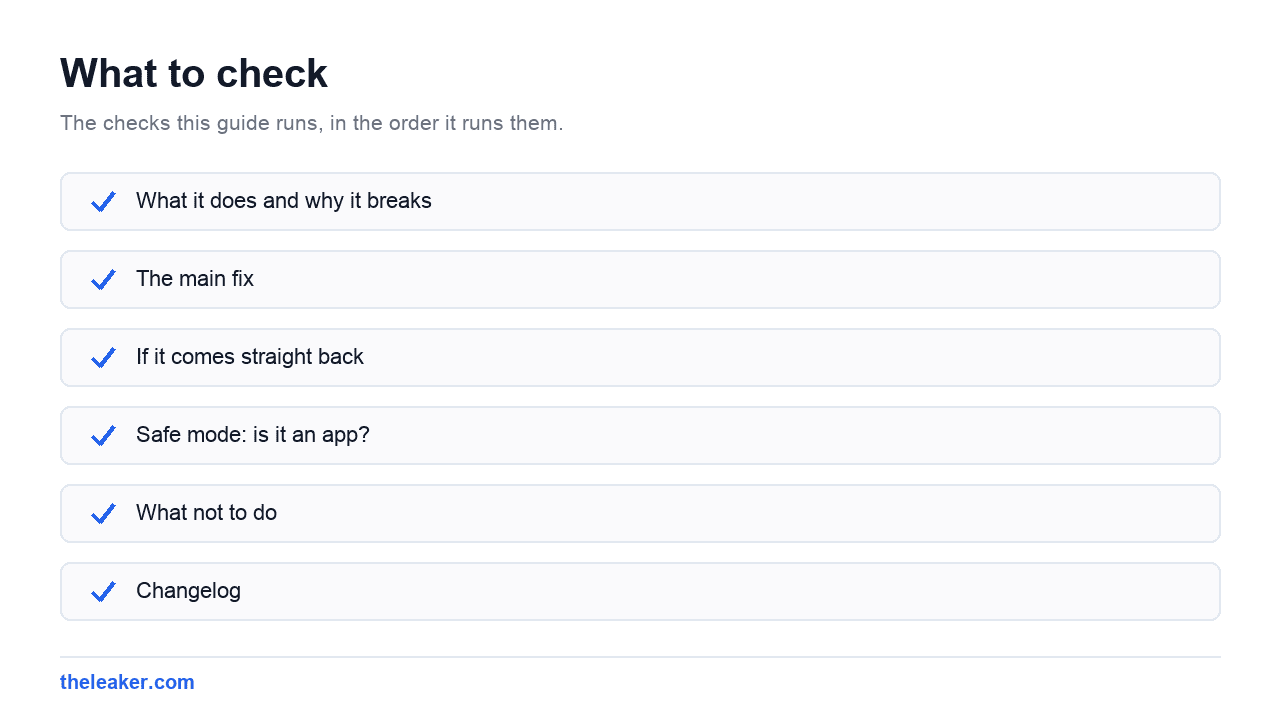
What it does and why it breaks
Everything on Android that shows you a photo relies on a shared media index. Rather than each app scanning your storage, one process does it and keeps a database that every app queries. That process is android.process.media.
It crashes when that database no longer matches reality. Common causes, in rough order:
- An interrupted file transfer. Unplugging mid-copy leaves partial files the indexer chokes on.
- A failing or removed SD card. The index references files that are no longer readable.
- A sudden flood of files. Restoring a backup or syncing a large photo library at once.
- Corrupt individual files. One malformed image can stall a scan.
- Nearly full storage. The index cannot write its own working files.
The main fix
This resolves the large majority of cases. It clears the media index and forces a rebuild.
- Settings, then Apps.
- Tap the three dot menu and choose Show system apps. Both apps below are hidden without this.
- Find Media Storage, tap Storage, then Clear cache, then Clear storage.
- Go back and find Download Manager (sometimes Downloads), and do the same.
- Restart the phone.
This does not delete any photos, videos or music. It deletes the index that points at them. Android rebuilds it automatically on restart.
Expect the phone to feel sluggish for anywhere from two minutes to half an hour afterwards while it re-scans storage, and expect the Gallery to look empty or partially filled during that time. That is the rebuild working, not a second failure. On a phone with tens of thousands of photos, leave it plugged in and give it time.
If it comes straight back
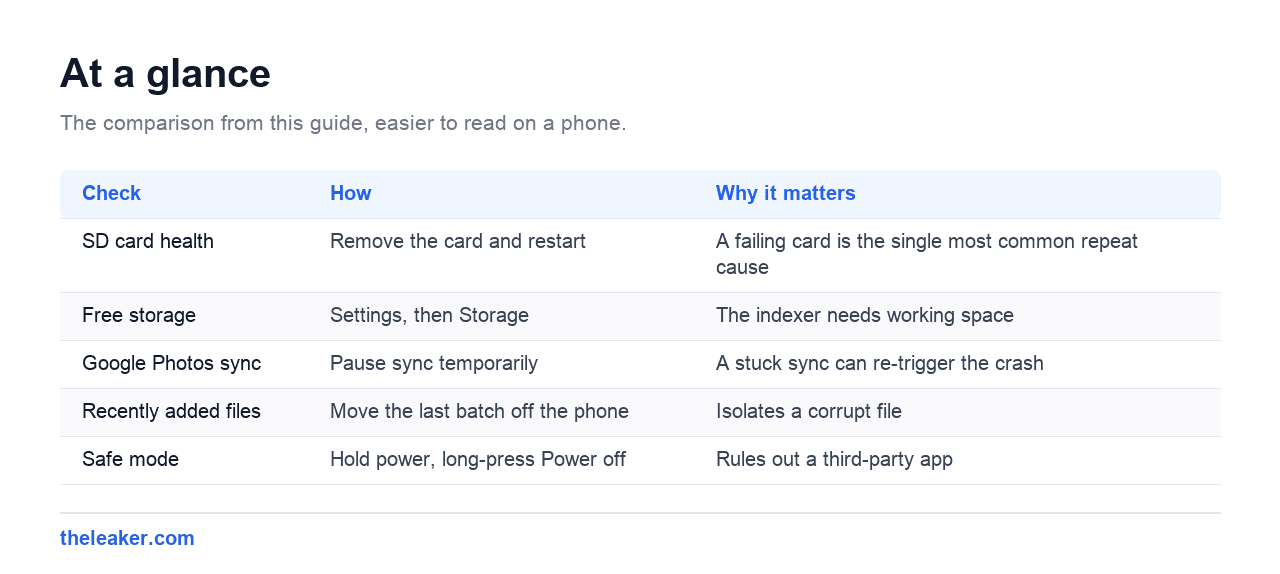
A crash that returns immediately after a rebuild means something is actively breaking the scan. Work through these.
| Check | How | Why it matters |
|---|---|---|
| SD card health | Remove the card and restart | A failing card is the single most common repeat cause |
| Free storage | Settings, then Storage | The indexer needs working space |
| Google Photos sync | Pause sync temporarily | A stuck sync can re-trigger the crash |
| Recently added files | Move the last batch off the phone | Isolates a corrupt file |
| Safe mode | Hold power, long-press Power off | Rules out a third-party app |
The SD card test
If the phone has a card, this is the test worth doing first. Power off, remove the card, power on, and use the phone normally for a while.
If the error stops, the card is the problem. Back up anything on it, then either reformat it in the phone or replace it. Cheap and counterfeit cards fail in exactly this way, often months after purchase, and they frequently report a larger capacity than they actually have.
Finding a corrupt file
If the crashes started right after adding files, that batch is the suspect. Move the most recently added photos or videos off the phone, restart, and see whether the error stops. If it does, add them back in smaller groups to find the individual file.
A .nomedia file placed in a folder tells the indexer to skip it entirely, which is a useful way to exclude a problem folder while you work out which file inside it is at fault.
Safe mode: is it an app?
Occasionally a third-party app, usually a camera, gallery, file manager or cleaner app, triggers the crash by hammering the media index.
Boot into safe mode by holding the power button, then long-pressing Power off until Safe mode appears. Safe mode runs only system apps.
If the error disappears in safe mode, a third-party app is responsible. Restart normally and uninstall recently added apps in that category one at a time. If it still appears in safe mode, the cause is storage or the index itself, and the fixes above are the right ones.
What not to do
Two pieces of common advice on this error are worth pushing back on.
Do not factory reset first. It is offered constantly for this error and is almost never necessary. Clearing Media Storage achieves the same rebuild without wiping the phone, and if a failing SD card is the cause a reset fixes nothing at all, because the card is still faulty.
Be wary of “cleaner” apps promising to fix it. This is a system index problem. An app cannot repair it more effectively than clearing Media Storage does, and cleaner apps that aggressively delete cached files can make the re-scan worse.
Frequently asked questions
Will clearing Media Storage delete my photos?
No. It deletes the index that catalogues them, not the files. Your photos, videos and music stay exactly where they are, and Android rebuilds the index on restart.
Why is my Gallery empty after doing this?
Because the rebuild is still running. It can take from a couple of minutes to half an hour depending on how many files you have. Leave the phone alone, ideally on charge, and it will fill back in.
It keeps coming back every few minutes.
Something is actively breaking the scan. In order of likelihood: a failing SD card, nearly full storage, or one corrupt file. Test by removing the SD card first, since that is the most common.
Is android.process.media a virus?
No. It is a core Android system process present on every device. The name looks technical because it is a package identifier rather than an app name.
Changelog
- 1 August 2026: Page created.

Akshay Mhatre is a Tech Journalist who likes to keep up with the latest from the tech world. He has worked at many popular news portals like BGR and TechRadar before joining TheLeaker as a News writer and journalist. A writer by day and a VFX artist by night. In his free time, he also likes to make motion graphics and concept art. You can find him on Instagram @akshayrazr_95 and contact him on akshaymhatre[@]theleaker.com.