

Handing a child a phone means handing them the entire internet. Android has decent tools for managing that. They’re just scattered across four different places, and no single one covers everything. Set up only one and you’ll end up with a false sense of security.
The quick answer: Effective parental controls on Android come from four layers working together. Family management: Google’s Family Link: is the backbone: it links the child’s account to yours and gives you app approval, screen time limits, remote lock and location. Store-level controls in the Play Store restrict what can be downloaded and installed by content rating, and block unapproved purchases. App-level controls matter most in practice, because YouTube, browsers and social apps each have their own restricted modes that family software can’t reach. Device-level settings handle screen pinning, restricted profiles on tablets, and Do Not Disturb during school and bedtime. Set up all four. Then have the conversation: no software substitutes for a child knowing why the rules exist.
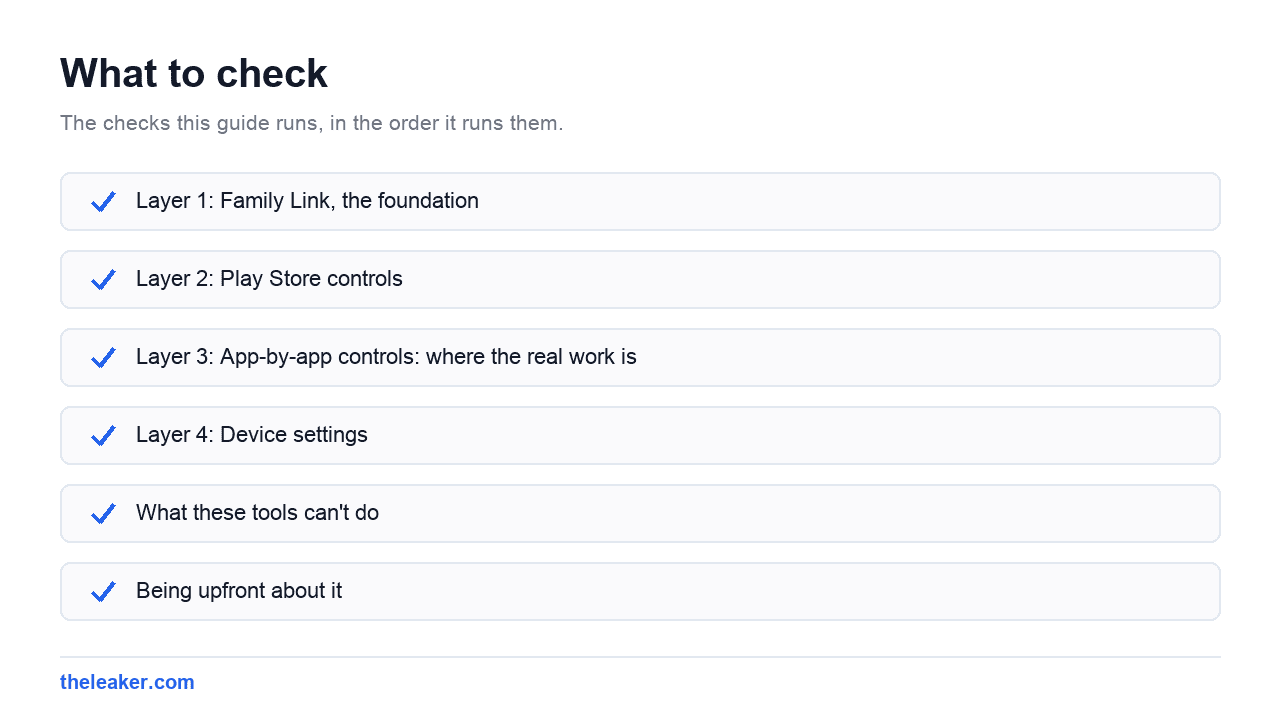
Here’s the full setup, layer by layer, including the gaps.
Layer 1: Family Link, the foundation
Google’s Family Link is the core parental control system on Android. It creates a supervised child account tied to your family group, and it’s free.
The broad setup process:
- Install the family management app on your own phone and set up your family group as the parent.
- On the child’s phone, either create a new supervised child account, or add supervision to an existing one during setup.
- Follow the linking prompts on both devices. You’ll typically need both phones on hand and your own Google password to authorise.
- Work through the initial permission choices for apps, content and screen time.
Once linked, you get a set of controls from your own phone: approving or blocking app installs, setting daily screen time limits, setting a device bedtime that locks the phone, remotely locking the device, seeing which apps get used and for how long, and seeing the device’s location.
The age thing. Below a certain age (which varies by country), a Google account must be supervised. That’s not optional. Once a child reaches the age of majority for accounts in your country, they can remove supervision themselves, and you’ll get a notification when they do. Plan for that transition rather than being blindsided by it. Ideally you’re loosening the controls gradually well before that point anyway.
Screen time limits that actually work
Family software typically offers three kinds of limit, and they serve different purposes:
- Daily limit: total device time per day. Blunt but easy to understand.
- Bedtime / downtime. The device locks during set hours. In practice this is the most valuable one. Phones in bedrooms overnight are the single biggest sleep disruptor for teenagers.
- Per-app limits: caps on individual apps. Better than a blanket limit, because it lets you separate a video app from a homework app.
Set different limits for weekdays and weekends if the software allows it. A single rule applied to both invites constant negotiation.
Give yourself a way to grant extra time when it’s genuinely warranted: finishing homework, a video call with family. Rules that can never bend get resented and worked around.
Layer 2: Play Store controls
Separate from family management, and easy to forget. Even with supervision on, it’s worth setting these directly.
Open the Play Store on the child’s device, go into settings, and find the family or parental controls section. Turn parental controls on and set a PIN: one the child doesn’t know and can’t guess. Not their birthday.
Then set content rating limits for each category: apps and games, films, TV, books. Content above your chosen rating is hidden from browsing and search, and can’t be installed.
Separately, turn on authentication for purchases. This requires a password or biometric for every purchase, including in-app ones. This is the setting that prevents the horror stories about hundreds of pounds of in-game currency. Set it to require authentication for all purchases, not just some.
The gap: Play Store controls only cover the Play Store. If the phone can install apps from other sources, this layer is bypassable. Make sure installing from unknown sources is switched off. It’s under the app permissions or special access area of settings, and it should be off by default.
Layer 3: App-by-app controls: where the real work is
This is the layer people skip, and it’s the one that matters most. Family management software controls which apps get used and for how long. It has very little say over what happens inside them.
YouTube
Almost always the biggest single source of content parents worry about. There are broadly two approaches: use the dedicated kids version of YouTube, which has its own age-band content settings and its own timer, or enable restricted mode in the main YouTube app.
Be honest about what restricted mode is: an automated filter. It removes a lot of clearly inappropriate content and misses some. It also over-blocks legitimate educational material. It’s a meaningful reduction in risk, not a guarantee.
For younger children, an approved-content-only approach, where they can only watch what you’ve specifically allowed, is far more effective than any filter, if you’re willing to do the curation.
Browsers and search
Turn on SafeSearch in the child’s Google account settings. On a supervised account you can usually lock it so it can’t be turned off from the device.
Then check every browser on the phone, not just the default one. Each browser is a separate app with its own settings, and a second browser is the most common way filtering gets bypassed. If you don’t need multiple browsers, remove the extras.
For stronger filtering, family-safe DNS services filter at the network level and apply across every app on the device, not just browsers. Setting one as the phone’s private DNS covers more ground than per-app settings, though a determined teenager can change it back unless the setting is locked down.
Social and messaging apps
Most social platforms have minimum age requirements and their own teen safety settings: private-by-default accounts, restrictions on who can message, comment filtering, time reminders. Go into each app the child uses and work through its safety settings individually. There’s no shortcut here.
The messaging risk isn’t just social apps, either. Many games have open chat. That’s frequently the least-supervised communication channel on a child’s phone.
Games and spending
Beyond store-level purchase authentication, check whether payment methods are saved on the device and whether any gift card balance is available. Both bypass the psychological brake of entering card details.
Layer 4: Device settings
Screen pinning locks the phone to a single app until you unpin it with your PIN. Perfect for handing your own phone to a small child to watch one video without them wandering into your email. Find it under the security or advanced section of settings.
Restricted or secondary profiles on tablets create a completely separate space with its own apps and settings. Ideal for a shared family tablet. The child’s profile has only what you’ve allowed, and your own stays untouched.
Do Not Disturb schedules silence notifications during school hours and overnight. Less confrontational than a hard lock, and it removes the constant pull of buzzing without removing the device.
Brand-specific tools. Samsung, Xiaomi and others layer their own kids modes or family features on top of Android. These usually offer a simplified launcher with only approved apps. They work fine alongside Google’s system: just be aware you now have two places to check when something isn’t behaving as expected.
What these tools can’t do
Every honest guide needs this section.
They don’t cover other devices. Controls on the phone do nothing about a school laptop, a games console, a smart TV, or a friend’s phone. Kids are excellent at finding the unmanaged screen in the room.
Filters miss things. Automated content filtering is probabilistic. Some inappropriate content gets through, some harmless content gets blocked. Anyone promising complete filtering is selling something.
Teenagers find workarounds. Second browsers, web versions of blocked apps, a friend’s hotspot, factory resets, a second account. Technical controls buy time and reduce casual exposure. They don’t create a sealed environment.
Location tracking is device location, not child location. A phone left at a friend’s house reports the friend’s house.
Controls don’t teach judgement. A child who reaches sixteen having only ever experienced a filtered internet has had no practice handling the unfiltered one. The goal is a gradual handover of responsibility, not permanent lockdown.
Being upfront about it
Tell your child what’s turned on and why. Covert monitoring, when discovered, and it is discovered, costs you more trust than the controls ever bought you in safety.
Frame limits as household norms rather than punishment. “No phones in bedrooms overnight” lands better when it applies to everyone in the house, adults included.
And revisit the settings periodically. What suits an eight-year-old is insulting to a fourteen-year-old. Loosening controls as a child demonstrates good judgement is the whole point. It gives them a reason to demonstrate it.
Practically: put a reminder in your calendar to review the setup every few months, and expect to have the conversation more often than you change the settings.
Frequently asked questions
What age can my child remove parental controls themselves?
It depends on your country’s age of digital consent. Below that age, supervision on a child’s Google account is required and can’t be removed by them. Once they reach it, they can end supervision themselves. You’ll be notified when they do, but you can’t prevent it. Start easing restrictions before that point rather than hitting a cliff edge.
Can I see my child’s messages with parental controls?
Generally no. Family management tools show which apps are used and for how long, not message content. Encrypted messaging apps can’t be read by third-party software at all. Any app claiming to read all your child’s messages should be treated with real suspicion: both technically and on privacy grounds.
Do parental controls work if my child has an old phone with a different account?
Only if that phone is signed into the supervised account and linked to your family group. A device with a separate, unsupervised account is outside the system entirely. Handed-down phones are a common blind spot: check every device in the house, not just the newest one.
Will parental controls slow down or drain the phone?
The impact is small. Supervision software runs mostly in the background with light location and usage reporting. If location sharing is on continuously, expect a modest extra battery cost. It’s not a noticeable performance hit on any reasonably modern phone.
Related: How to Set Up Google Family Link (And What It Can't Do)

Yash Jain writes about Android and Apple for The Leaker, focusing on how to guides, download resources, and top and best roundups. His articles walk readers through setup steps and app choices, compare options across categories, and follow news updates across both mobile platforms as they develop.