
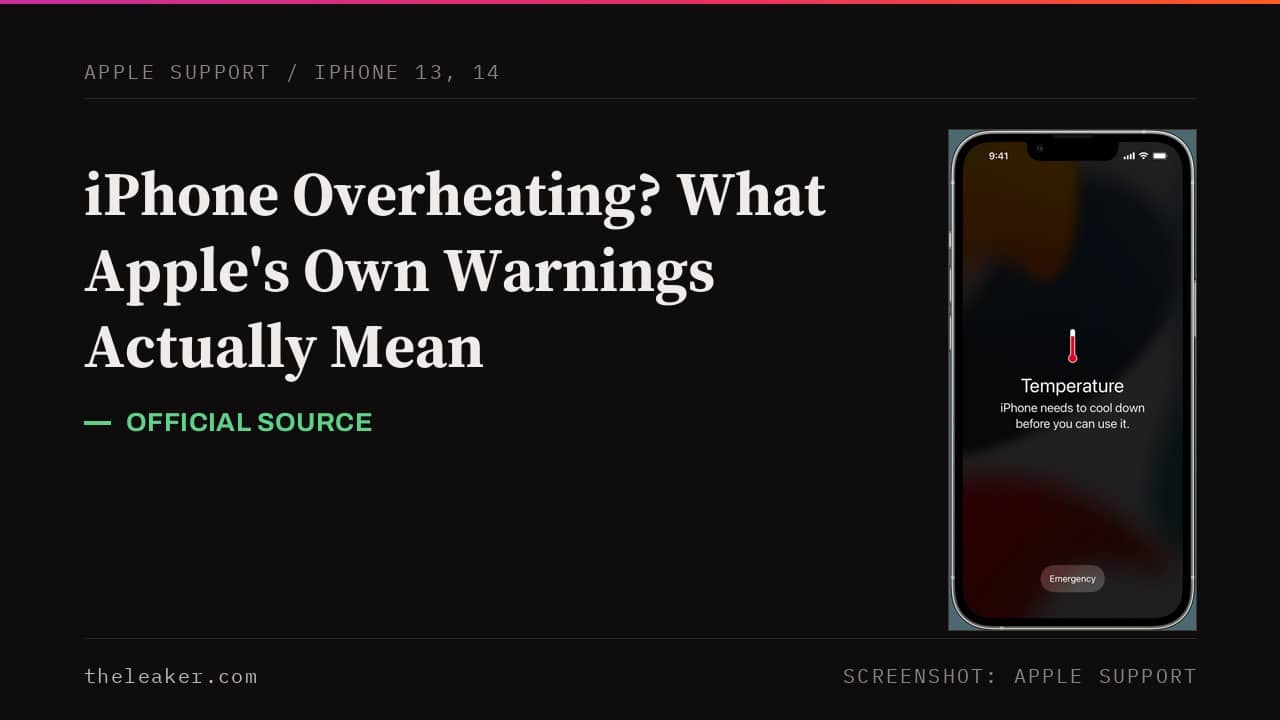
The quick answer: if your iPhone is overheating, take it out of the sun, take the case off, and stop charging it: Apple’s own guidance says charging, the display, cellular signal, and camera features all deliberately scale back once the phone gets too hot, and that is the phone protecting itself, not a fault. Once it is cool, look for the real cause: it is usually a recent iOS update, gaming or 4K camera use while charging, a weak signal working the modem hard, or (on iPhone 13 and 14 specifically, where this shows up most in real search data) a battery that has aged into its degraded years. Turn the phone off, move it somewhere cooler, and let it sit for a few minutes: Apple’s own support page gives exactly those three steps.
What Apple’s own warning screens actually mean
Apple documents this more precisely than most guides let on, and knowing the exact wording helps you judge how serious it is. According to Apple’s support page on device temperature, an iPhone is designed to run between 0°C and 35°C (32°F to 95°F) ambient temperature. Warmth from a software update, wireless charging, gaming, or shooting 4K video is explicitly listed by Apple as normal, not a fault: “if your device doesn’t display a temperature warning, you can keep using your device.”
When the phone’s internal temperature does climb past that range, Apple describes a specific, staged response, not a sudden shutdown:
- Charging, including wireless charging, slows or stops.
- The display dims or goes black.
- Cellular signal may weaken as the radios enter a low power state.
- The camera flash and some camera features are temporarily disabled.
- Some apps run with lower frame rates or take longer to process.
If you are using Maps for turn by turn navigation when this happens, the screen goes dark but spoken directions keep playing, and Apple’s own on-screen text for that specific case reads “Temperature: iPhone needs to cool down.” If the phone is mid restore from an iCloud backup, you will instead see “Restore Paused: Restoring from iCloud will resume when this iPhone cools down.” Both are temporary holds, not errors, and both resume automatically.
Only if the phone keeps climbing does it show the full screen temperature warning most people have seen in screenshots: “iPhone needs to cool down before you can use it.” At this stage Apple’s own instructions are just three steps: turn off the device, move it to a cooler spot away from direct sunlight, and let it cool. Apple specifically notes that a phone showing this screen can usually still make an emergency call, so it is not fully dead, just locked out of everything else until it cools.
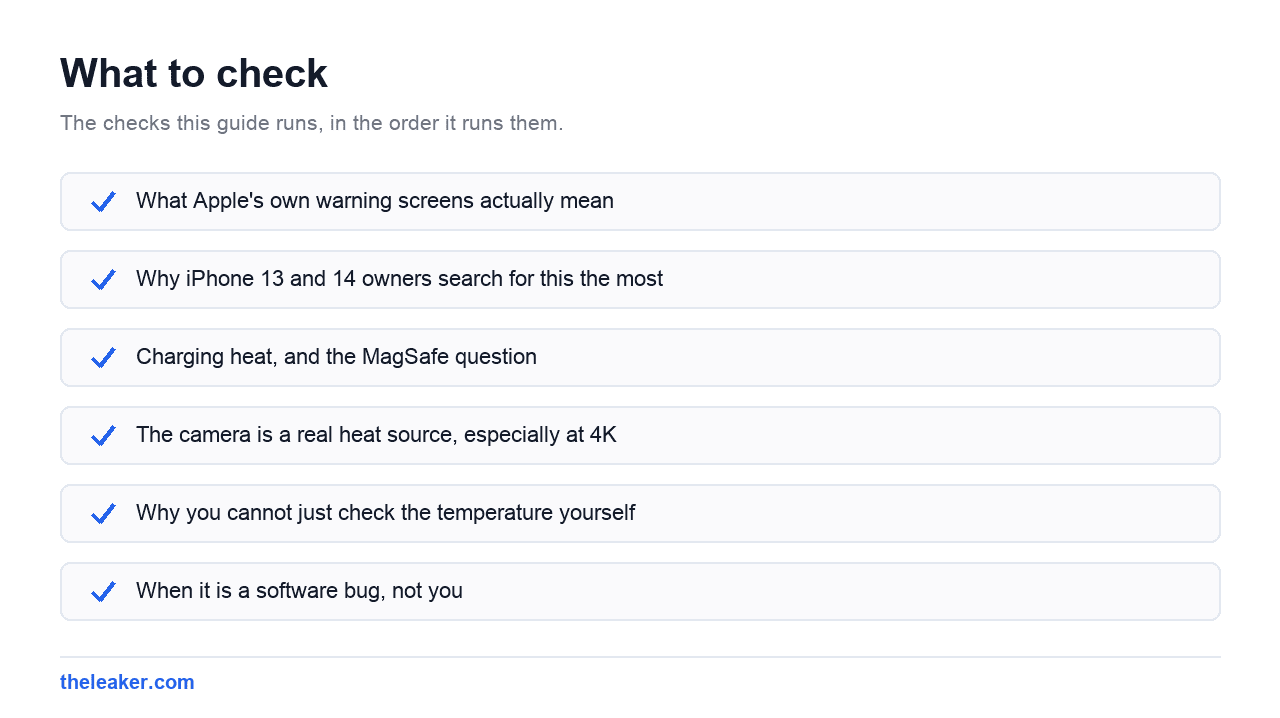
Why iPhone 13 and 14 owners search for this the most
Real search data for this topic is heavily concentrated on the iPhone 13 and 14 generation, well ahead of the current iPhone 17 lineup or older models like the iPhone 11. That is not a coincidence. Lithium ion batteries lose capacity fastest through their second and third year of daily charge cycles, and a battery that has quietly lost 15 to 20 percent of its original capacity works harder, and runs hotter, to deliver the same performance a fresh battery managed easily. If your iPhone 13 or 14 has started running warm somewhere it never used to, an aging battery is one of the most likely explanations, and it is checkable in under a minute:
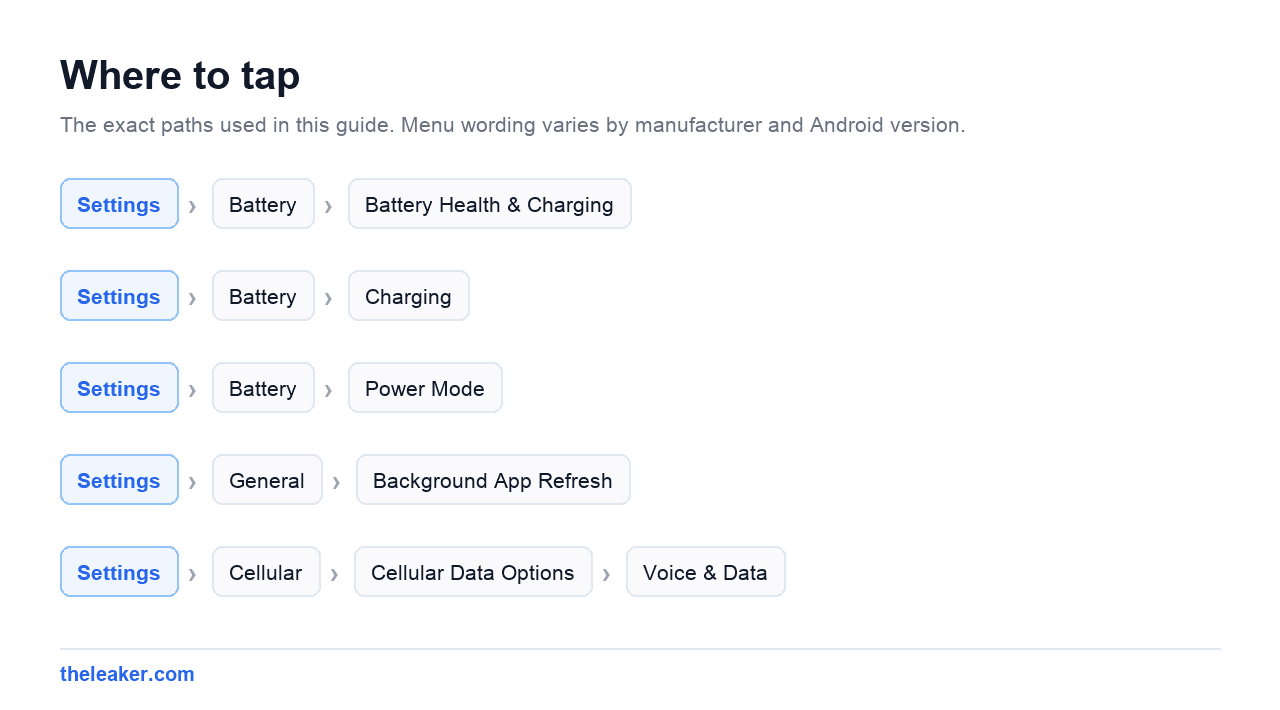
Go to Settings → Battery → Battery Health & Charging. Two numbers matter here: Maximum Capacity, a percentage against the battery’s original capacity, and Peak Performance Capability, which should read “Performance Is Normal.” If it instead says “Performance Management Applied,” the battery has already caused at least one unexpected shutdown and iOS is deliberately throttling the phone to prevent more, which is itself a heat and performance symptom worth knowing about. Apple treats 80 percent as the service threshold: iPhone batteries are designed to hold 80 percent of original capacity at 500 full charge cycles (1,000 on iPhone 15 and later), and Apple will replace a battery under warranty once it falls below that. So if Maximum Capacity has dropped under 80 percent and the phone runs warm daily, replacement is the fix, and it costs far less than a new phone.
The setting that actually matters, and why it differs by iPhone generation
Optimized Battery Charging slows the last stretch of a charge cycle to reduce the time your battery spends sitting at 100 percent, which is one of the more genuinely useful heat and battery health settings Apple offers, but where you find it depends on your phone:
- iPhone 13, 14, and earlier: Settings → Battery → Battery Health & Charging, then toggle Optimized Battery Charging on. This is the only version of the feature these phones have.
- iPhone 15 and later: Settings → Battery → Charging, which adds a Charge Limit slider (80 to 100 percent in 5 percent steps). Optimized Battery Charging still exists on these phones, but only while Charge Limit is set to 100 percent, so you are choosing between the two rather than running both.
A lot of advice online tells iPhone 13 and 14 owners, who are exactly the people most affected by this, to look for a Charge Limit slider that their phone does not have. If you cannot find it, you are not doing anything wrong, your phone simply uses the older Battery Health & Charging path instead.
Charging heat, and the MagSafe question
Apple’s own support page for MagSafe is direct about this: “your iPhone or MagSafe Charger might get slightly warmer while your iPhone charges. To extend the lifespan of your battery, if the battery gets too warm, software might limit charging above 80 percent.” Wireless charging is inherently less efficient than a cable, since power has to cross an air gap through induction rather than a direct connection, and that lost efficiency becomes heat. If you want the coolest, fastest charge, a cable still beats MagSafe.
One thing worth being precise about: Apple’s own documentation does not specifically instruct you to remove your case during MagSafe charging for heat reasons; its case-related guidance is about magnetic strips and RFID cards getting too close to the charger, not thermal safety. If your case runs noticeably hot during wireless charging, it is a reasonable thing to test by removing it, just do not assume Apple has issued a formal warning about it, because it has not.
The camera is a real heat source, especially at 4K
iPhones are fanless. The metal frame itself is the only heatsink the phone has, which is fine for most tasks but gets tested hard by sustained 4K60 or ProRes video recording, one of the heaviest continuous workloads the processor and camera sensor handle together. Apple’s camera app does not show a separate camera specific overheating warning; it uses the same general temperature warning covered above, and camera features like the flash are explicitly on Apple’s list of things that get disabled first when the phone runs hot. If you are recording long clips and the phone is getting uncomfortably warm, dropping from 4K60 to 1080p30, or taking breaks between takes, genuinely helps.
Why you cannot just check the temperature yourself
If you have ever looked for an app that shows your iPhone’s exact temperature in degrees, here is why that search rarely goes well: Apple does not expose a real thermal sensor reading to any app, full stop. There is no public API for it. What apps can legitimately access is something different, called thermal state, an Apple-defined status of nominal, fair, serious, or critical that some apps surface as a badge or icon rather than a number. Any app on the App Store showing you a specific number of degrees is estimating, not measuring, so treat those figures as a rough mood indicator at best, not a diagnostic tool. This is a real, deliberate difference from Android, where developer tools can read actual thermal zone sensors directly: Apple’s ecosystem simply does not offer that level of access to end users.
When it is a software bug, not you
Sometimes the cause genuinely is not anything you did. In October 2023, Apple publicly confirmed that a bug in iOS 17, made worse by specific apps including Instagram, Uber, and the game Asphalt 9, caused real overheating on new iPhone 15 Pro units, and fixed it with the iOS 17.0.3 update. That remains the clearest example of Apple owning a software caused heat problem outright. There is also a live, current pattern worth flagging honestly rather than overstating: users have been reporting overheating tied to iOS 26 updates on iPhone 16 and 17 models, particularly during camera use, into 2026. Apple has not issued a public statement or fix specifically for this as of this writing, so treat it as a widely reported user pattern, not a confirmed bug, and keep an eye on your update notes if your phone has run warm since a recent iOS update.
The everyday fixes, quickly
- Take the case off and get it out of direct sun. A dark case in a hot car turns a warm phone into a genuinely hot one fast.
- Turn on Low Power Mode. Settings → Battery → Power Mode. It reduces background activity and some visual effects, which lowers processor load and heat together.
- Check Background App Refresh. Settings → General → Background App Refresh. Turning it off for apps you rarely open stops them quietly working in the background.
- Switch off 5G Auto if you are in a weak signal area. Settings → Cellular → Cellular Data Options → Voice & Data → set to LTE. A modem constantly searching for a strong 5G signal works harder and runs warmer than one settled on a stable LTE connection.
- Update iOS. If the heat started right after an update, a follow up fix, the way iOS 17.0.3 was, may already be out.
When to stop troubleshooting and see Apple
Book a Genius Bar visit or contact Apple Support if the phone runs hot every day regardless of what you are doing, if it has shut down unexpectedly from heat more than once, if Battery Health shows Performance Management Applied alongside daily warmth, or if the back of the phone looks even slightly domed, which can mean a swollen battery and should be treated as urgent. None of the settings above fix a genuine hardware fault, and a swollen battery in particular is not something to keep using.
Frequently asked questions
Is it normal for my iPhone to get warm while charging?
Yes, mild warmth during charging, especially with MagSafe, is expected and explicitly documented by Apple. Genuinely hot to hold, with a temperature warning on screen, is not.
Can I check my iPhone’s exact temperature?
Not precisely. Apple does not expose a real sensor reading to apps, only a broad thermal state. Any app claiming an exact degree figure is estimating, not measuring.
Does Low Power Mode actually reduce heat, or just save battery?
Both, and they are connected. Low Power Mode reduces background processing and some visual effects, and less processor work generates less heat as a direct side effect.
My iPhone shows “needs to cool down” but I can still make calls. Is that normal?
Yes. Apple specifically preserves emergency calling at this stage even though almost everything else is locked out until the phone cools.
Why does my iPhone 13 or 14 run hotter than it used to, even doing the same things?
Most likely battery aging. Check Settings → Battery → Battery Health & Charging: a Maximum Capacity well below 100 percent means the battery works harder, and runs warmer, to deliver the same performance it once managed easily.

Akshay Mhatre is a Tech Journalist who likes to keep up with the latest from the tech world. He has worked at many popular news portals like BGR and TechRadar before joining TheLeaker as a News writer and journalist. A writer by day and a VFX artist by night. In his free time, he also likes to make motion graphics and concept art. You can find him on Instagram @akshayrazr_95 and contact him on akshaymhatre[@]theleaker.com.