
You use Gboard for hours every day, and odds are you’re using about a tenth of it. Google’s keyboard hides a genuinely absurd amount of capability behind that plain-looking layout. The Gboard tips and tricks below are the ones that save the most time, and almost nobody stumbles onto them by accident.
The quick answer: the biggest speed wins in Gboard are glide typing (drag your finger across letters instead of tapping), the spacebar cursor trick (slide your finger along the spacebar to move the cursor precisely), clipboard history (turn it on in Gboard settings and everything you copy is saved and reusable), and voice typing, which is dramatically faster than thumbs for anything longer than a sentence. Beyond those four, learn the long-press layer: numbers and symbols hide under long-presses on the letter keys, so you never have to switch layouts for a quick digit. Add text shortcuts for phrases you type constantly (your email address, your bank-transfer note, your “on my way”) and one-handed mode for big phones. None of these need an add-on app. They’re all sitting in Gboard’s settings, most of them switched off or undiscovered by default.
Glide typing: stop tapping, start swiping
If you still peck at individual letters, this is the single biggest upgrade available. Glide typing lets you drag one finger from letter to letter without lifting; Gboard reads the path and figures out the word, and it’s shockingly accurate: including for words you’d swear are ambiguous. Lift your finger, and the word plus a space appears. Most people hit comfortable speed within a day or two, and end up meaningfully faster than tapping.
Make sure it’s on under Gboard settings → Glide typing (tap the gear on the toolbar, or long-press the comma key to reach settings on many layouts). Two sub-features worth enabling while you’re there: showing the gesture trail, which helps while you’re learning, and the delete gesture: slide left from the backspace key to wipe entire words at once instead of machine-gunning the delete key.
Glide typing plays nicely with the suggestion strip too. If the word it guessed is wrong, the alternatives are usually sitting right there in the strip: tapping one replaces the word, no retyping.
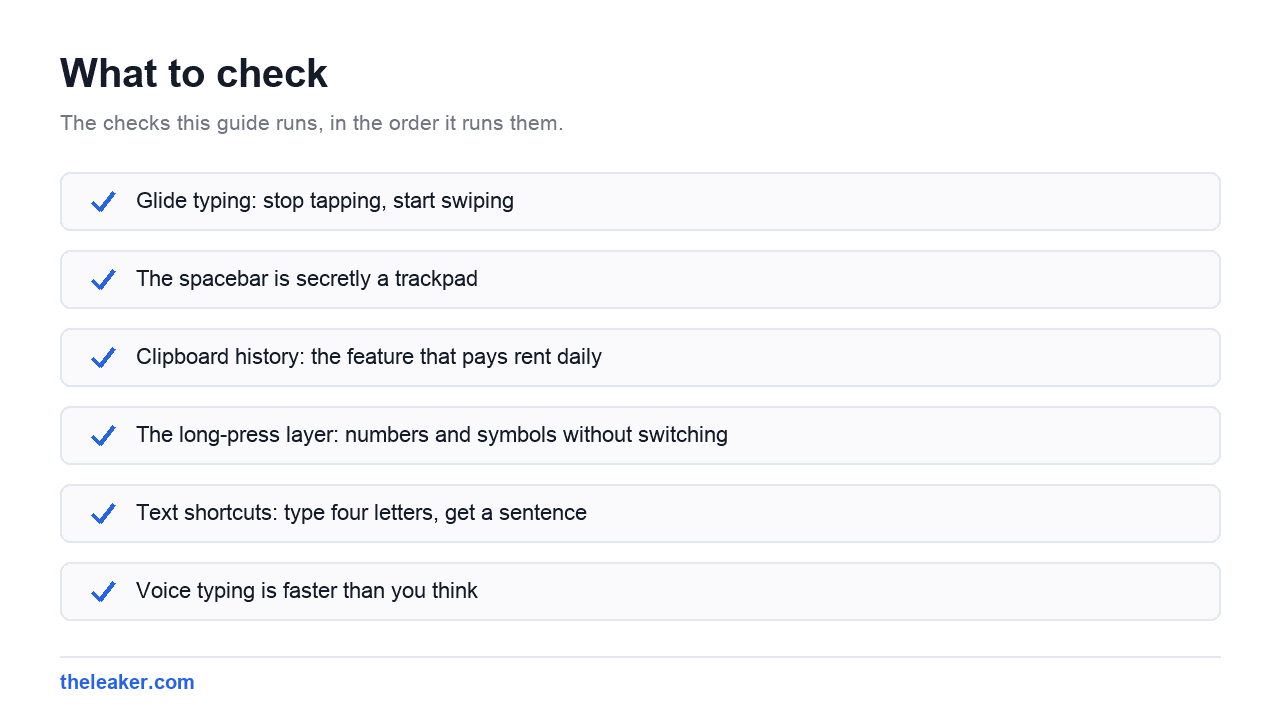
The spacebar is secretly a trackpad
Precise cursor placement is the worst part of touchscreen typing: jabbing at a word five times trying to land between two letters. Gboard’s fix: press and hold the spacebar, then slide your finger left and right. The cursor glides smoothly through the text, character by character. On many phones the whole keyboard becomes a trackpad while you hold, so you can move up and down lines too.
Combine it with this: tap into a word and use the suggestion strip to fix it, or double-tap a word to select it, then use Gboard’s clipboard icon or the standard cut/copy bubbles. Between the spacebar trackpad and double-tap selection, you can stop fighting the magnifier bubble almost entirely.
Clipboard history: the feature that pays rent daily
Turn on Gboard settings → Clipboard, and Gboard keeps a history of things you copy instead of just the last one. Copy a name, then an address, then a code: all three are waiting under the clipboard icon in the toolbar, ready to paste in any order. Recently copied items also surface as suggestions right in the strip, so pasting a two-factor code you just copied is one tap.
Two power moves inside the clipboard panel:
- Pin items. Regular history entries expire after a short time for privacy. Pinned ones stay forever: perfect for your IBAN, a tracking number you keep checking, or the address you’re sending everyone this week.
- Screenshot suggestions. Gboard can offer your latest screenshot as a paste option in apps that accept images, which turns “screenshot, switch app, attach, browse” into “screenshot, tap”.
One honest caveat: clipboard history means sensitive strings you copy sit in that panel until they expire. Gboard is built to handle passwords from password managers carefully, but if you’re pasting anything sensitive by hand, it’s worth clearing the clipboard afterwards.
The long-press layer: numbers and symbols without switching
Every top-row letter key hides its number under a long-press: hold q for 1, w for 2, and so on. Most other keys hide symbols the same way. For a single digit or an ampersand mid-sentence, a half-second hold beats switching to the symbol layout and back every time.
Typing a lot of numbers? Turn on the dedicated number row in Gboard settings → Preferences. It adds a permanent row of digits above the letters. And when you’re in the symbol layout and need just one symbol, press the symbol key, slide to the character you want, and release: Gboard types it and snaps straight back to letters. That slide-and-release trick works from the shift key too, for a single capital letter.
Long-press the full stop key and you get a mini-panel of the most common punctuation. Long-press currency, and you get the other currency symbols. Once you internalise “everything has a long-press”, the symbol layout becomes a rare destination.
Text shortcuts: type four letters, get a sentence
In Gboard settings → Dictionary → Personal dictionary, pick your language and add shortcuts. Each one maps a short trigger to a full phrase, which then appears in the suggestion strip when you type the trigger. Ideas that earn their keep:
@@→ your email addressaddr→ your full street addressomw→ “On my way, be there in 15 minutes.”sig→ your name and phone number for forms and enquiries
Pick triggers that aren’t real words so they never collide with normal typing. This is the closest thing typing has to free money: thirty seconds of setup, saved dozens of times a week. The personal dictionary also lets you add unusual names and jargon so autocorrect stops “fixing” them, which quietly removes a whole category of retyping.
Voice typing is faster than you think
Speaking hovers around three times faster than thumb typing for most people, and Gboard’s dictation has become good enough to trust with punctuation: say “comma” and “full stop”, or let it punctuate automatically on phones that support it. Tap the microphone on the toolbar and talk. On Pixels, the enhanced on-device Assistant voice typing goes further: it works offline, keeps up with fast natural speech, and takes commands like “send” or “clear”, though the exact feature set varies by model and language.
The trick to voice typing isn’t the feature, it’s the habit. Use it for the first messy draft of any long message, then spend ten seconds fixing the odd word with the spacebar-trackpad trick. That combination beats pure thumb typing by a wide margin for anything over a couple of sentences.
Comfort features people miss
- One-handed mode. Long-press the enter or comma key (or use the toolbar’s mode option) to shrink the keyboard to one side, with an arrow to flip sides. On today’s tall phones this is the difference between typing and juggling.
- Resize and reposition. Gboard’s settings let you make the keyboard taller, shorter, or floating: drag it anywhere on screen. Floating mode is superb on tablets and foldables.
- Split keyboard on big screens. On foldables and tablets, split mode puts half the keys under each thumb, laptop-thumbs style.
- Emoji search and emoji kitchen. Tap the emoji icon and search by word instead of scrolling. Typing a word in the normal strip often surfaces the matching emoji as a suggestion too. On supported phones, combining two emoji offers a mashup sticker.
- Translation built in. The translate option in the toolbar’s three-dot menu lets you type in your language and output another, live, in any app: underrated for travel and international group chats.
- Themes without downloads. Colours, photo backgrounds, and key borders live under Gboard’s theme settings. Key borders in particular make the layout easier to hit accurately, which is a speed feature disguised as a cosmetic one.
If the toolbar doesn’t show an icon mentioned here, tap the three-dot or arrow menu at the toolbar’s edge: features can be dragged into or out of the visible strip, and layouts vary a little between app versions and phone brands.
What NOT to bother with
- Third-party “keyboard booster” apps. Anything promising to make Gboard faster from outside is nonsense at best. A keyboard app can read everything you type, so the bar for installing one should be extremely high, and boosters don’t clear it.
- Turning off autocorrect entirely. Tempting after one bad correction, but you lose far more speed to typos than you ever lost to corrections. Add your problem words to the personal dictionary instead. That fixes the actual annoyance and keeps the safety net.
- Chasing every toolbar widget. A cluttered toolbar slows you down. Keep clipboard, the mic, and settings; hide the rest. Fewer, better-placed tools win.
Gboard is also lighter than most keyboard apps, but if your phone is struggling in general, keyboard lag is usually a symptom, not the disease. Our guide to hidden Android settings that make your phone feel faster tackles the root causes.
FAQ
How do I open Gboard settings quickly?
Tap the gear icon in Gboard’s toolbar, or long-press the comma key and slide to the gear. If the toolbar is hidden, tap the arrow or chevron at the left edge of the suggestion strip to expand it.
Is glide typing actually faster than tapping?
For most people, yes: noticeably, once the first day or two of awkwardness passes. It shines on common words and full sentences. Mixed input is the real endgame: glide for normal words, taps for passwords and unusual strings, voice for long messages.
How long does Gboard clipboard history keep items?
Unpinned items expire automatically after a short period, roughly an hour, as a privacy measure. Anything you pin stays until you delete it, so pin the things you paste repeatedly and let the rest expire.
Can I use Gboard tricks on any Android phone?
Gboard is preinstalled on Pixels and many other phones, and it’s a free download on the rest, including Samsung phones that ship with Samsung Keyboard. Install it, then select it under your phone’s keyboard settings as the default. Nearly everything here works identically across brands, though a few extras, like the enhanced offline voice typing, are Pixel-first.

A tech Journalist and Photographer, Dhawal Sharma is a technology enthusiast who loves to research the latest innovations and technology. He has contributed to the Honor Community for a very long period and has crucial expertise in writing tech news and reviewing smartphones and laptops. Analyzing and bringing the facts about any piece of tech is what he loves the most. He is a great product photographer and is the Gizmopedia of TheLeaker. Find him on Facebook and Instagram, and you can also email him at [email protected].