
Android already changes your MAC address for you. Since Android 10, your phone shows a different, randomly generated MAC address to every Wi-Fi network you join, and it keeps that address for that network until you factory reset. There is no setting to type a MAC address of your choosing, and the old terminal command guides no longer work without root. What you can control is whether a given network sees the random address or your phone’s real one: open your Wi-Fi settings, tap the gear icon beside the network, and look for Privacy on a Pixel or MAC address type on a Samsung.
The reason most people land here in 2026 is the opposite of the reason they landed here in 2018. Back then you had to go looking for a way to hide your hardware address. Now Android hides it by default, and the thing you actually need is a way to turn that off for a network that demands your real one.
Which problem do you actually have?
These need different answers, so start here rather than working through everything below.
- A university, office or hotel network wants me to register my device, and it keeps forgetting me. You need to switch that one network to your phone’s real MAC. Jump to turning randomisation off for one network.
- My router’s MAC filter or parental controls stopped recognising my phone. Same fix, same section.
- I just want to know what my MAC address is. See finding your MAC address.
- I want to set a specific MAC address of my own choosing. Android will not do this. See why the old method stopped working.
What Android actually does now
Google’s own Android Open Source Project documentation sets out the timeline, and the version that matters is Android 10.
| Version | What it did |
|---|---|
| Android 8 | Randomised the address used when scanning for networks, but still used the real one to connect |
| Android 9 | Connection randomisation existed as a developer option, switched off by default |
| Android 10 | Randomisation on by default for every network you connect to |
| Android 11 | Added a developer-options toggle to re-randomise periodically rather than keeping one address per network |
| Android 12 | Extended that periodic re-randomisation to certain networks automatically |
The important detail is what “randomised” means here, because it is not what most people assume. Android generates one random address per network and then keeps it. The Android source documentation describes this address as remaining the same until a factory reset, and because it is derived from the network’s own details rather than stored separately, forgetting the network and rejoining does not produce a new one.
So your home router sees one address forever, your office sees a different one forever, and neither can match you against the other. That is the entire point. It defeats the cross-venue tracking that shopping centres and airports used to do by logging hardware addresses, and it does it without you configuring anything.
I could not find any documented change to this model in Android 14, 15 or 16. Treat that as no change found rather than as confirmation that nothing changed.
Finding your MAC address
Go to Settings → About phone → Status information → Wi-Fi MAC address. On most phones the wording is close to this even where the menu tree differs slightly.
What you see there is the address currently in use for the network you are connected to. If randomisation is on for that network, that is the random address, not the permanent one burned into the Wi-Fi chip. This trips people up constantly: they read the address off this screen, type it into a router allowlist, and it works until it does not.

Turning randomisation off for one network
This is per-network, which is the right way to do it. Leave randomisation on everywhere else.
On a Pixel or stock Android: Settings → Network & internet → Wi-Fi → tap the gear icon beside the network → Advanced → Privacy → choose Use device MAC.
On a Samsung Galaxy: Settings → Connections → Wi-Fi → tap the gear icon beside the network → View more → MAC address type → choose Phone MAC.
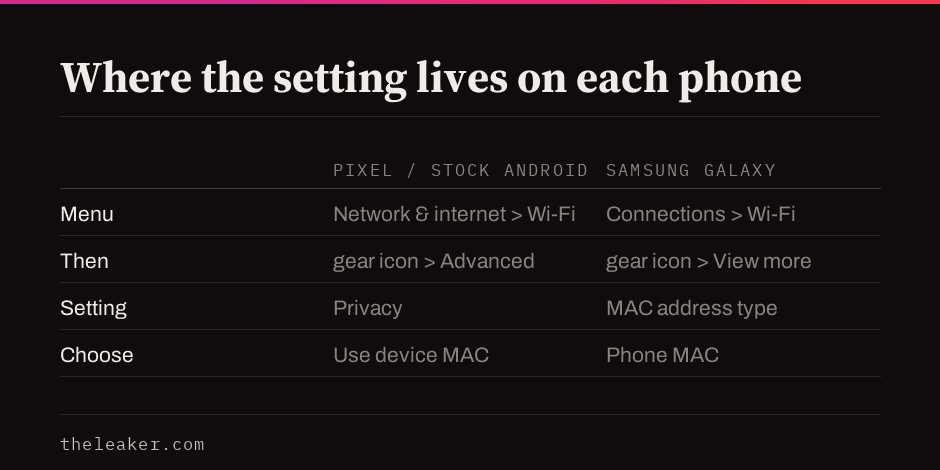
Samsung uses different wording for the same setting and hides it behind an extra tap, which is why guides written against stock Android send Galaxy owners in circles. Both paths are widely reported and consistent across sources, but neither Google nor Samsung documents this setting in their own consumer support pages, so menu names can move between releases. If the labels do not match your phone, look for anything named Privacy or MAC address type on the network’s detail screen.
Google does not document the setting at all. I checked its official Pixel Wi-Fi help page and it does not mention MAC addresses, randomisation or this setting anywhere, despite the setting being on by default and breaking real networks.
When you legitimately need the real address
University IT departments have ended up writing this guidance themselves. Utah Valley University’s knowledge base explains that randomisation improved privacy on public networks at the cost of having to register again on each new network, and instructs students to switch to the device MAC so they stay registered. Harrisburg University’s helpdesk publishes the same instruction with separate paths for stock Android and Samsung.
Home networking hits it too. Linksys publishes an article on changing the privacy or random MAC setting on Android, and Asus has one specifically about managing children’s devices when the addresses keep changing. If your parental controls are pinned to a device address, randomisation quietly defeats them.
Why the old terminal method stopped working
Guides from the 2010s, including the earlier version of this one, told you to install a terminal app and run ip link set wlan0 address with an address of your choosing. On a phone without root that does not work any more, and it has not for years.
The commands fail before they reach the network interface. A bug report against Termux, the terminal app most of those guides recommend, shows ip address returning “Cannot bind netlink socket: Permission denied” and ifconfig unable to open /proc/net/dev at all on Android 13. The reporter notes the same commands worked on Android 12.
The practical reason is that ordinary apps run in a sandbox that does not carry the privileges needed to reconfigure a network interface, and Android has tightened what that sandbox can reach with successive releases. I have not found a Google security document that spells this out for this specific command, so treat that as the observed explanation rather than a quoted policy.
With root it is still possible, with two caveats that matter. Wi-Fi drivers generally lock the address while the radio is up, so the interface has to come down first. And on Android 12 and later the system’s own randomisation can overwrite your setting when it associates with a network, which means a change that appears to succeed can silently revert. The MacDroid Magisk module documents both behaviours in its own troubleshooting notes.
What does not work
Two pieces of advice that circulate widely and should not.
Non-root MAC changer apps from the Play Store. They cannot do what the listing implies, for the sandbox reasons above. The ones that genuinely work say root is required.
ChameleMAC, which the previous version of this article recommended. I could not find it on Google Play, on F-Droid, or in any official repository. It survives only on third-party APK mirrors, which is a poor way to obtain an app that wants root access to your network stack. Retiring that recommendation outright.
What this will not fix
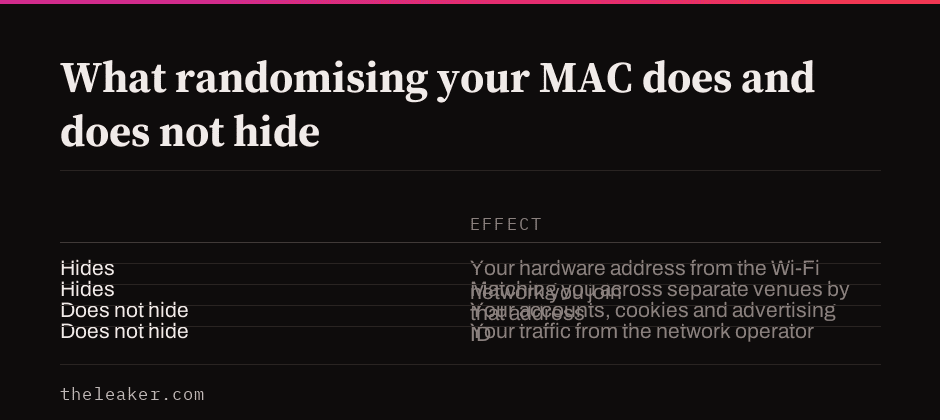
Changing or randomising your MAC address is a narrow privacy measure, and its limits are easy to overestimate.
- It does nothing about anything above the network layer. Your accounts, cookies, advertising ID and app telemetry identify you regardless.
- It does not hide your traffic from the network operator. They still see where you connect.
- It will not get you back onto a network that blocked you at the account level rather than the device level.
Frequently asked questions
Does turning randomisation off make me easier to track? On that specific network, yes, and that is the trade. The address is stable, so the operator can recognise the same phone across visits. This is why the setting is per-network rather than global: turn it off for the campus network that needs it, leave it on for the coffee shop.
Will a factory reset give me a new random address? Yes. The Android documentation notes the per-network address persists until a factory reset, so a reset regenerates it.
My phone shows a different MAC address than my router does. Which is right? Both. Your phone is showing the randomised address for that network and your router is showing what it received, so if they differ you are probably looking at the router’s record of an older address from before something changed.
Can I pick my own MAC address without root? No. There is no supported way to set an arbitrary address on stock Android, and there has not been for several releases.

Akshay Mhatre is a Tech Journalist who likes to keep up with the latest from the tech world. He has worked at many popular news portals like BGR and TechRadar before joining TheLeaker as a News writer and journalist. A writer by day and a VFX artist by night. In his free time, he also likes to make motion graphics and concept art. You can find him on Instagram @akshayrazr_95 and contact him on akshaymhatre[@]theleaker.com.